



Anticipated Release Date: July 7, 2026
Channels
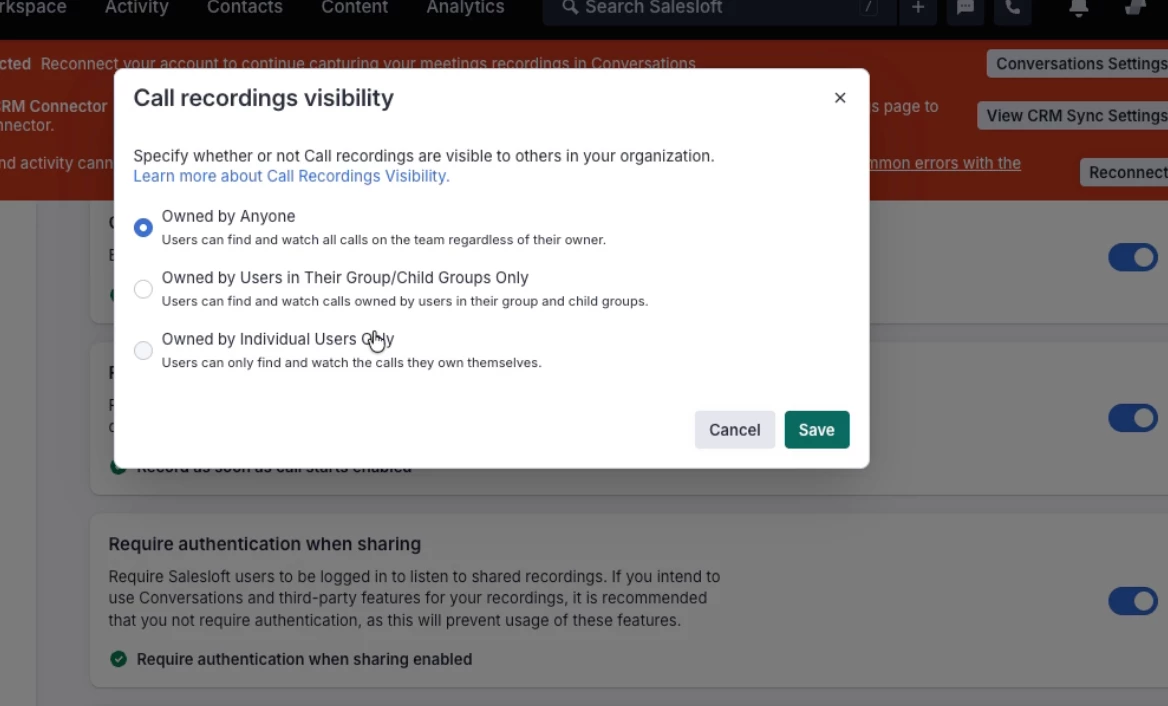
Call Recording Security Improvements
Admins can now control who within their organization can view call recordings. Three visibility tiers are available: the individual who made the call only, the recording owner and members of their assigned group and child groups, or the full team.
Who: Configuration requires a Salesloft Admin role. The Group/Child Groups tier requires users to be assigned to groups in Settings > Groups. The "Requires Authentication" toggle for Dialer Recordings must also be enabled before configuring visibility. The recording owner always retains access to their own recordings under all tiers. This setting applies to Dialer call recordings only — Conversations recordings are governed separately.
This release also introduces the the download recordings permission that allows or prevents users from downloading recordings in Salesloft. This permission is enabled for admins and users by default.
Where: Settings > Dialer > Call Recordings — "Call recordings visibility" section.
How: Navigate to Settings > Dialer > Call Recordings, enable "Requires Authentication," then scroll to "Call recordings visibility" and click Edit to select the appropriate tier. Changes apply immediately and retroactively to all recordings.
To learn more, see the Manage Team Dialer Settings.
Calendar Improvements to Non-Organizer Lofting
Lofting meetings organized by external clients now works when your personal calendar sync is turned off. Salesloft automatically populates the "Lofting To" field from the attendee list so you can sync the meeting to your CRM without errors or blank fields.
Who: Available to Salesloft users with a Google Calendar connection who loft external meetings. No configuration required.
Where: Inside Google Calendar, the Loft It button on calendar events organized by external attendees.
How: No setup required. When you click Loft It on an external meeting, Salesloft automatically matches the event to the correct contact. For recurring series, choose "This Event" or "All Events" when prompted.
To learn more, see the Loft a Google Calendar Invite.
Things to Note: "This and following events" is not available for externally organized series. You cannot edit the details of an external meeting invite through Salesloft.
Conversations
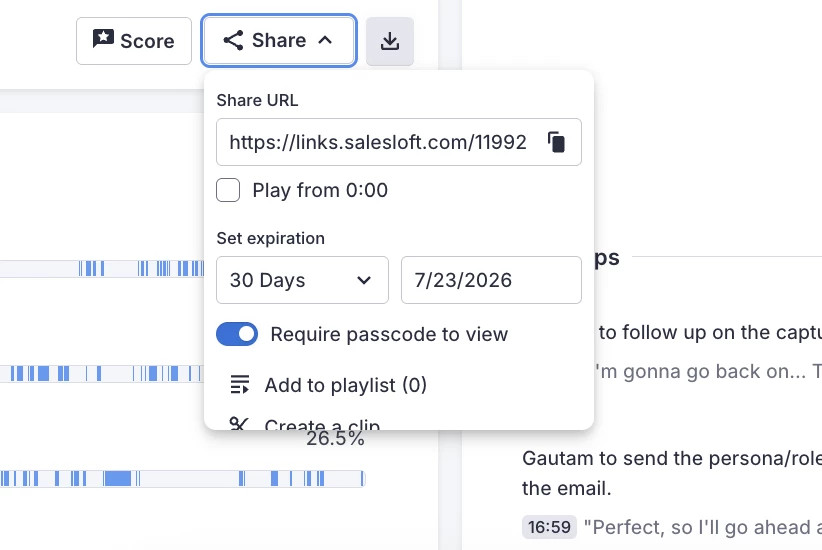
Sharing Links Enhancements
When sharing conversation recordings and clips via a public link, you can now choose whether to require a passcode. Recipients of a passcode-free link can view meeting details, the recording, and the AI-generated summary. The full searchable transcript is only available on passcode-protected links after the recipient authenticates.
Who: Available to all Salesloft users who share conversation recordings. The passcode toggle is on by default. Users must actively turn it off to share without one. Links generated before this release are unaffected.
Where: Share link generation dialog, accessible from the Navigator or Recordings page in Conversations.
How: When generating a sharing link, use the "Require passcode to view" toggle to enable or disable passcode protection. To change the passcode setting on an existing share, generate a new link.
To learn more, see the Share a Recording.
Salesloft Connect
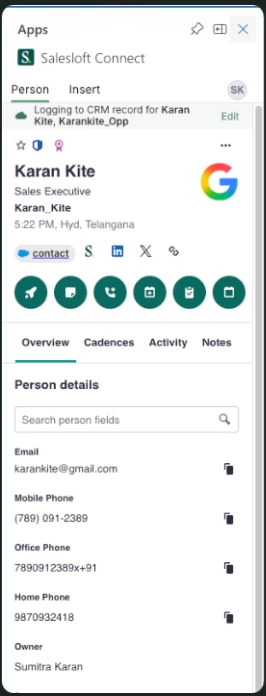
Person View Modernization
The Person record in the Salesloft Connect for Outlook sidepanel has been redesigned with an interactive Overview tab that supports inline field editing, social profile shortcuts, and deal context links, replacing the previous static Contact tab.
Who: Available to all users with the Salesloft Outlook Connect add-in. No additional configuration required. Field editability follows the permissions set in your Salesloft web app.
Where: Salesloft sidepanel in Microsoft Outlook — Person record view.
How: The updated Overview tab loads automatically when viewing a Person record in the Outlook sidepanel. Click any editable field to update it inline. Use the social icon row to open LinkedIn, CRM records, and other links in a new tab. Note: engagement stats have moved from the profile header to the Activity tab.
To learn more, see the Salesloft Connect for Outlook: Side Panel UI Reference.
Account View in Outlook
A dedicated Account view is now available inside the Salesloft Connect for Outlook sidepanel, giving you real-time company context, activity history, associated contacts, and open deals without leaving your inbox.
Who: Available to all users with the Salesloft Outlook Connect add-in. Requires "View Accounts" permission in your Salesloft profile.
Where: Salesloft sidepanel in Microsoft Outlook. Accessible by clicking an Account name from a Person record.
How: From any Person record in the Outlook sidepanel, click the Account name in the header to open the Account view. Use the Overview, Cadences, Notes, and Activity tabs to review context and take action.
To learn more, see the Salesloft Connect for Outlook: Side Panel UI Reference.
Create Tasks in Outlook: Account Record
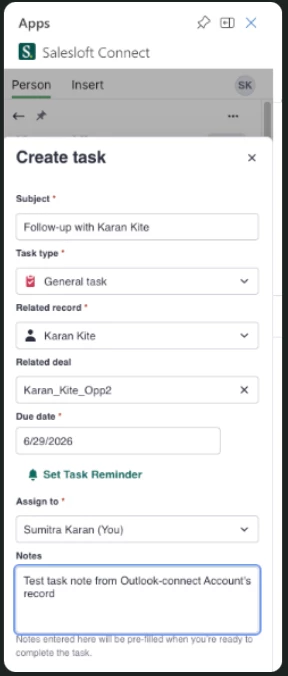
You can now create Salesloft tasks directly from Account and Opportunity records in the Connect for Outlook sidepanel. The task modal auto-fills the related record based on the active view.
Who: Available to all users with the Salesloft Outlook Connect add-in. No additional setup required. Task creation respects your existing Salesloft permissions, and tasks sync to your CRM automatically if activity sync is configured.
Where: Salesloft sidepanel in Microsoft Outlook from the Quick Actions menu on Account and Opportunity record views.
How: Open an Account or Opportunity record in the Salesloft Outlook sidepanel and click the Create Task icon in Quick Actions. Complete the task fields (subject, type, due date, assignee, notes) and save.
To learn more, see the Create a Task in Salesloft.
Clari
Ada Chatbot
The Ada chatbot is now available in Clari to provide in-app support. It delivers contextual help and guidance directly within the Clari interface, so you can get answers without leaving the platform or searching external documentation.
Who: Available to all Clari users. No setup required.
Where: Clari platform — accessible via the in-app chat interface.
How: Access the Ada chatbot directly within Clari for contextual help and guidance. See Clari support documentation.
Updated Clari Navigation Bar
Minor updates to the Clari navigation bar improve visual consistency and discoverability. The Studio icon has changed from a desk icon to a settings icon, the search bar is now rectangular, and module names highlight in grey on hover.
Who: Available to all Clari users. No action required.
Where: Clari platform navigation bar.
How: No setup required. The updated navigation bar is visible automatically upon login.

Salesforce Token Refresh
Clari now automatically rotates Salesforce refresh tokens that have been idle for 30 days, in compliance with Salesforce's updated security requirements for connected apps. Most users will not notice any disruption.
Who: Affects all Clari users with a Salesforce integration. No action is required for active users.
Where: Clari–Salesforce integration (backend enforcement — no UI change).
How: No setup required. If prompted to re-authenticate with Salesforce, follow the on-screen instructions to reconnect.
If you are an integration user who has not synced Salesforce data with Clari recently, in the last 30-days, or get disconnected automatically due to this update, please reconnect. Learn more in the Clari Support documentation.
Groove Scheduled Maintenance Window
Groove has a scheduled maintenance window on August 8, 2026. Groove may be unavailable or degraded during this period.
Who: Affects all Groove users.
Where: Groove platform.
When: August 8, 2026, 2:00 PM UTC – approximately 8:00 PM UTC.
How: No action required. Plan accordingly and avoid scheduling critical workflows during this window.
AI, Data, & CRM
Salesloft External Client Application (ECA) — Coming Next Month
Salesloft is introducing the External Client Application (ECA), a managed package available on the Salesforce AppExchange. Salesforce is deprecating the Connected App across all partners. To keep your integration working, you’ll need to install a replacement app.
What’s changing
- All customers will need to install the new ECA app from the Salesforce AppExchange and reconnect to Salesloft. This will be available in the next few weeks.
Migration timeline
- Right now: Notify your IT team that this change is coming to prepare to migrate.
- In the next few weeks: Your admin will receive an email when the ECA is ready to install. At that point, they will need to:
- Install the new External Client Application from the Salesforce AppExchange.
- Uninstall the legacy Connected App.
- After the switch: All Salesloft users will be prompted to re-authenticate.
What will NOT be affected
- There will be no disruption to activity logging or deal sync during the transition.
- Users will not have a disruption with their connection from Salesforce to Salesloft.
Questions?
- Reach out to your Customer Success Manager with any questions.