




Can I see my rep’s, manager's, or team's starred deals?

  • June 22, 2023
  • 8 replies
  • 162 views

Kenna
Community Manager
Forum|alt.badge.img+18

Deals are starred at the level of the individual user experience. While you cannot see another user’s starred deals, some customers add a checkbox to the opportunity object called “Forecast In” or “Path” to identify which deals they consider in their path to their forecasted number. 


To implement this, the lift isn't super heavy or too technical. You simply need to educate your teams on the field, and enforce usage of the field.


Admins can set this up in Clari by following the (high level) steps below:

1. Create a checkbox field on the opportunity object in Salesforce. We've seen customers name it things like Forecast In, In the Path, Key Deal, or even Starred.


2. Add the checkbox field to the following layouts and modules using your Field Config module in Clari Studios:

  • The Opportunity Grid layout (tip: put the field with pretty high priority in your field ordering to ensure that reps can clearly see it without having to scroll)
  • The Opportunity Filterable layout (for filtering capabilities in your Opportunity Saved Views)
  • The Forecasting Expanded View layout (so you can review and update the field as needed during forecast calls)
  • The Analytics Filterable layout (for filtering capabilities in the analytics modules)

8 replies

Forum|alt.badge.img
  • New Contributor
  • May 2, 2025

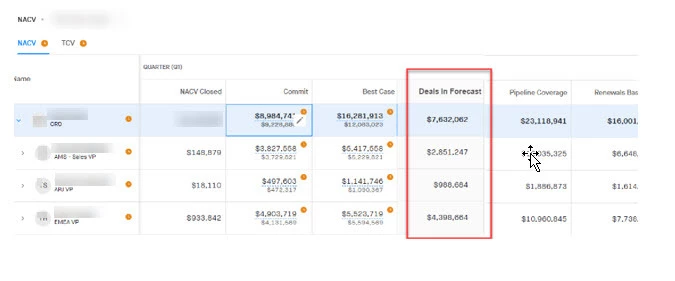
@Kenna  We’ve created this “In Forecast” checkbox field in Salesforce Opportunity Object and I’ve added it to Clari. My team would like an “In Forecast” Column added with will total up the NACV of the Opportunities that are checked TRUE. How would I do that? See image as example. I would appreciate your insight!


Kenna
Community Manager
Forum|alt.badge.img+18
  • Author
  • Community Manager
  • May 5, 2025

Hi, ​@Barinda Zarn! You should be able to accomplish this by adding a read-only column to your Forecast Tab from Forecast Configuration in Clari Studio.

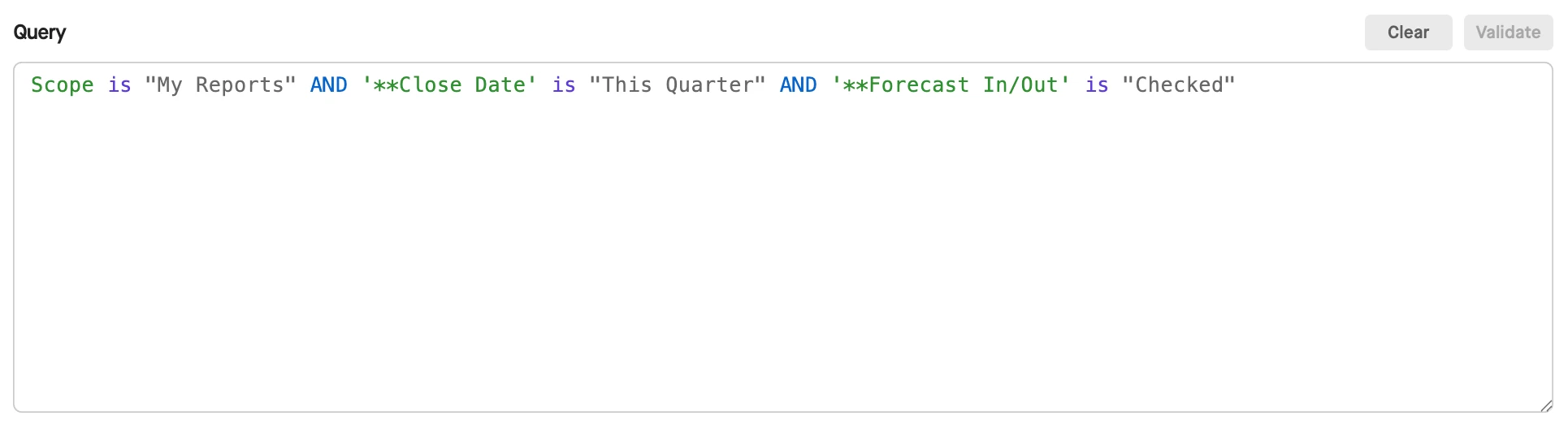
You’ll want to add a Read-Only column that aggregates on your amount field for the NACV. Then you’ll need to build your query. If you haven’t done that before, don’t worry — our Forecast Column Queries course in Clari University will walk you through it. There are just some basic rules to query building, which you can also learn more about in our knowledge base article (just in case you need to refer to the details).

Here’s an example of one that yours might look similar to. Make sure you include your In Forecast check box! Just start typing in the field name if the field has already been added to Clari — a dropdown will appear to help you search for it. Once you select the field, a dropdown will appear to help you select the operate (e.g. “is”) and the value (e.g. “TRUE” or “Checked”).


Forum|alt.badge.img+1
  • New Contributor
  • August 4, 2025

@Kenna 

We have Path to Commit & Path to Most Likely checkbox fields in SFDC but our HQ team decided not to create a new checkbox for “Path to Upside” or “In Forecast” field in SFDC. At the regional level, we still want to identify and track the “Upside” deals for weekly reviews and QBR prep. We’re looking for lightweight workarounds—ideally something we can manage within Clari without needing a new Salesforce field.


Do you know if there’s any effective way to do this? What’s worked well for you when system limitations prevent formal categorization? Thank you.


Kenna
Community Manager
Forum|alt.badge.img+18
  • Author
  • Community Manager
  • August 8, 2025

Hi, ​@Janice Yeung!

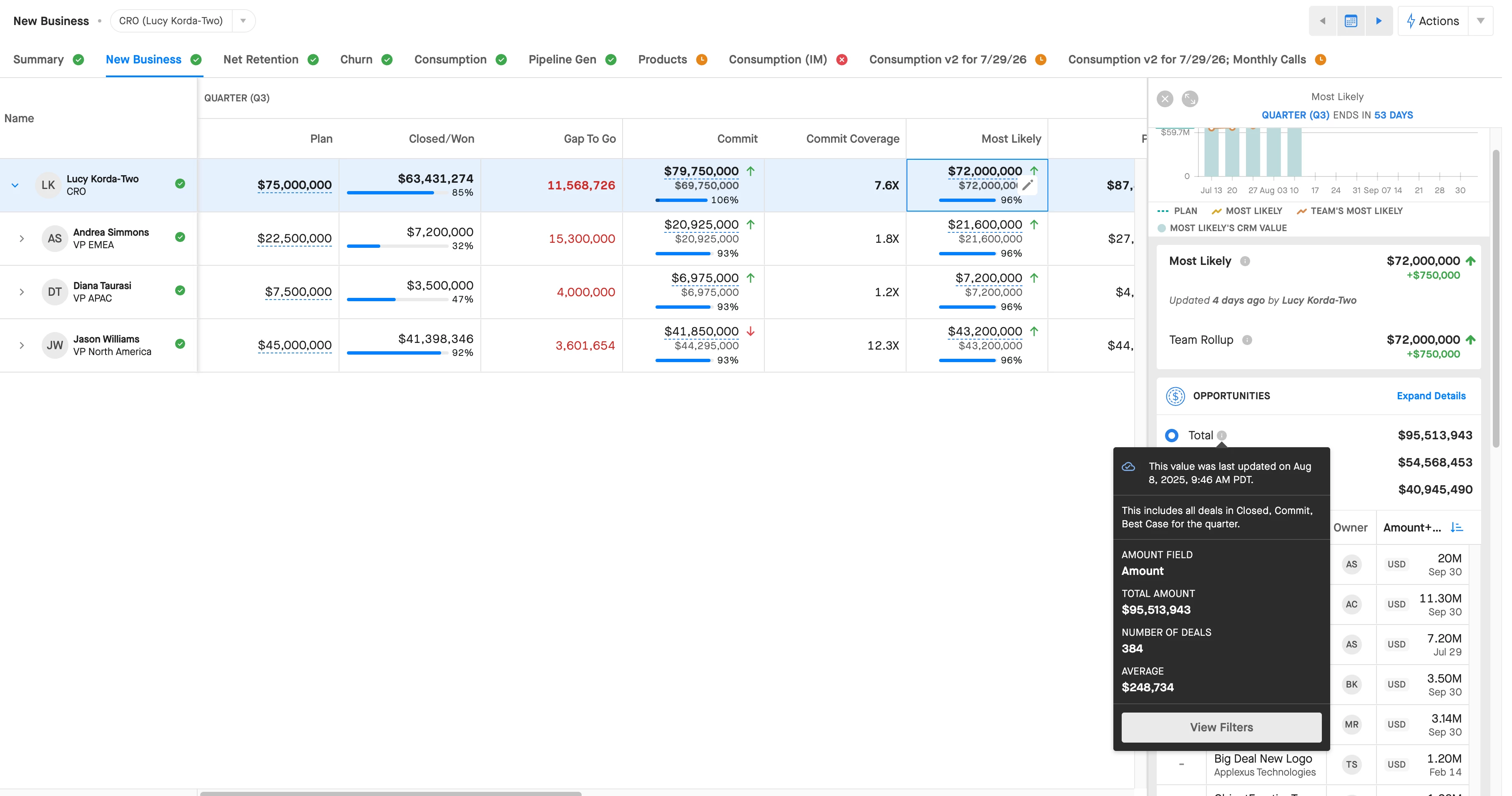
One way to look at your path to Upside that is already built into the Forecast is to click on the Upside forecast column, and then review the Opportunities in the right-side panel. As you can see in the example below, the opportunities that are included will dynamically update based on the forecast call that you choose. In this example, it’s Most Likely so it includes Commit + Most Likely deals, but if you were to select Upside, it would aggregate Commit + Most Likely + Upside so you could review the deals that represent your path to that Upside number.


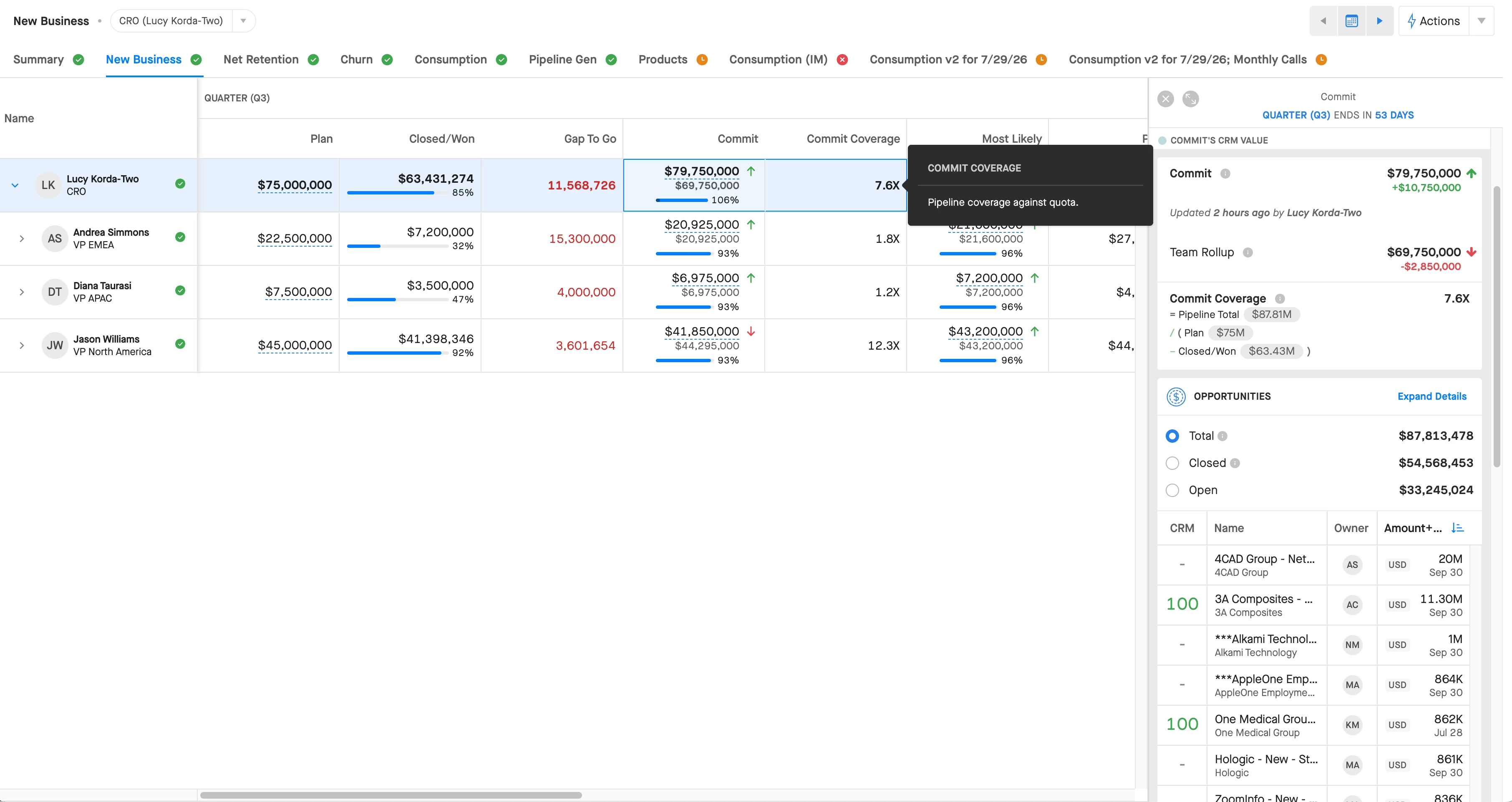
The calculation column I gave an example of above is also pretty flexible. You can use any of the fields that are also available in the Opportunity Filterable layout from the associated Mode, which means if you can add it as a filter to a Opportunity View in the Mode, then you can use it as a filter in your query in the forecast column. Additionally, the panel on the right will show you the deals that match your query that are being used to calculate the metric that you see in the calculation column. In the example below, we’re looking at commit coverage and can see all of the deals that match the associated query, but you could do this with Upside instead as well as any other filters that make sense for your team:


 This might be a good way to help your team analyze your path to the upside forecast call without needing a deal-level checkbox!


Forum|alt.badge.img+1
  • New Contributor
  • August 11, 2025

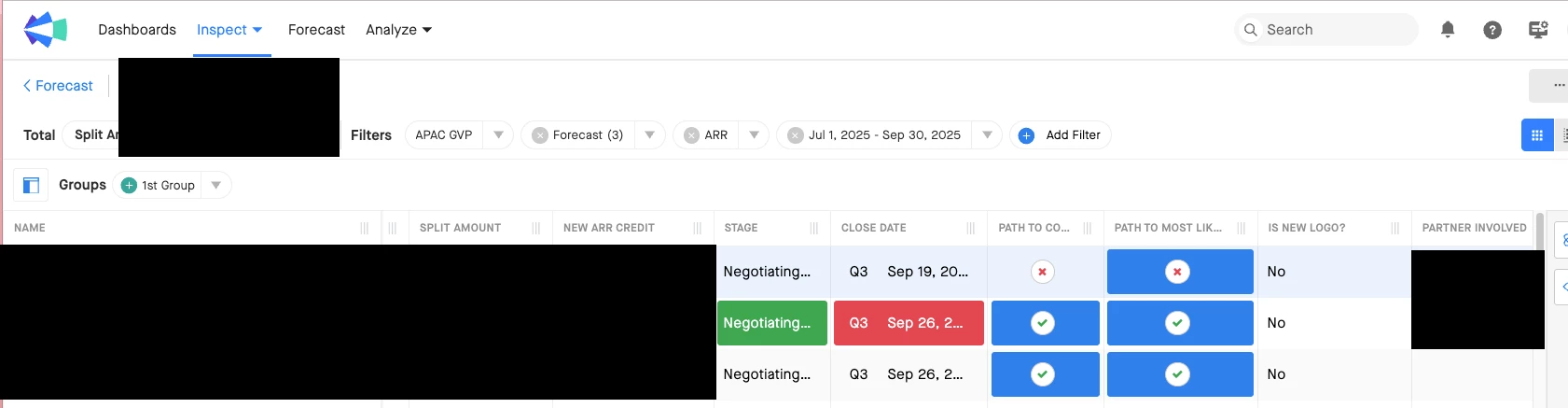
@Kenna Thank you for your reply. Your comment is one option. What if not all upside deals are included in the GVP’s Upside forecast but he includes 1-2 deals in his upside and he wanted to tick those deals like how we’ve done for Path to Commit and Path to Most Likely. Is there any way to do it? We wanted to add a checkbox column next to the Path to Most Likely on the opportunity view (see attached photo). Thanks.


Kenna
Community Manager
Forum|alt.badge.img+18
  • Author
  • Community Manager
  • August 13, 2025

Hi, ​@Janice Yeung ! After looking into this a little bit more, I think I can probably make two possible recommendations, keeping in mind that our best practice would be to keep the processes consistent — but, if it’s not an option to add a checkbox field to CRM, you could try:


  1. Using Starred Deals.

Your GVP could star the deals that they consider their Path to Upside to get an aggregate total amount for those deals, and then add that to their Commit number for a total for Upside. Starred Deals are specific to the individual, but this would provide the GVP with a quick way to reference the deals they consider path to upside, and calculate the total amount of those deals.
 

  1. Using Notes.

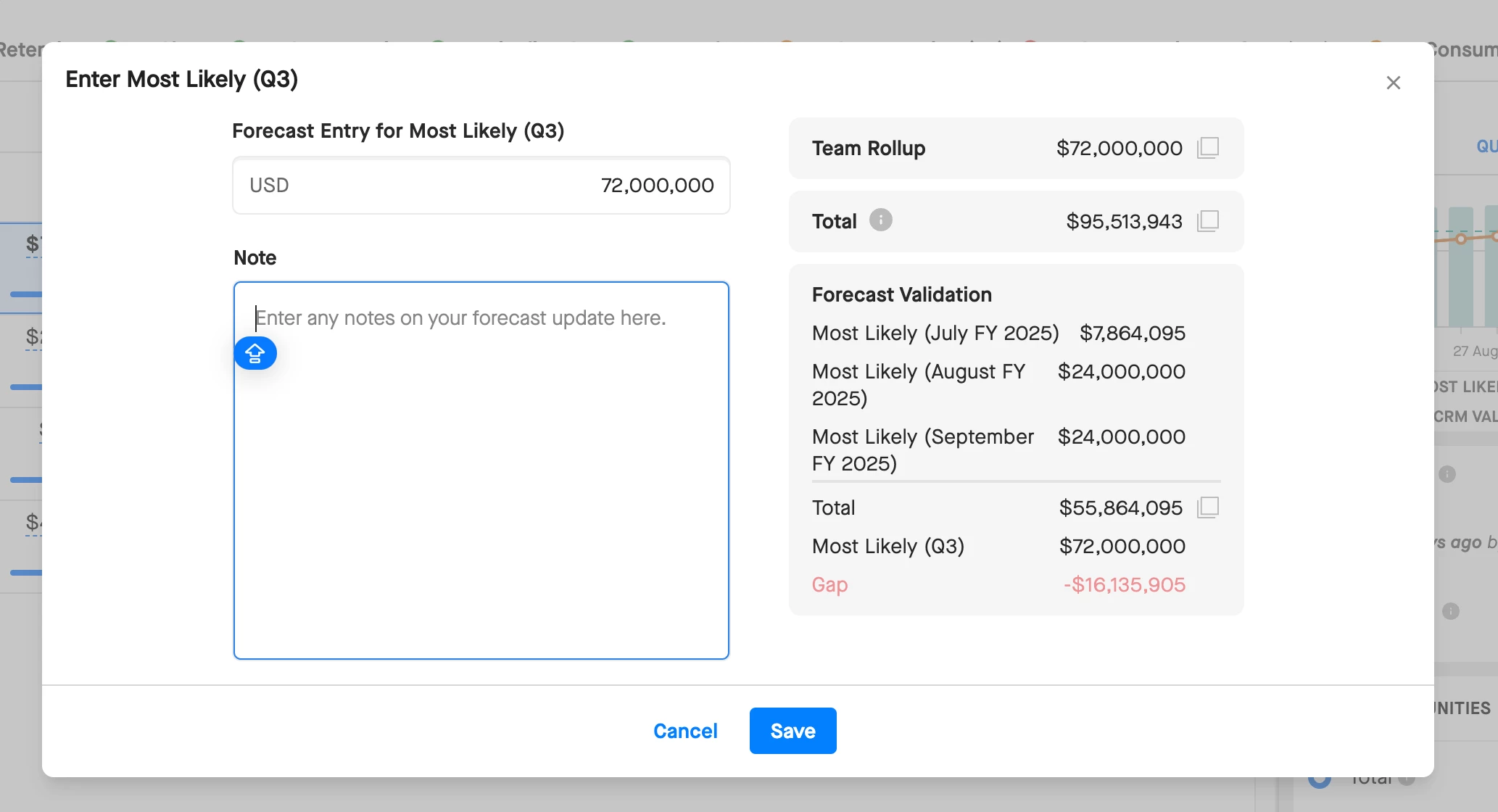
Your GVP could make note of the deals that they consider their Path to Upside (and their amount) in the Notes when they enter their Upside forecast call. Your GVP and anyone they roll up to in your hierarchy can see these notes, so it’s a simple way to communicate which deals are informing the Upside number.


Forum|alt.badge.img+1
  • New Contributor
  • August 14, 2025

@kenna

It looks like starred deals are tied to individual user views, which means we can’t see each other’s starred opportunities. Is there a way for GVPs or RVPs to create a shared “Starred Opportunities” view so the team can have visibility across all upside deals?

Also, would it be possible to add a “Starred” or “Is Starred” filter to the Opportunity Grid? That would really help with tracking.

Thank you very much!


Kenna
Community Manager
Forum|alt.badge.img+18
  • Author
  • Community Manager
  • August 14, 2025

Hi, ​@Janice Yeung — While Starred Views are only at the individual user level today, you can share your use case and feedback here with our product team by sharing an idea in the community! This will give you visibility into where your idea sits in our product roadmap review and development processes.