




Filters help teams and users find the right calls quickly from extensive call libraries. Whether you're analyzing team performance, setting up organizational insights, or seeking specific conversations, filters enable precise navigation through your recordings.
Copilot filtering uses OR conditions when multiple filters are selected - the system returns calls matching ANY of the selected criteria.
📊 Filter Categories & Options
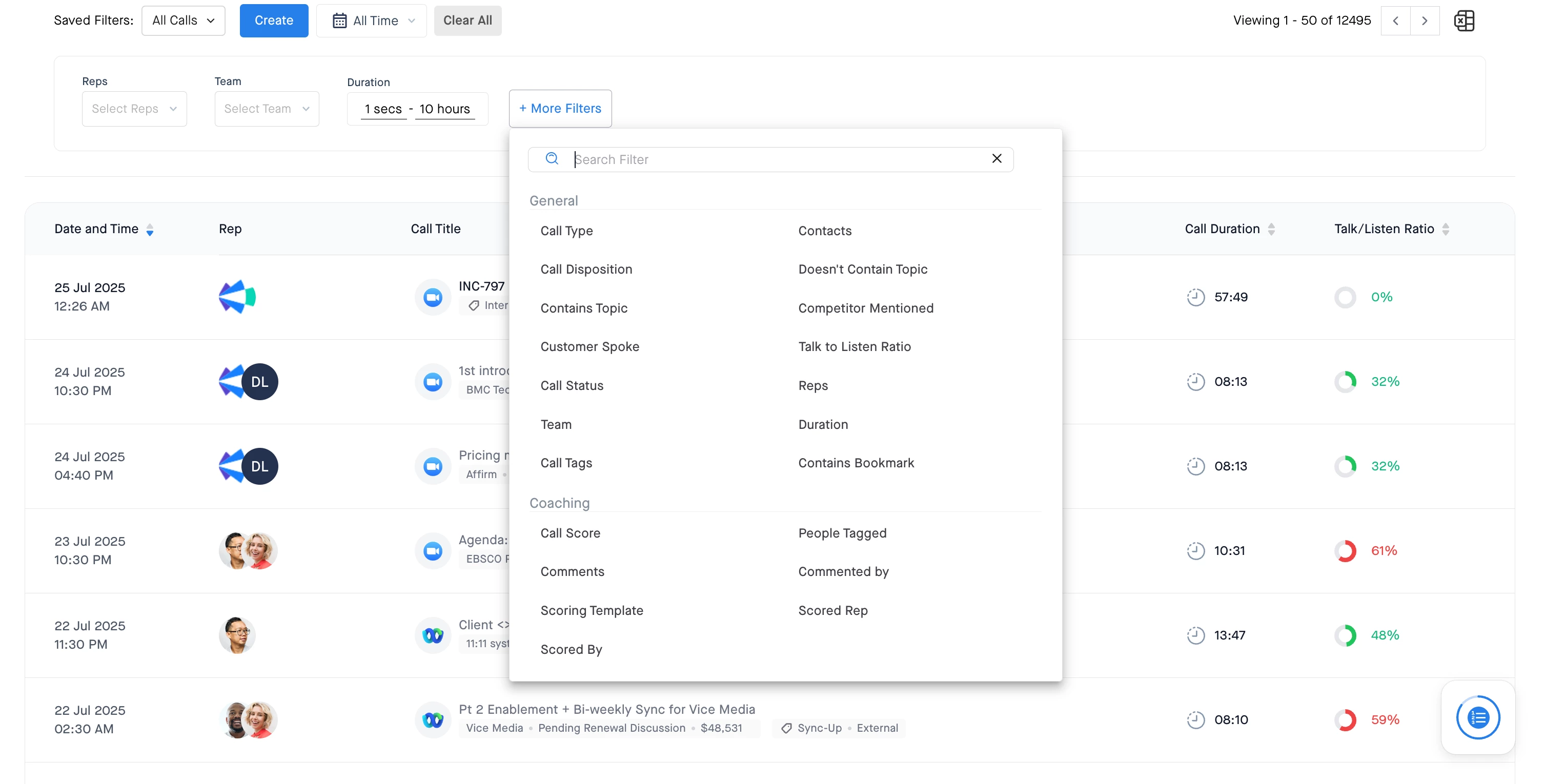
GENERAL FILTERS
| Filter Name | Description |
| Call Type | The tool that hosted the call recording (Zoom, MS Teams, Groove, RingCentral) |
| Contacts | Search-based field pulling from Salesforce Opportunities |
| Call Disposition | Filter calls made with prospects or other disposition statuses |
| Contains Topic | Select specific Topics to filter for (Admins add topics via Workspace Settings) |
| Doesn't Contain Topic | Calls that do not contain specific Topics |
| Competitor Mentioned | Pulls from the "Competitors" topic (Configure competitor names in Topic Settings) |
| Customer Spoke | Whether the customer participated verbally |
| Competitor Sentiment | AI-generated sentiment for competitor mentions (positive/negative) |
| Talk to Listen Ratio | Range for Talk to Listen ratio (Tracks Primary Rep - user who spoke most) |
| Call Status | Processed calls and speech detection status |
| Reps | Calls including specific internal users |
| Team | Calls including users under specific managers |
| Duration | Range for total call length |
| Call Tags | Auto-tags (internal/external) and manual tags. Learn more about Call Tags |
| Contains Bookmark | Bookmarks added during or after calls |
Note: Primary Rep is the internal user who spoke most in the call. Copilot provides call-level metrics for the primary rep including Talk to Listen ratio, interactivity, and engagement indicators.
COACHING FILTERS
| Filter Name | Description |
| Call Score | Calls with scores for specific skills and ranges |
| People Tagged | Calls where selected users are tagged in comments |
| Comments | Search keywords within call comments |
| Commented By | Filter by user who commented |
| Scoring Template | Calls scored using specific templates |
| Scored Rep | Calls scored for specific internal users |
| Scored By | Calls scored by specific internal users |
SEARCH FILTERS
| Filter Name | Description |
| Transcript | Keywords within call recording transcripts |
| Meeting Title | Call recording title from meeting invites |
CRM FILTERS
| Filter Name | Description |
| Current Deal Stage | Current deal stage for associated opportunity |
| Deal Stage At Call Time | Deal stage when call was recorded |
| Custom CRM Fields | Additional imported CRM fields. Varies by CRM integration setup (read more in the linked Community Post) |
DIALER FILTERS
| Filter Name | Description |
| Call Disposition From Dialer | Disposition status from dialer [Only for Outreach] (connected, no answer, etc.) |
🛠️ Creating and Managing Filters
Basic Filter Creation
- Navigate to your Team Call section
- Click on “+ more filters”
- Select filter category and criteria
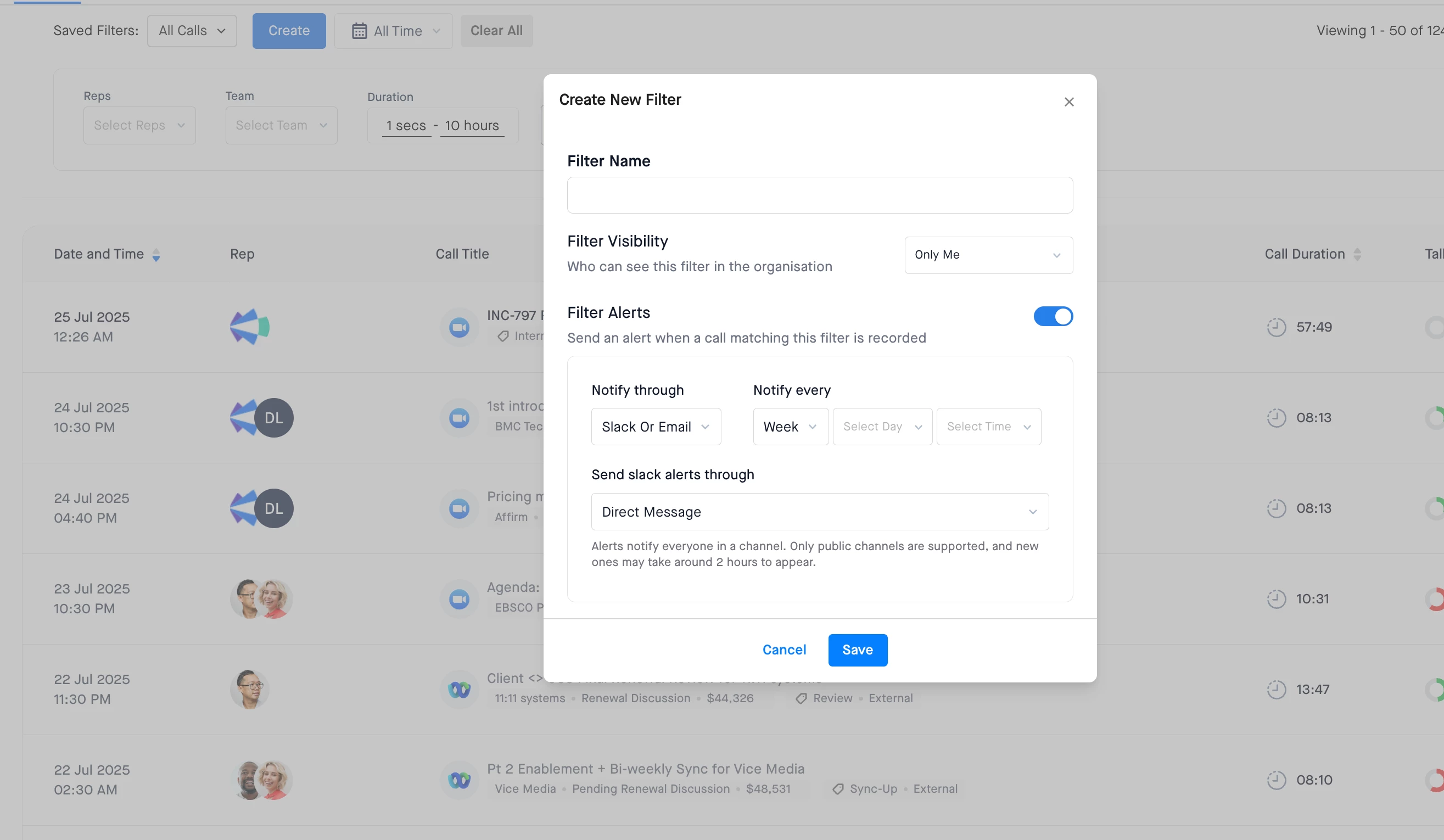
- Click on Create → Enter a filter name
- Set up notifications (optional) via Slack, MS Teams, or email [Learn more about the alerts here, applies for MSTeams too]
Shared Filters
Permissions: Enable 'Shared Filters Creation' in Workspace Settings → Roles & Permissions

Creation Process:
- Create filter with organizational criteria
- Set visibility (Private/Specific Teams/All Users)
- Configure alerts for users with filter access
👥 Use Cases by Role
Managers/Admins/Operations:
- Create team-specific filters for visibility
- Set up organizational alerts
- Monitor performance across teams
Individual Users:
- Customize alert settings for shared filters
- Subscribe/unsubscribe from filters
- Create personal productivity filters
🔗 Filter Access & Sharing
- Access: Shared filters dropdown shows admin-created and personal filters
- Alert Customization: Use bell icon in filters
- Sharing: Copy filter URL to share with colleagues
💡 Best Practices
- Leverage OR Logic: Multiple filters create broader results
- Regular Review: Keep filters relevant and updated
- Team Collaboration: Share effective filters across teams
- Combine with Topics: Use alongside Smart Topics for comprehensive analysis