




1. When you want to find your Saved Views in Clari, use the Views drop-down in the Opportunities Module.
Note: This example is about Saved Views in Opportunities. To learn to use Saved Views in the Analytics or Accounts Modules, check out this article in our Knowledge Base.
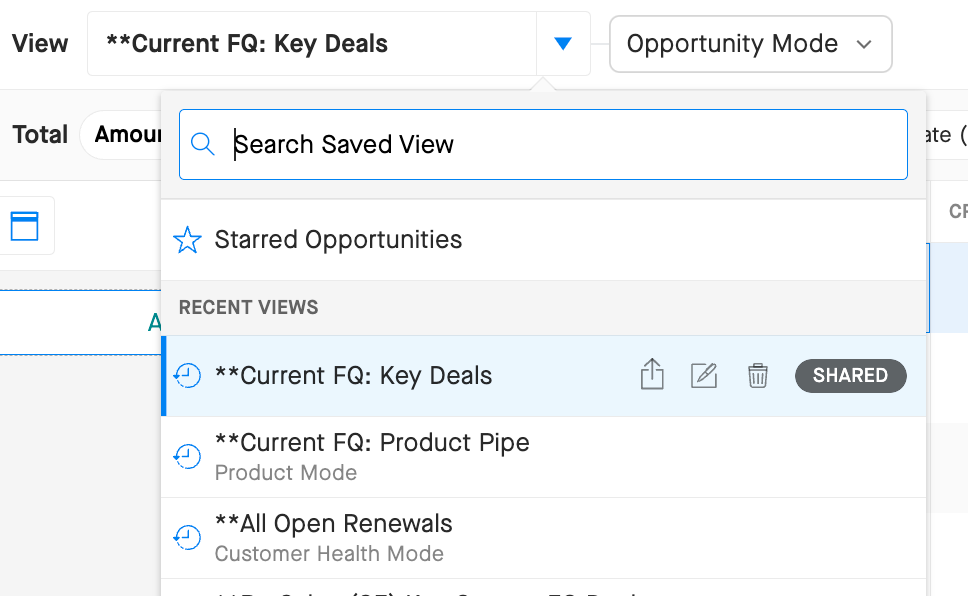
Want to share a Saved View?
To share a Saved View in Opportunities: Click Actions > Share Saved View
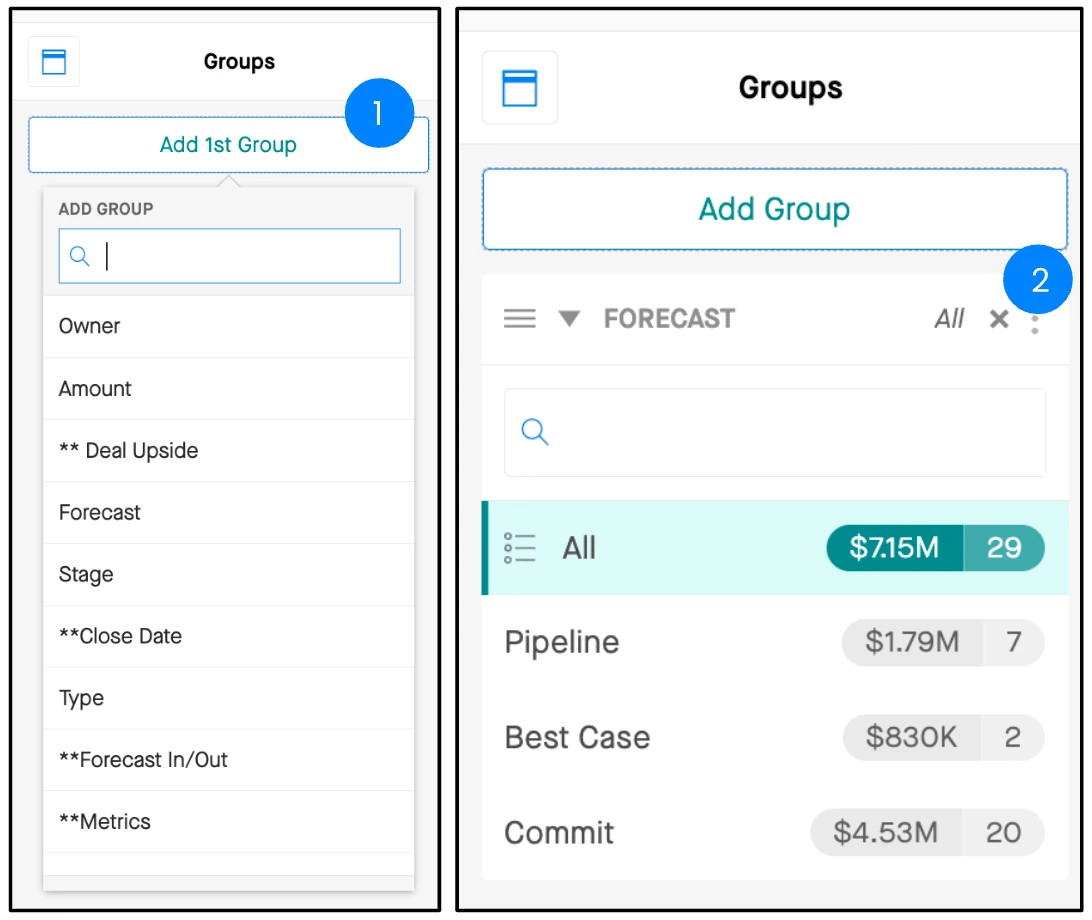
2. Use Groups to inspect your book of business from different angles. Click the Add Group button to select your groups (you can apply up to 4 at any given time). To remove a Group, click X.
-
How are you deals distributed across your different forecast categories or stages? Does that distribution align with where you’re at in the quarter?
-
Are there any deals with discrepancies between their forecast category and stage (i.e. a late stage deal in Best Case that you might move to Commit)?
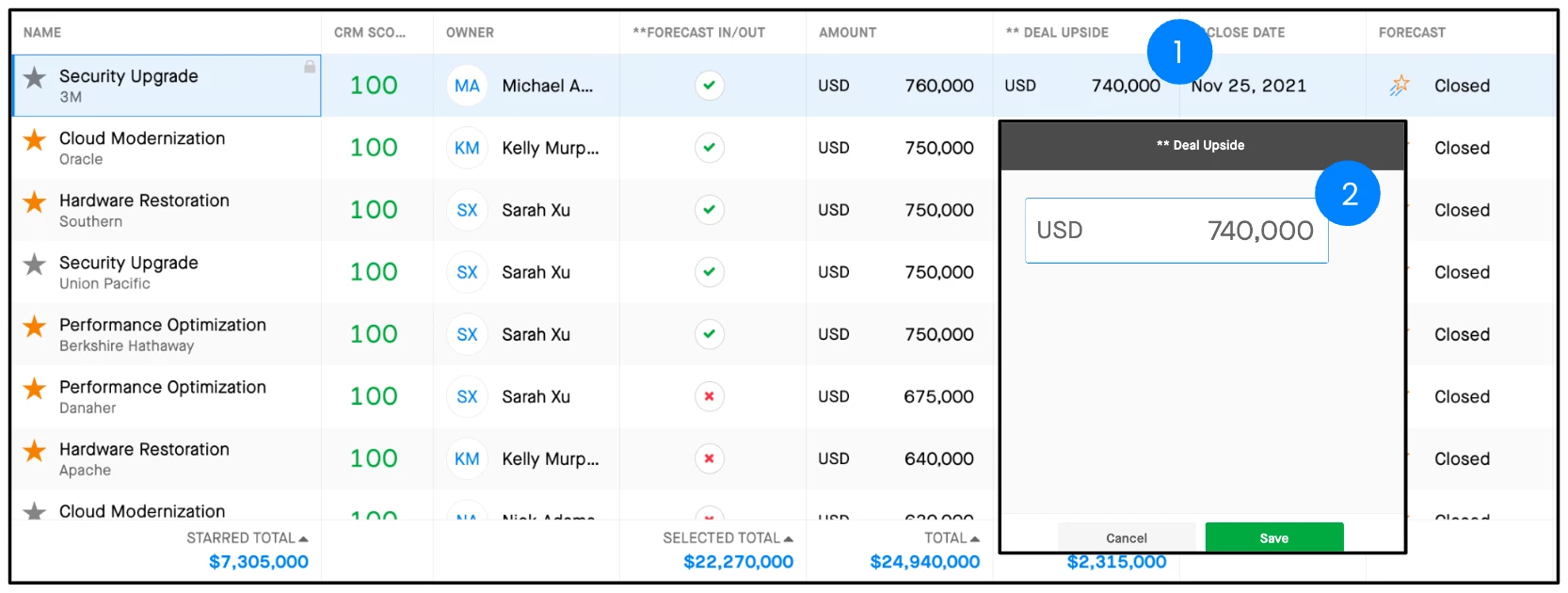
3. Double-click any field to update your deals in Opportunities. The changes you make will reflect in your CRM in real time.
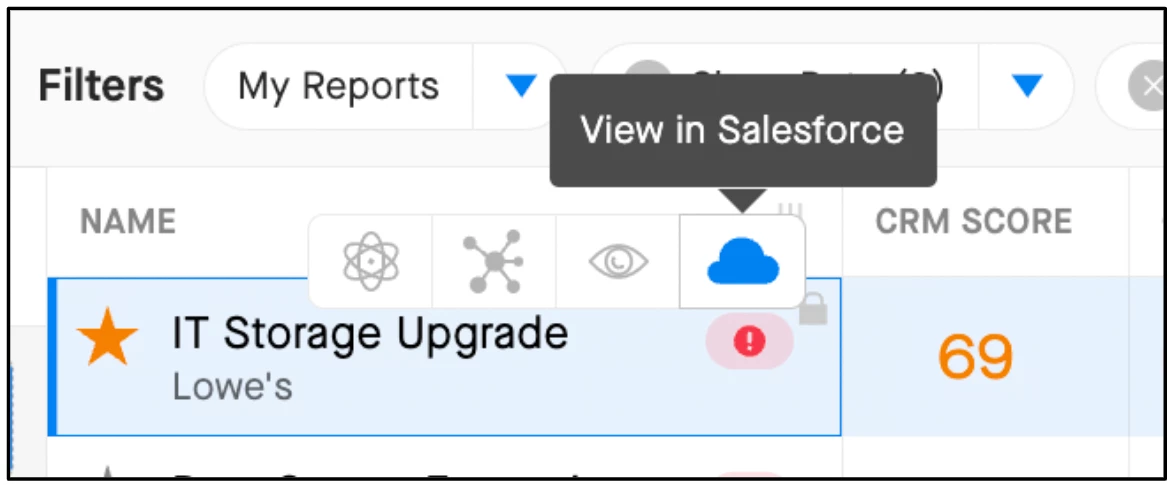
4. Use the shortcut to Salesforce if you need to. Hover over the opportunity name in Opportunities and click the Salesforce icon to navigate to your CRM.
5. Click Actions > Configure Columns to adjust which columns you see in Opportunities, and to change their order.
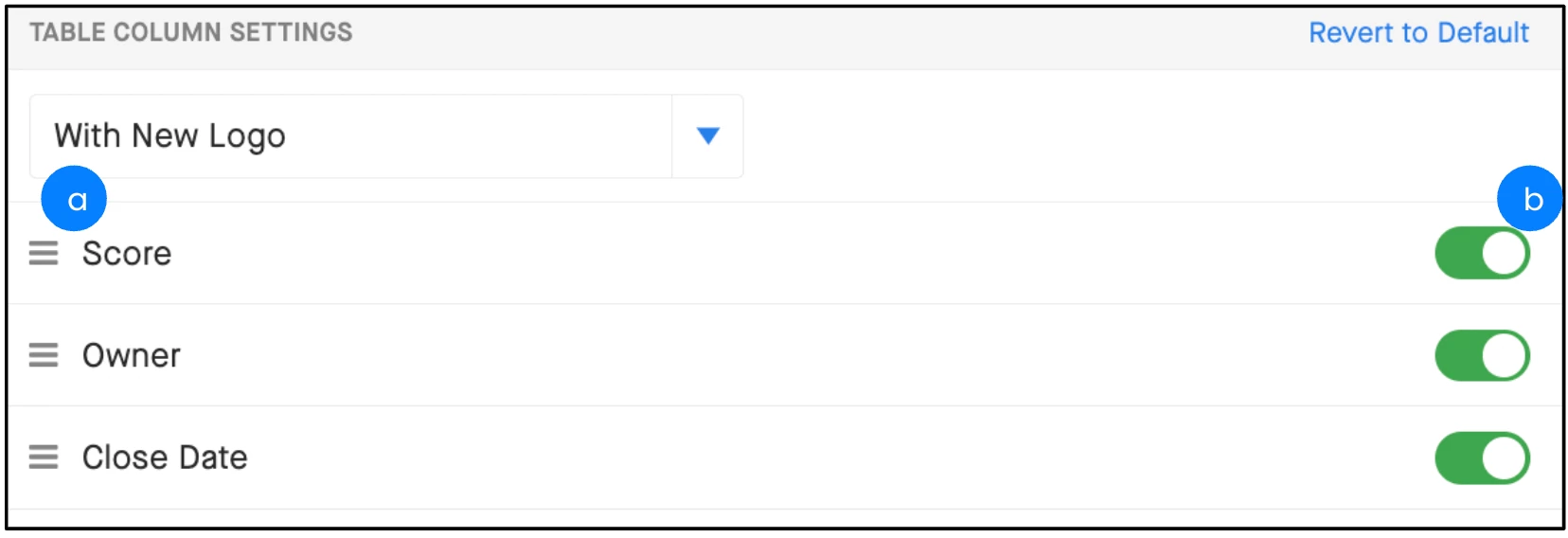
b. Click and hold to drag and drop columns in the order you want.
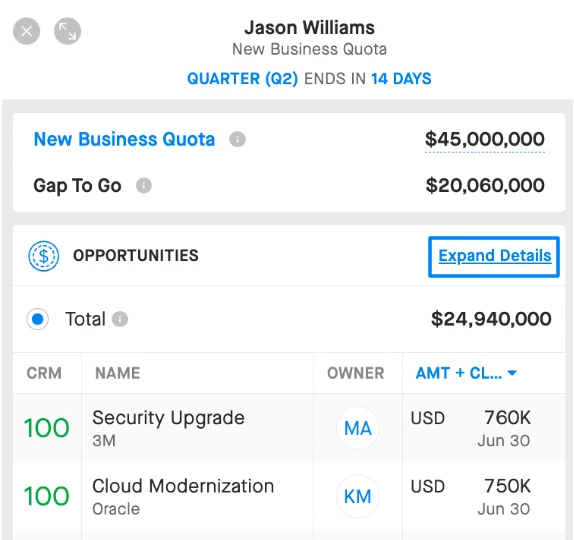
6. Open Expanded View in the Forecast Module to inspect your path to your number.
Expanded view will open the Opportunity Grid filtered according to the forecast you are viewing. This can help you articulate your path to the number you are calling, and highlight areas of risk if any of the deals you’ve got in commit, for example, aren’t progressing as expected.
7. Use search in Clari Mobile to find deals or contacts while you're on the go.
Clari aggregates data from CRM and your own contacts, so you might find a phone number if you don’t have it stored locally!
Clari Mobile
Definitely download Clari Mobile if you haven't. 📱
Use the nav at the bottom to move through Clari Modules or to search for opportunities:

Keep Your Deals Updated
The easiest way to update your deals is to go to Forecast > tap the Forecast Tab you want to update > Submit Forecast (at the bottom) and follow the prompts.
You can also update your deals like this:
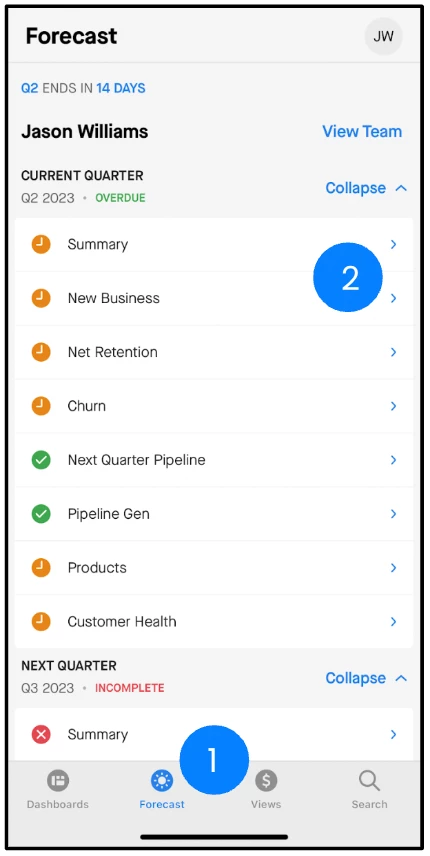
1. Tap Forecast.
2. Tap the type of deals you want to see.
3. Tap the number you want to update. Update the number, add notes, and Save.
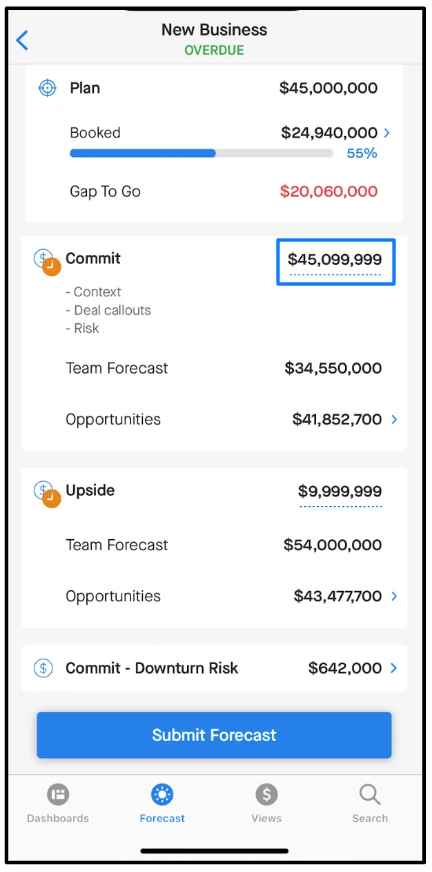
- Don’t forget to tap Submit Forecast when you’re done updating your numbers.