




This article provides best practices for uploading recorded calls to Copilot and manually inviting Copilot to your meetings, ensuring you capture important insights even when Copilot isn't automatically present.
Let’s dive deeper into the usecases…
1. Upload a recording onto Copilot:
Missed adding Copilot to a recorded call? Don’t worry, you always have the option to upload it to Copilot and get the required insights. Here’s how👇
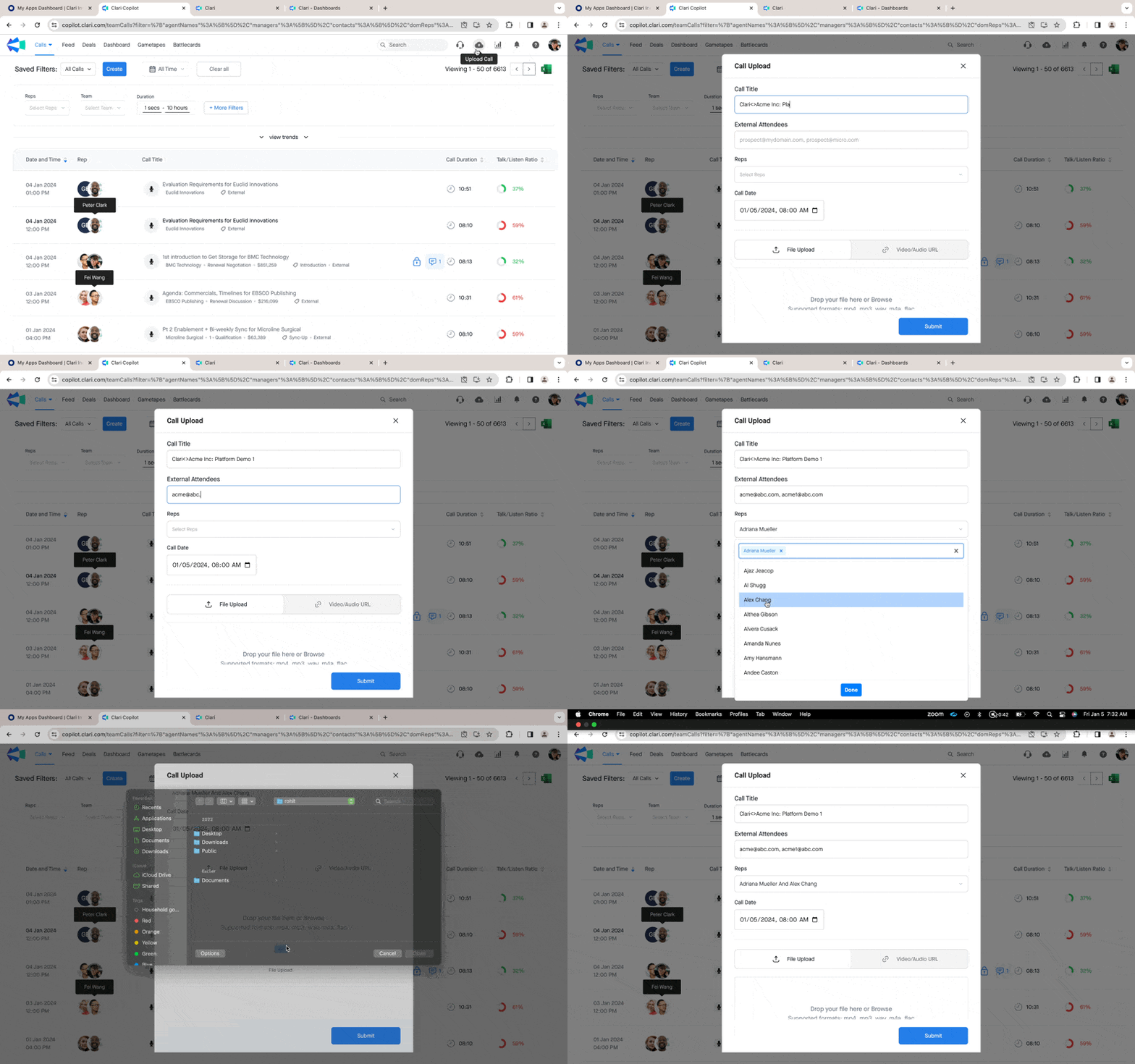
Some best practices to keep in mind while uploading:
- Make sure to give your call a title that makes it easy for you to recognize with whom this meeting was and about what (e.g. Clari <> Acme Inc: Platform Demo 1)
- Fill in the emails of all the external attendees- this is important as using that email Copilot will tag the meeting to the right opportunity and account. This way you can see all your conversations with an account in one place
- Under reps- select yourself or other internal team members who joined the call
- Make sure the call recording file is in either of these format: mp4, mp3, wav, m4a, flac
Note: Uploaded calls will appear on the call list page with a microphone icon. You can also easily filter for uploaded calls- here’s how
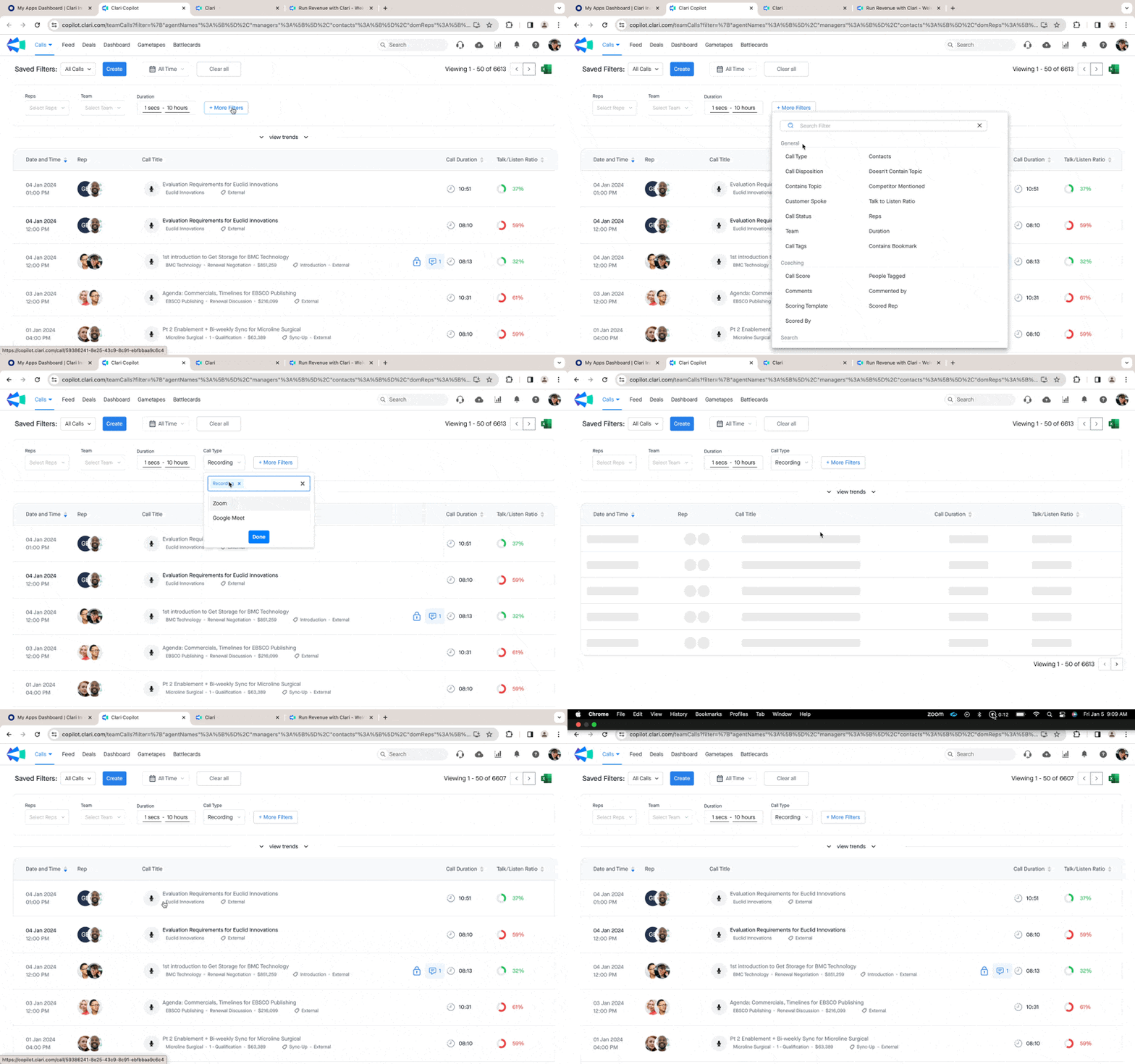
So, if you have any calls that you couldn’t record on Copilot and need insights on, make sure to upload them 🙂
2. Manually inviting the Copilot Bot to a meeting:
Now, let’s talk about how you can invite Copilot to any of your internal or ad hoc meetings that are not on the calendar (Note: If your calendar is synced, Copilot automatically joins all of your external meetings). Here’s how you can manually invite Copilot from the app
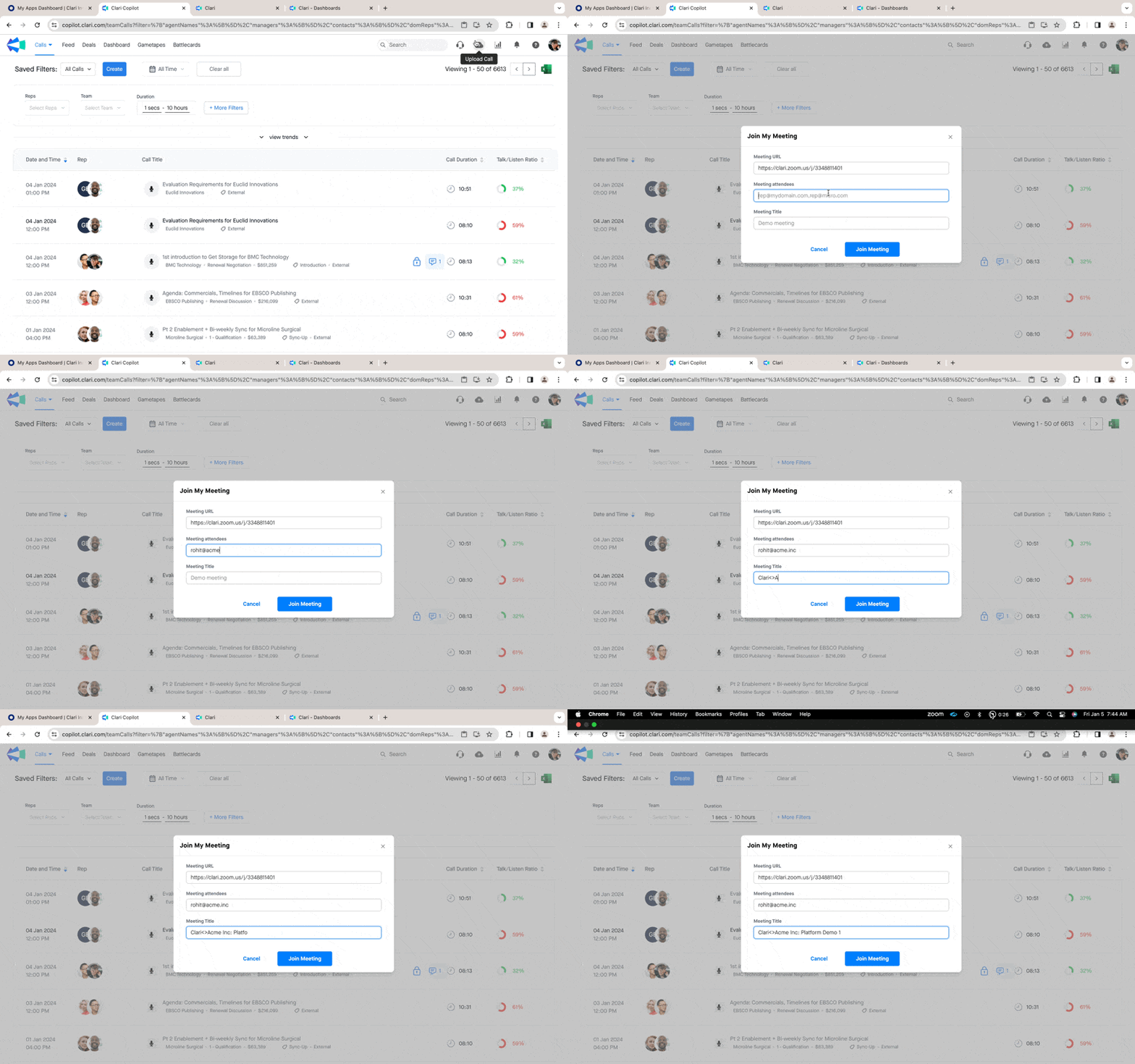
Note: After hitting Join Meeting, give it a minute or two to have Copilot on
Some best practices to keep in mind while manually inviting Copilot:
- Enter the meeting URL- it could be a Zoom or a G-meet or a MS Teams link
- Meeting attendees- make sure to add the email of at least one attendee (internal or external) to ensure that Copilot is able to attribute the call to the right account or opportunity
- Ensure to add a meeting title- something that will help you recognize this meeting from others. Otherwise, by default Copilot will pick up a name like, “My Zoom meeting 1” or “My Google Meet meeting” and over time as you have a bunch of these meetings it will get really difficult for you to identify such meetings.
Important Note on Consent for Manually Invited Meetings: When you manually invite the bot to a meeting by entering the video conferencing link, a consent page will not be displayed. In these situations, you must rely on the audio announcement made by the video conferencing platform (such as Zoom) or personally inform attendees that the call is being recorded.
Hope this helps.
--
Rohit Agarwal- Sr. Customer Success Manager