




Release Date: August 7, 2024
Please note the release date above. Your partnership in the evolution of the leading revenue platform is important to us, so we want to bring you the latest product updates as soon as we possibly can! The features described below are currently scheduled to release so that you can find them in Groove when you log in on the date above.
It’s easier than ever to create, update, and manage flows at scale in Groove. We’re making some changes to simplify your experience when you manage Groove Flows, including updates to:
-
Created Date
-
Last Updated Date
-
New Filters
-
New Sorting
-
Show flow status on the Flow card
-
Favoriting Flows in Webapp
-
Favoriting Flows in Extension
-
Context menu (copy, preview, share) on Flow card
-
New button bar on the flow show page
-
General Preferences moved to Settings
Updated Flow Card
- The Flow Status will display on the Flow Card as well as Created Date and Last Updated Date
- Created Date: The date the flow was created
- Last Updated Date: The last date that the flow details or flow steps were edited

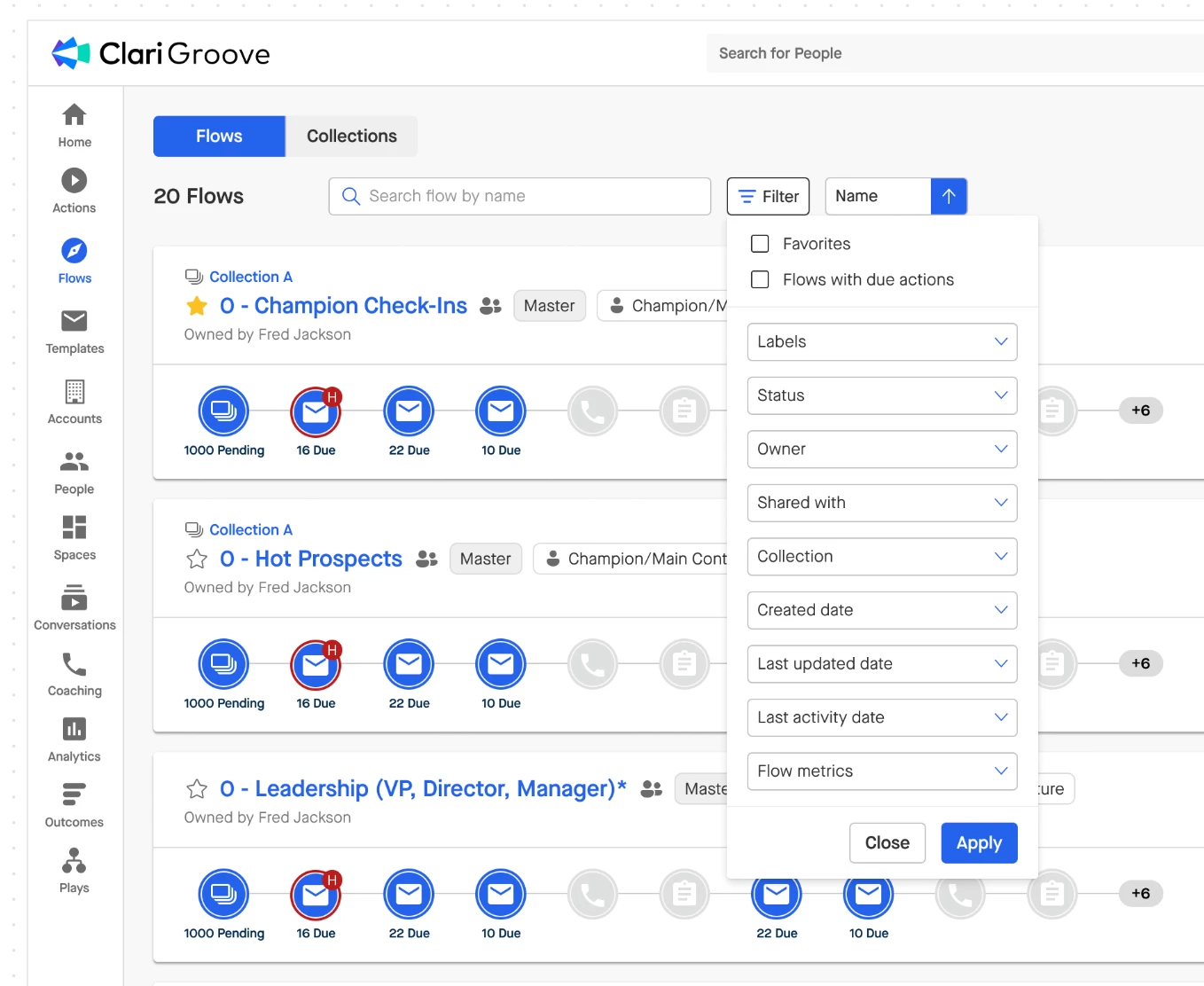
New Filter Options
-
Favorites: Flows that you have favorited
-
Flows with Due Actions: Flow that have steps that are currently due for you. Please note that this filter does not show you Flows in which another user other than yourself has an action that is due.
-
Labels: Labels that have been applied to your Flows.
-
Status: Active, Archived, Draft (if you use the Require Flow Approval feature), and/or Pending Review (if you use the Require Flow Approval feature
-
Owner: The current owner of the Flow. This is usually the creator of the Flow, but if a Flow is transferred, then it will reflect the new owner.
-
Shared With: Users or teams that a Flow is shared with
-
Created Date: The date (or date range in which) the flow was created.
-
Last Updated Date: The date (or date range in which) a flow was last updated.
New Sorting Options
All new sorting options have the choice of sorting Ascending or Descending order.
-
Name - Sort according to alphabetical order
-
Created Date - Sort according to the date that the flow was created
-
Last Updated Date - Sort according to the last time the Flow was updated
-
Favorites - Sort your list by favorite Flows

Favoriting Flows
Webapp: Now, you can click on the star icon next to any Groove Flow to favorite it. Only your own favorites will reflect for you, so each individual user can decide to favorite/unfavorite flows that they have access to as needed. Remember, you can also filter and sort by your favorite flows now.

Extension
View your favorited Flows in the “Add to Flow” experience within the extension via the Omnibar.

Context Menu (copy, preview, share) on Flow card
From the Flow Card you can copy, preview, or archive a flow.
-
Flow Status: Clearly displays the current status of the flow (Active, Archived
-
Add Button: Add more people (contacts, leads) to the current flow, or add a new step to the flow (if you have permissions to do so).
-
Preview: preview the flow content from each step all at once.
-
Edit options have moved to the Settings tab.
-
Ellipses Menu Button
-
Copy: copy the current flow to make a brand new flow. This will copy all settings and steps from the current flow. The user copying the flow will become the owner of the new flow.
-
Archive: archive the flow to make the flow inactive. Active people in the Flow will be removed and no further people can be added. The Flow cannot be be edited while in the archived status.
-
Delete Flow: Delete the flow permanently (it cannot be recovered).
-

General Preferences Moved to Settings
All functions that used to exist under the Edit button of the Flow can be found under the Settings tab, this includes
-
Flow Name
-
Flow Description
-
Unsubscribe Settings
-
Email Alias