




Archiving your team’s Groove Flows is a great way to clean up your team’s content without losing access to the Flow and the historical data associated with it. Unlike deleting a Flow, archiving a Flow preserves the Flow in Groove so that you can continue to review it while also preventing users from continuing to use it in its archived state. If you do need to use the Flow in the future, you can also always reactivate the Flow.
How to Archive A Groove Flow
There are two places from which you can archive a Groove Flow.
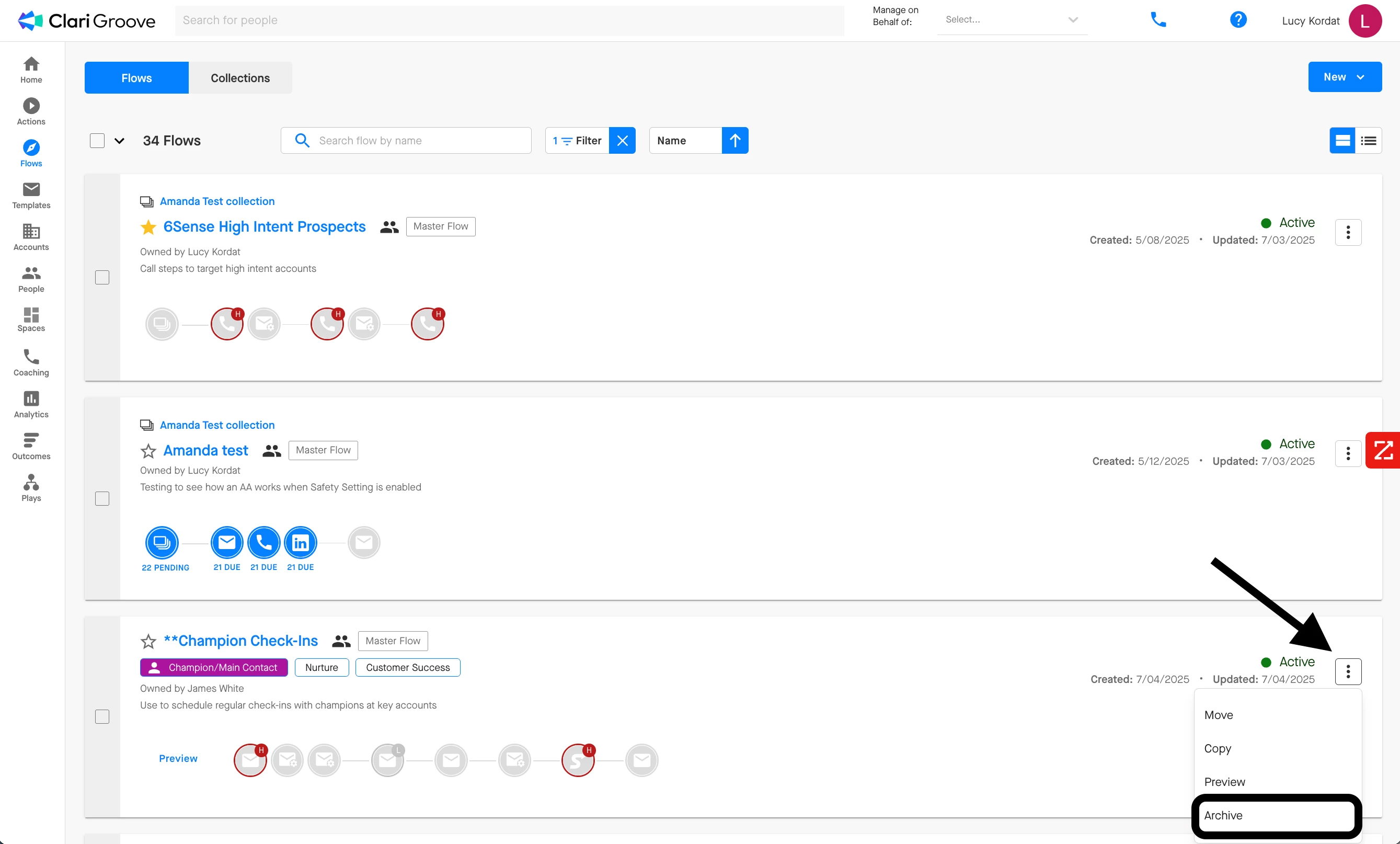
- The first is from the main Flows page, where you can see the list of Flows that match your current filtering criteria. To archive a Flow from here, click the three vertical dots in the upper-right corner of the Flow card, then select ‘Archive’ from the dropdown menu.
-
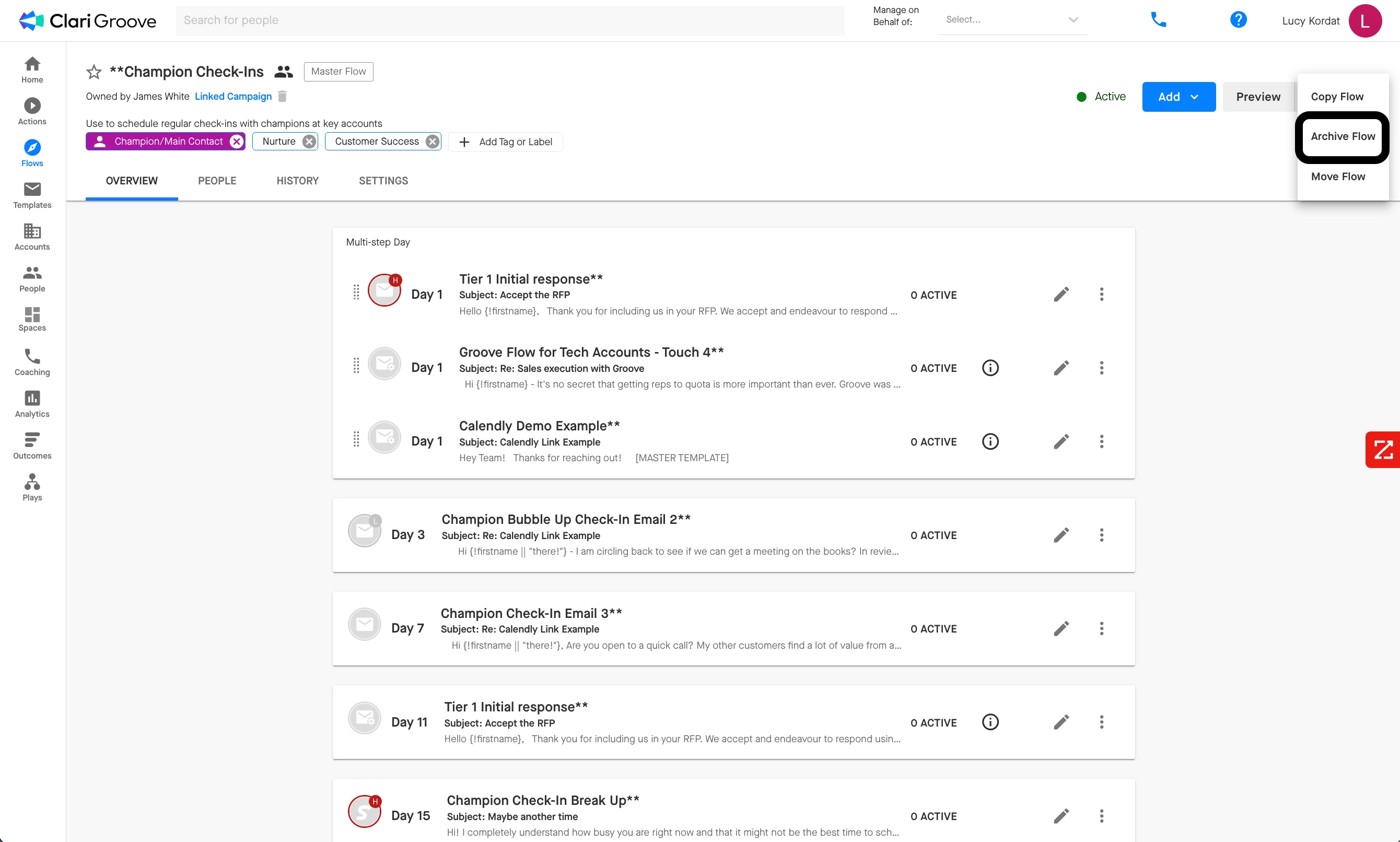
The second if from within a Flow after you have clicked into it. To archive a Flow from here, click the three vertical dots in the upper-right corner of the page, then select ‘Archive Flow’ from the dropdown menu.
In order to see the option to archive a given Flow, you will need to have at least one of the following permissions:
- Be the owner of the Flow
- Be shared on the Flow directly with edit access
- Be shared on the Collection to which the Flow has been added with the permission “Can Edit Flows in Collection”
- Have the “Edit All Flows and Templates” permission enabled for your Groove user’s role in Manage My Org
If you do not have one of the permissions above, you will not see the option to archive a Flow.
What Happens when You Archive a Groove Flow
There are a few things that happen when you archive a Groove Flow.
- Status Change: The Flow’s status will change from ‘Active’ to ‘Archived’. While a Flow is archived, no new participants can be added to the Flow and the Flow cannot be archived.

-
Active Participants Removed: All active participants in the Flow (i.e., those that have neither completed or been removed from the Flow yet) will be removed from the Flow with the removal reason
FLOW_IS_ARCHIVED.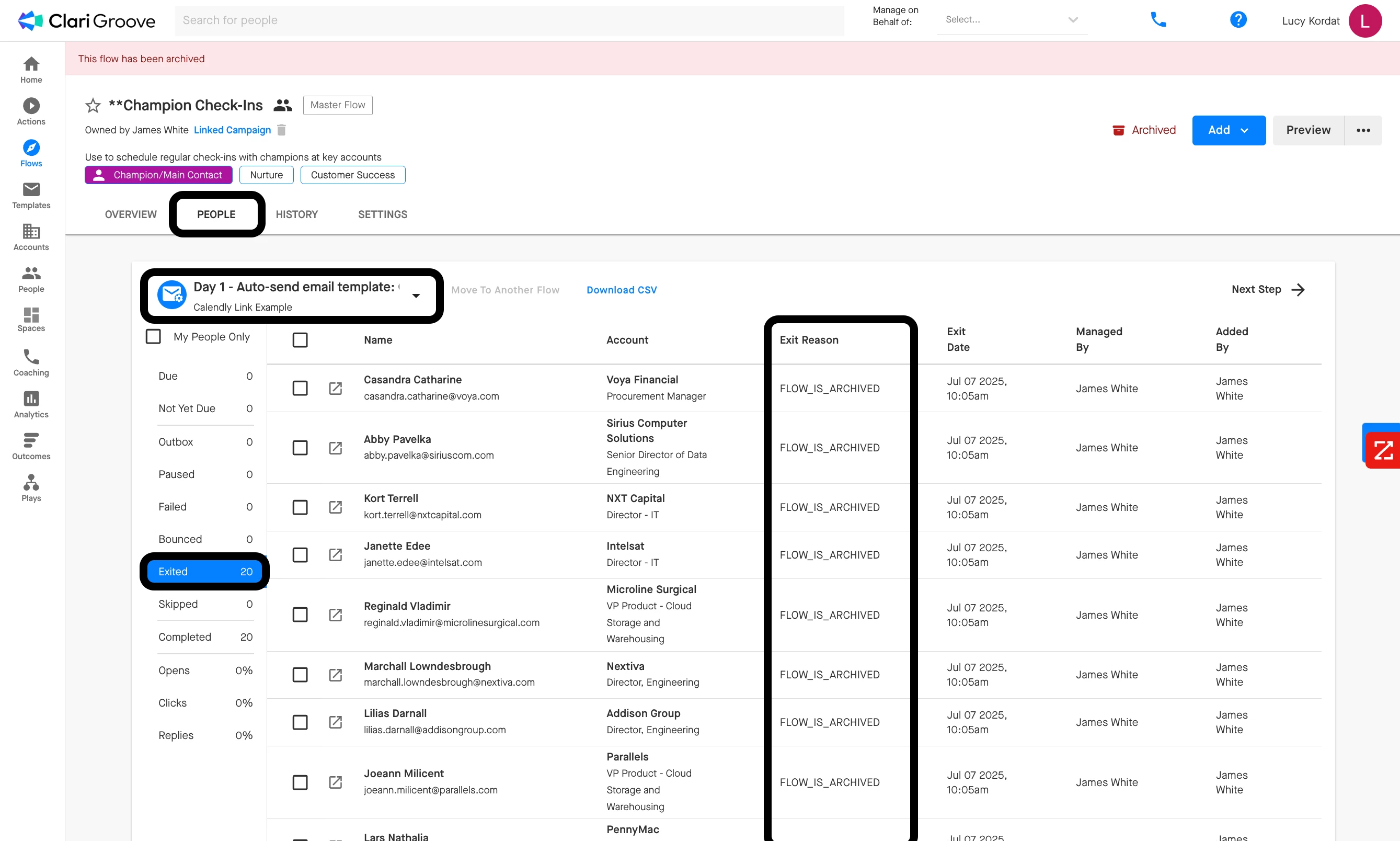
-
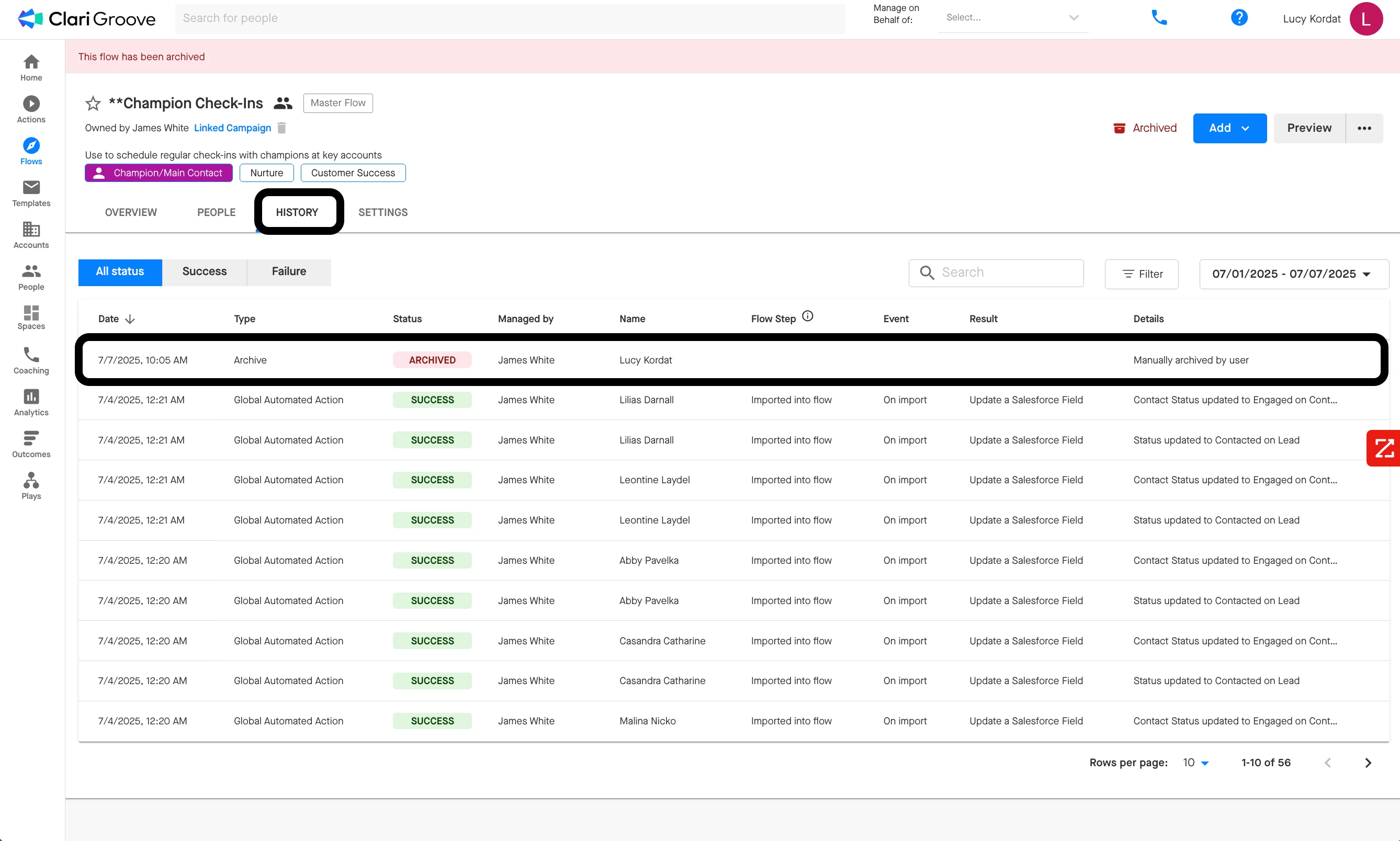
Entry Added to Flow History: The archiving of the Flow is added as an entry to the Flow History for the Flow. The date the Flow is archived and the name of the user who archived the Flow will be logged to the Flow History tab.
What You Can Do with an Archived Groove Flow
Archiving a Flow preserves the Flow in the state it was in at the time the Flow was archived, allowing you to review exactly what the Flow looked like, analyze the Flow’s performance, and follow participants’ progression through the Flow up until the point the Flow was archived.
Review Participants in the Flow
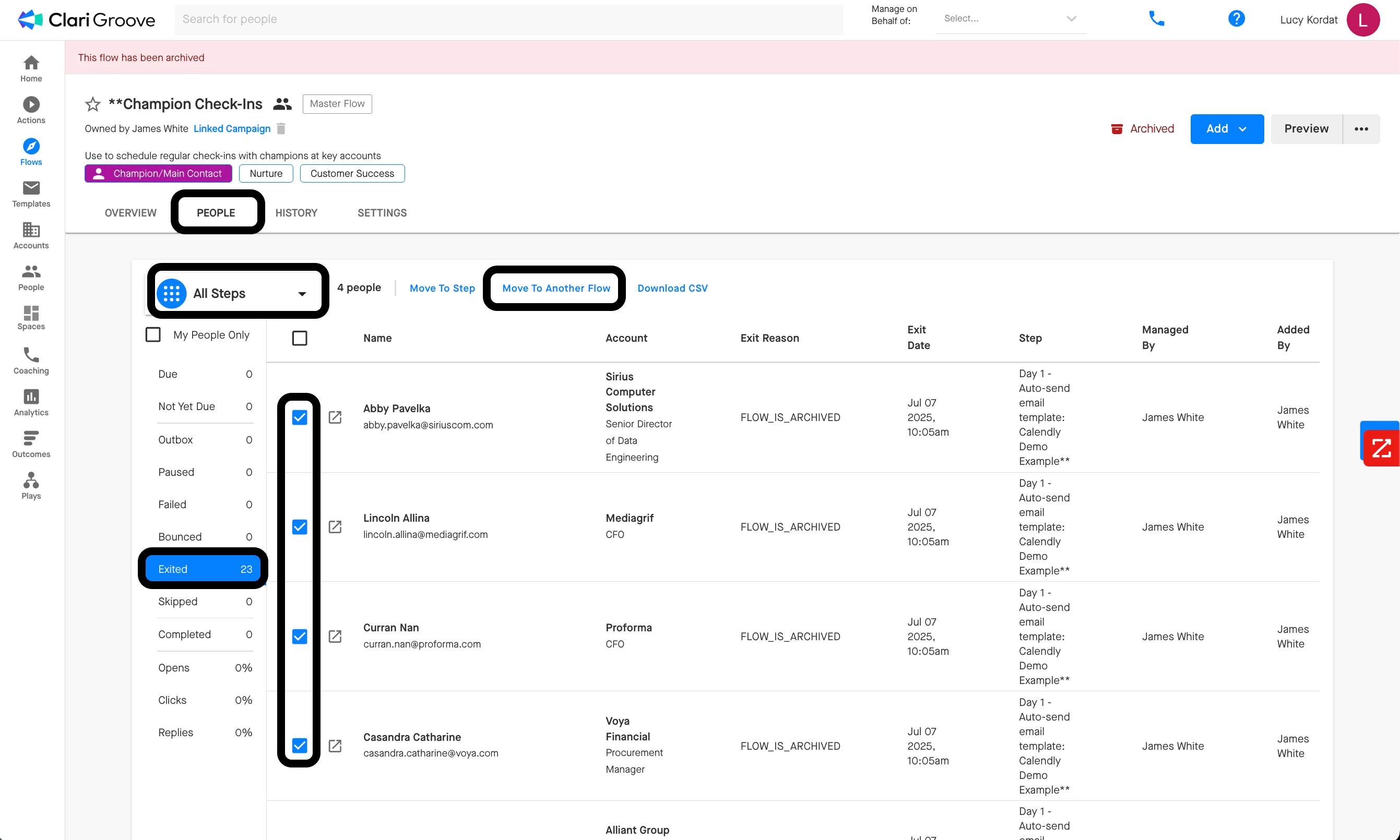
Though all of the active participants in a Flow are removed from it when a Flow is archived, they will continue to show up in the ‘People’ tab of the Flow. Those that were removed as a part of the archiving of the Flow will appear in the ‘Exited’ section with the Exit Reason FLOW_IS_ARCHIVED. Any participants who exited the Flow prior to the Flow being archived will continue to show in the ‘Exited’ section of the last Flow step they completed with their original Exit Reason. Those participants who completed steps in the Flow will continue to show up in the ‘Completed’ section of those steps.
You can add participants who had been in the archived Flow into a new Flow from within the archived Flow. To do this, navigate to the ‘People’ tab of the archived Flow, select the participants you would like to add to a new Flow using the checkbox to the left of their name, then use the ‘Move to Another Flow’ button to add them into a new Flow.
Review Flow Statistics
While a Flow is archived, you can review all the important Flow metrics and statistics – such as email open rates, reply rates, etc.) from within the Flow ‘People’ tab or from within Groove Analytics and Groove Outcomes.
Note that if you are using Groove Analytics and Groove Outcomes to review the performance statistics of an archived Flow, the date range filter (in the top-right of Groove Analytics and Groove Outcomes) must be set to a time when the Flow was actively being used for the Flow and its statistics appear. For example, if a Flow was archived in March 2025, the Flow will not appear in Groove Analytics or Groove Outcomes if the date range filter is set to May 2025 – June 2025, since there’s no usage during that time. You would need to set the filter to some time prior to March 2025 to see the Flow’s metrics.