




Configuring a User’s Call Recording Settings
Admins configure call recording on a per-user basis from Manage My Org > Users through the following steps.
- Check the box(es) to the left of the name(s) of the user(s) whose call recording settings you’d like to update
- Click the blue Actions button
- Select the Update Call Recording Settings option from the dropdown menu
- Select the desired call recording setting for the selected user(s)
- Press Submit
When configuring a user’s call recording settings, admins will be able to choose from the following options.
- Disable Call Recording: The user will not be able to record calls through the OmniDialer.
- Enable Optional Call Reording: The user will have the option to record calls through the OmniDialer. The call recording toggle in the OmniDialer will default to being turned off, but users can flip this toggle on on a call-by-call basis to record the calls they want recorded.
- Enforce Call Recording: All calls will be recorded automatically, except for those prohibited by law.
Calls to phone numbers in two-party consent states and regions will never be recorded, regardless of what a user’s call recording settings.
More information on call recording setup for admins and two-party consent states can be found in this guide.
Call Recording from the OmniDialer
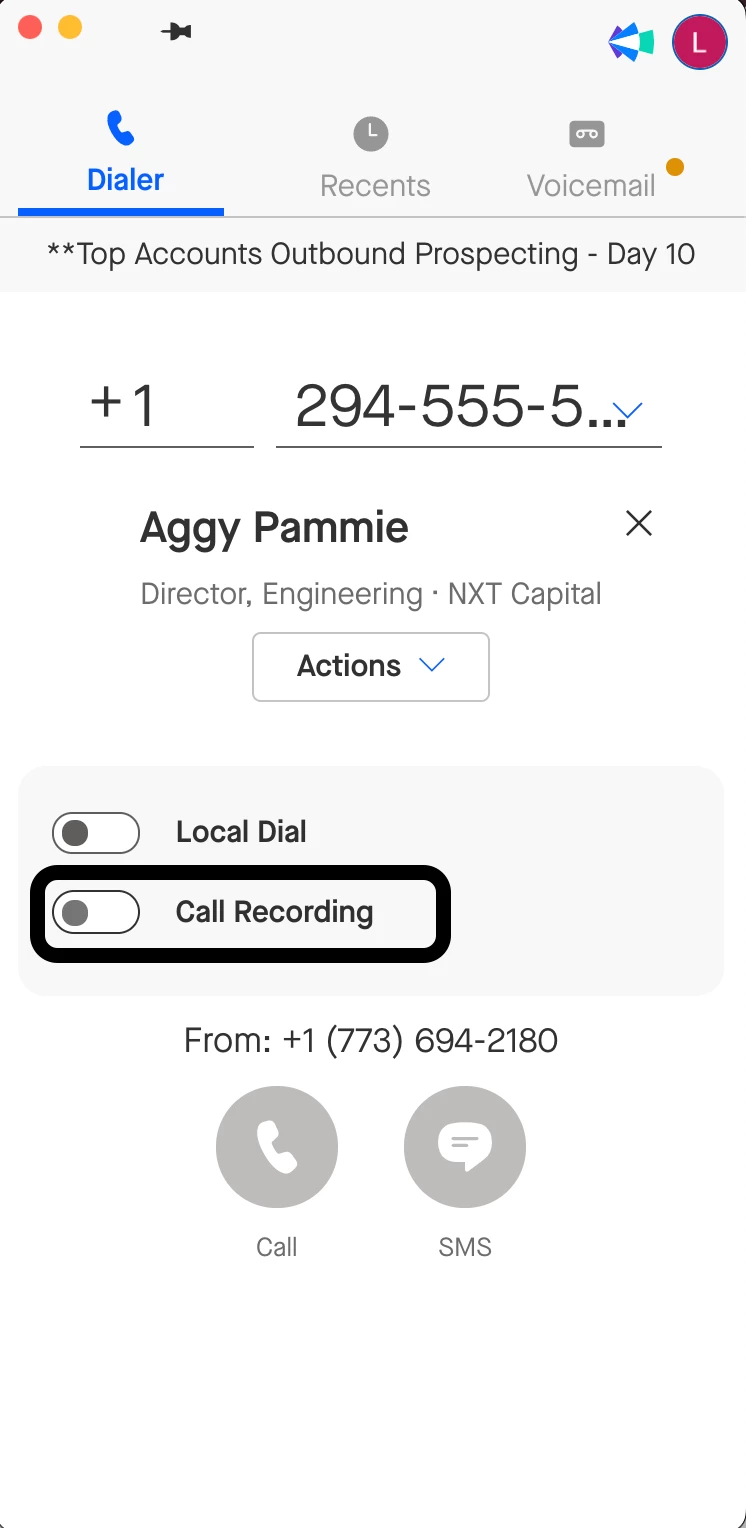
Within the OmniDialer, users will see a Call Recording toggle. This toggle indicates whether a given call is being recorded or not. Users whose call recording setting is set to Disabled or Enforced will not be able to adjust this toggle. Instead, the toggle will be frozen in the “off” or “on” position, respectively. Users whose call recording setting is set to Optional can turn this toggle on for any calls they would like to record. More information on what call recording looks like in the OmniDialer can be found in this guide.
Accessing Call Recordings
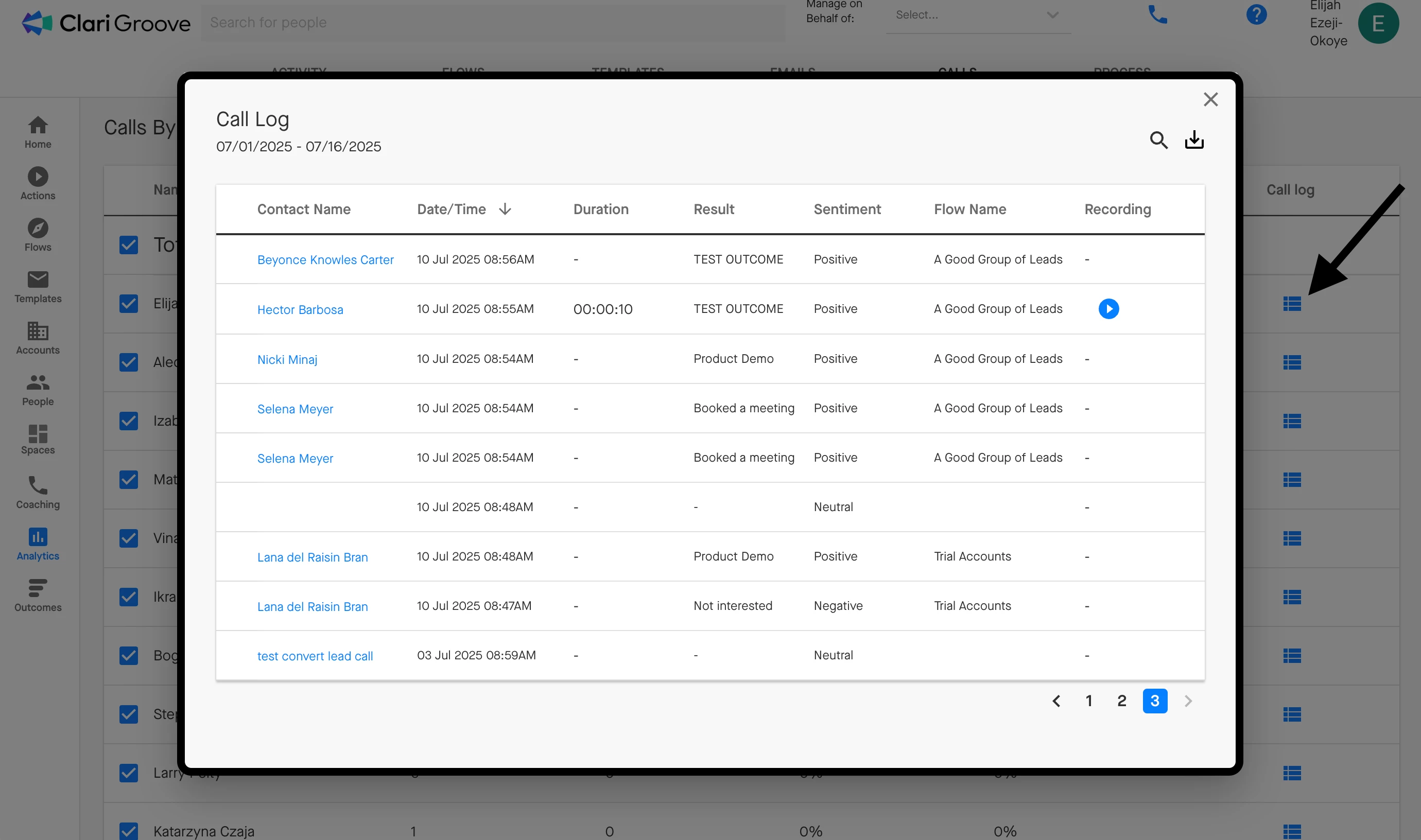
Call recordings are stored for 30 days and can be accessed from the Call Log in the ‘Calls’ tab of Groove Analytics. To listen to a recording, press the “play” button to the right of a recorded call in the call log.
If internal Salesforce admin team has followed the recommended steps of adding a custom call_recording_url__c field to the Activity object in Salesforce, the URL to the call recording will also be populated on the Salesforce Task record for any recorded calls that have been logged to Salesforce. This enables teams to be able to review the call recording from the Task record itself (if this field has been added to the Task page layout in Salesforce) and from Salesforce reports.