


Automatically Adding the Groove Scheduler Link to Templates
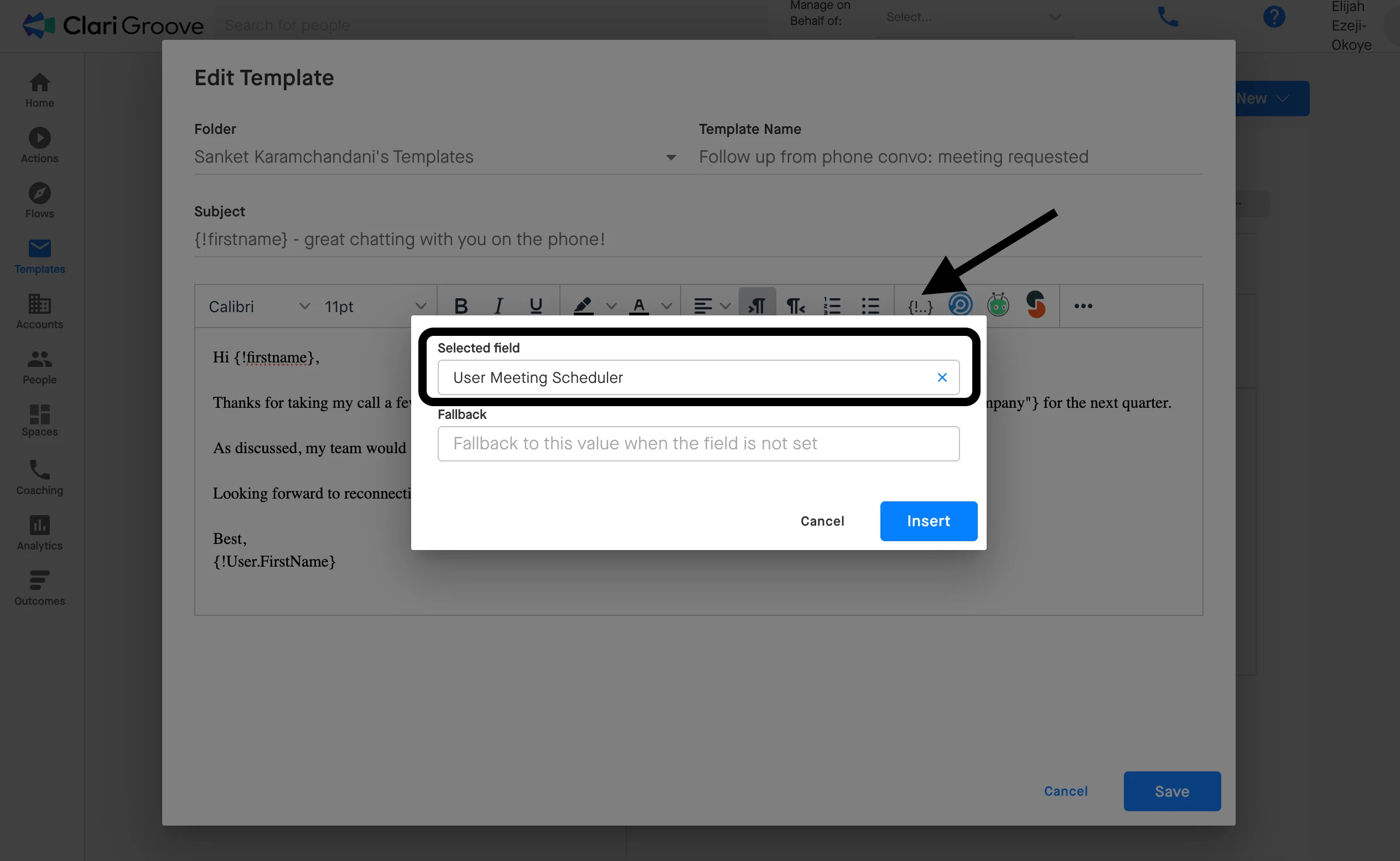
To automatically insert a the sending user’s Groove Scheduler Link into Templates, you can use the Groove Scheduler Link merge field. (Note that the Scheduler Link Merge field is based on a custom field in your team’s Salesforce instance. Thus, the exact name of the field may differ from organization to organization.) This merge field is a great way to personalize emails at scale, as it enables users to leverage the same Templates without having to do any manual work to insert their own Scheduler link in the Template.
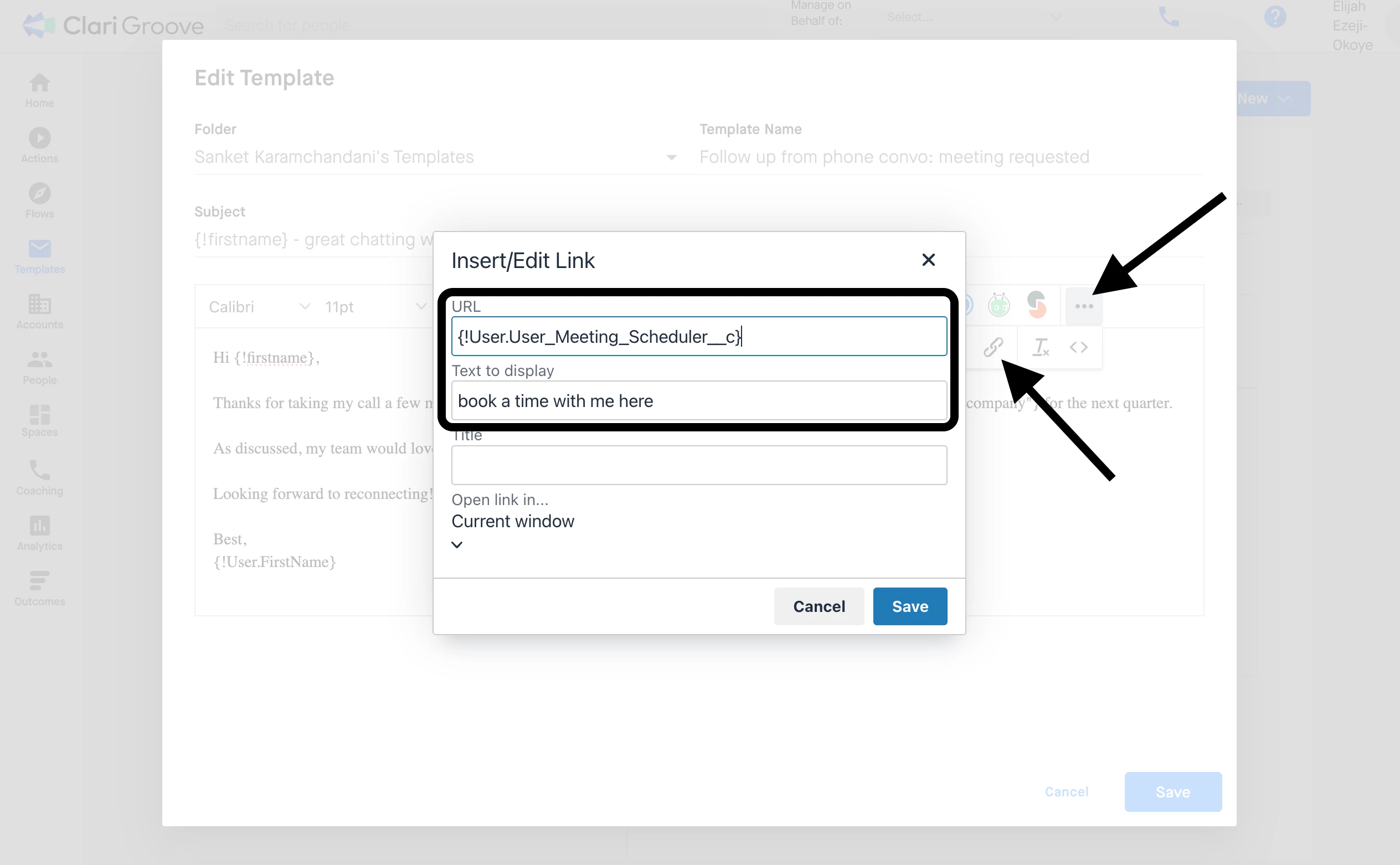
Pro Tip: You can also hyperlink the Groove Scheduler Link merge field to text that is in your Template. To do this, insert the Groove Scheduler Link merge field into you Template just as you would any other merge field, cut the merge field from the Template, highlight and cut the merge field, then highlight the text you want to hyperlink and use the ‘Insert/Edit Link’ button to paste the merge field into the URL field.
If you’re not seeing the Groove Scheduler Link merge field in the Groove Template builder in your environment, you can work with your internal Salesforce admin team create a custom formula field for the Groove Scheduler Link on the User object in Salesforce by following these steps. Once it has been created there, it can be pulled into Groove Templates the same as any other merge field.
Manually Adding the Groove Scheduler Link to Flow and Actions Emails
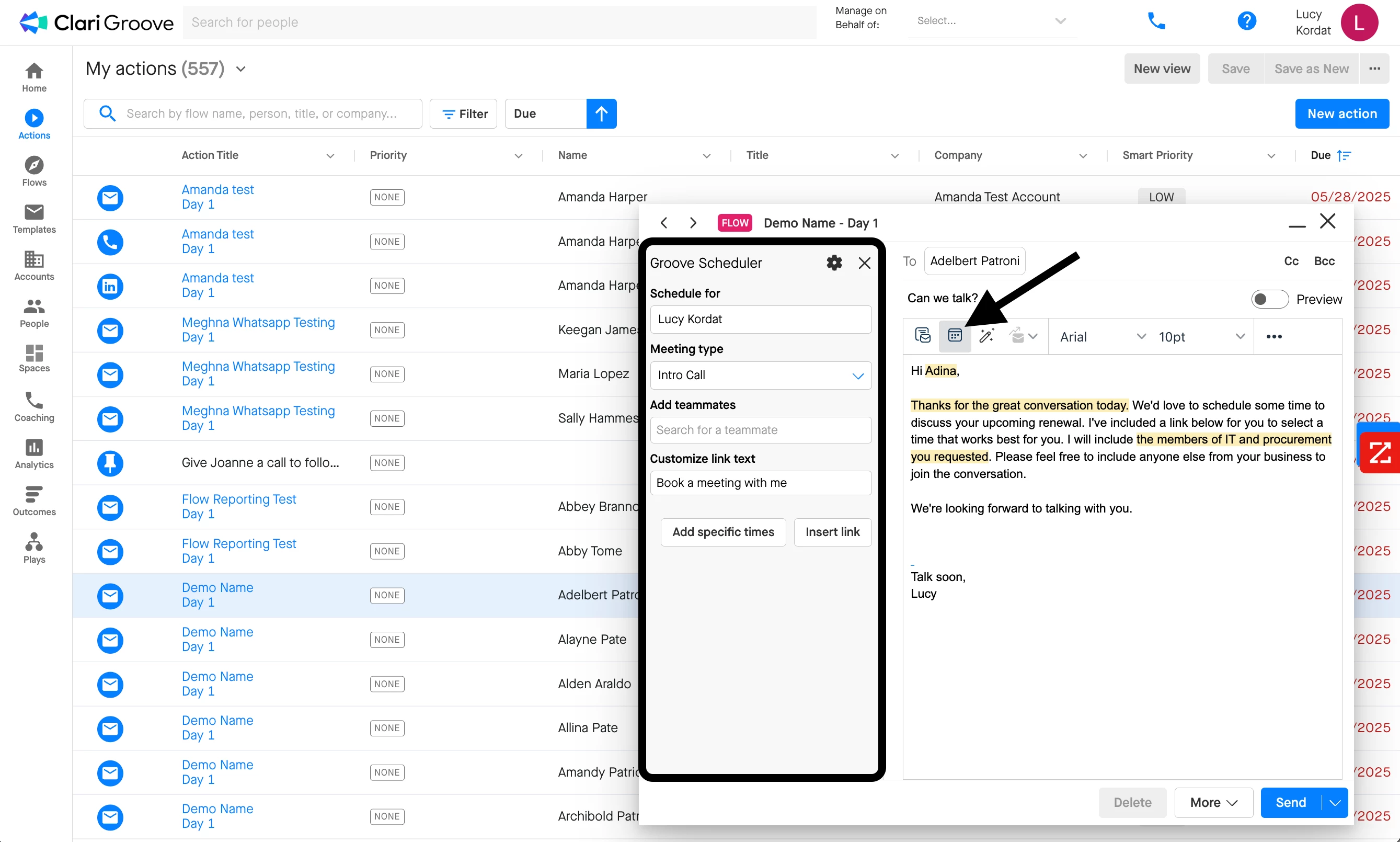
You can also manually insert your Groove Scheduler Link into, as well as use the Add Specific Times feature with, any Groove Flows or Actions emails. This enables you the flexibility to quickly include your Scheduler link on individual, non-templated emails to make booking a meeting a breeze.
To add your Scheduler, click on the Scheduler button in the Groove Action Compose Toolbar (the ‘calendar’ icon two from the left). The left-hand side of the Action Compose window will then bring up your Scheduler options, which you can use to insert your Scheduler Link or Add Specific Times.