
How do I add people to groove flows from a LinkedIn Sales Navigator search?
There has to be a more efficient way than manually adding each person one by one.



 +2
+2How do I add people to groove flows from a LinkedIn Sales Navigator search?
There has to be a more efficient way than manually adding each person one by one.
Best answer by Kenna
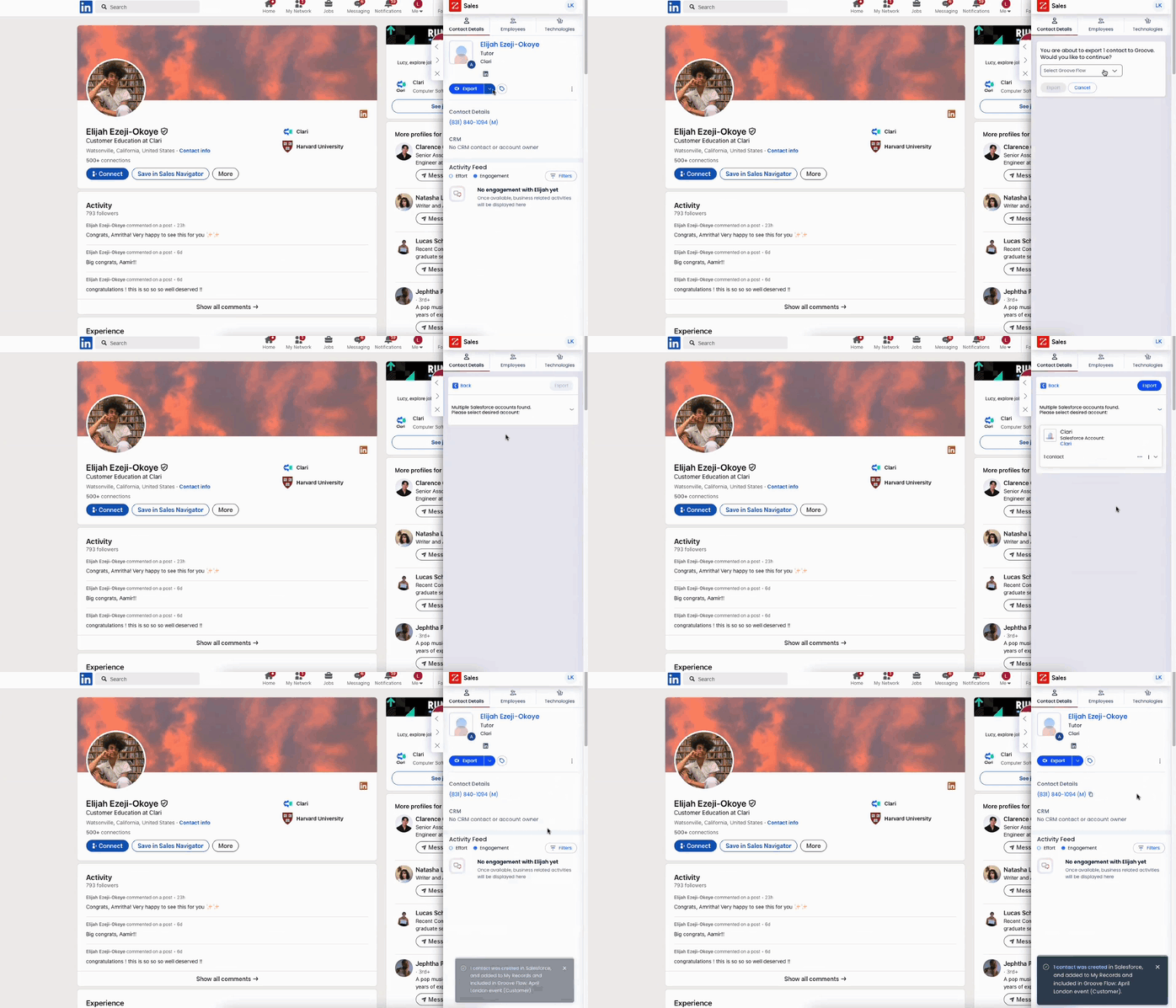
Hi, Izzy! Thanks for your patience on this one as I consulted my Groove experts. The best way to import people into a Flow from within LinkedIn or LinkedIn Sales Navigator is via the ZoomInfo <> Clari Groove integration. This method requires that you have a ZoomInfo license and that your admin team has enabled the ZoomInfo <> Clari Groove integration for your org through these steps. The steps below are with the example of a single person, but you can also use this method to export people into Groove Flows in bulk from a ZoomInfo list. Simply select as many people as you want from the list!
To import people from LinkedIn into a Groove Flow:
Please create your account below.
Clari customers and employees with an app.clari.com login can click the first blue Log in button below.
Align, Copilot, or Groove customers, Clari Partners, or other guests can enter a username and password below to log in.
Please reach out at community@clari.com if you need any help to log in.
Not a member yet? Join the Clari Circle Community to learn about our products, fine tune your craft, and accelerate your revenue career.
Create an accountClari customers and employees with an app.clari.com login can click the first blue Log in button below.
Align, Copilot, or Groove customers, Clari Partners, or other guests can enter a username and password below to log in.
Please reach out at community@clari.com if you need any help to log in.
Enter your E-mail address. We'll send you an e-mail with instructions to reset your password.