




Have you ever wanted to set a standard column order for the Opportunity Grid (within Inspect) for your team, but wondered if it would update all existing saved views? 🤔 Or maybe you've tried to update the field order in one view only to find that it doesn't update anywhere else?
You're not alone. Many of our customers ask us about the best way to manage the order of fields in Clari, especially on the grid layout of the Opportunity module. So, let's explore how you, as a Clari admin, can take control of your field order and ensure your team always looks at the most relevant data in the right place.
Note: Before we dive in, it’d be good refresh our memory on the basics of Mode and Layouts
A few important callouts 🔊
- It's critical to know that field order is tied to which specific mode. It is not global across all modes. This means each mode can have its own unique default field order, which is ideal for tailoring the view to the intended audience for the respective mode
- Within a mode, you can configure the field order at the layout level. The Clari workflow supports setting a unique order for each layout, such as the Opportunity Grid, Details Panel, Filterable, and Groupable layouts. For example, your Opportunity Grid layout could be concise with just the key fields that your reps need to update frequently (For example: Amount, Date, Stage, Forecast, Next Steps), while your Details Panel layout could be comprehensive with all the other fields (including your sales methodology fields)
How to Set Your Default Field Order Across Layouts
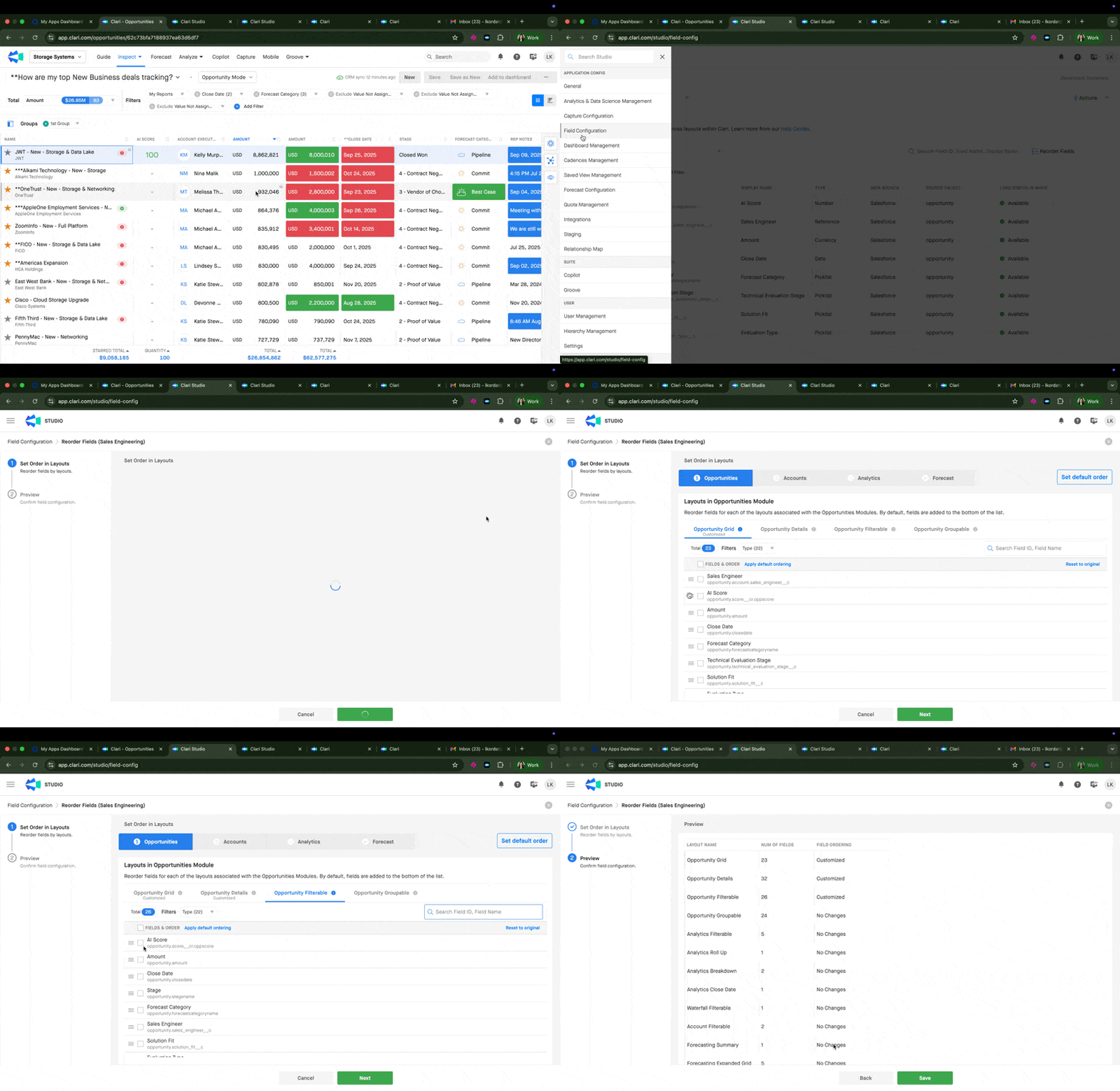
Admins can customize the field order for each layout of a respective mode using the Field Config settings:
1. Customizing an Individual Layout:
To set a unique order for a specific layout (like the Opportunity Grid), simply drag and drop the fields to your desired order. A "customized" badge will appear, indicating that the order is unique to that layout.
2. Setting a Default Order Across All Layouts in a Mode:
If you want all layouts within a mode to follow the same order, you can set a global default.
- To do this, click the Set default order button to see the global order of fields across all layouts within this mode.
- Then, click Save and apply to all layouts.
- This will apply the new default order to every layout in that mode.
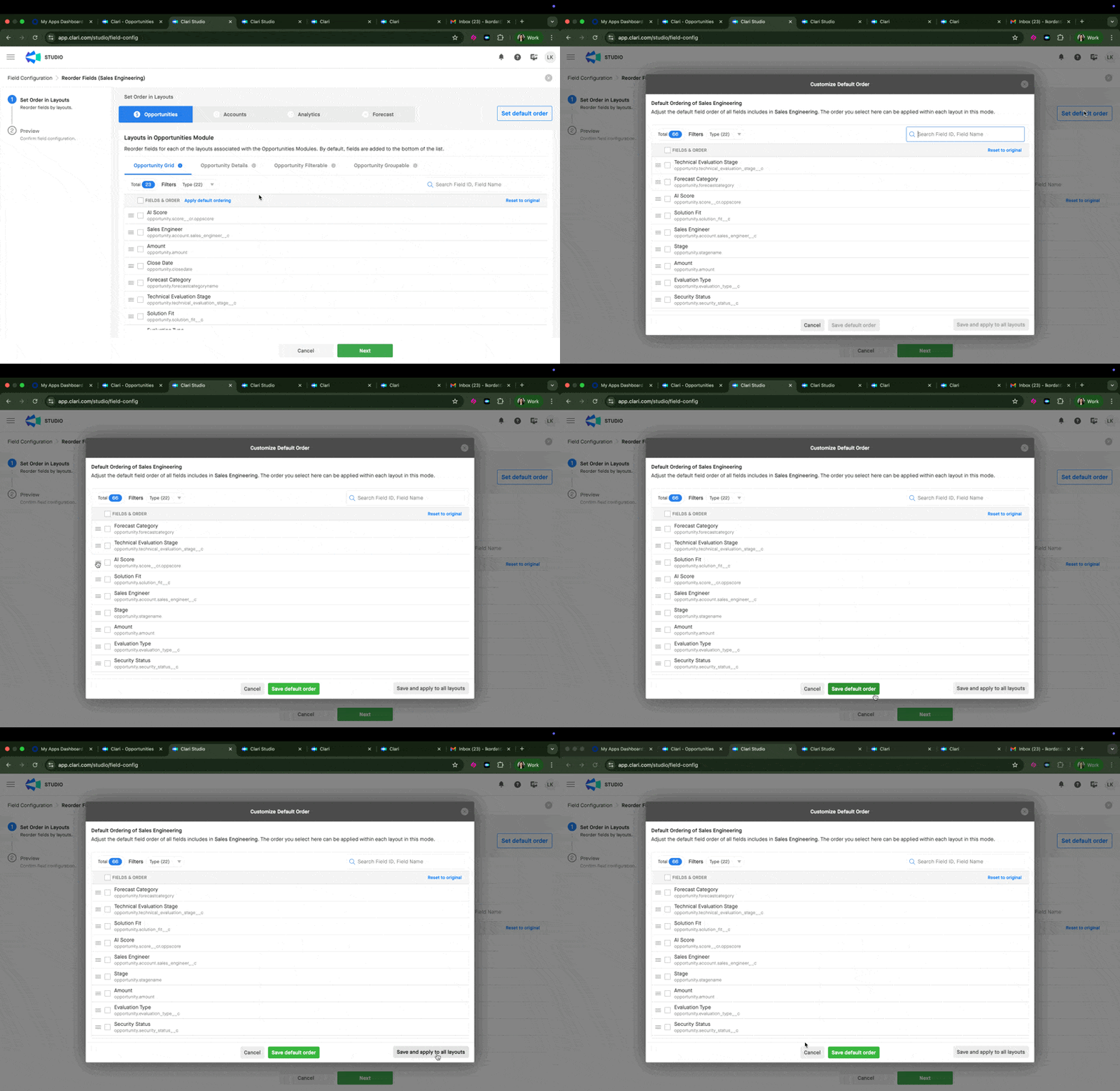
Note: Any newly created saved view will now follow the above field order
But how does this affect all my existing saved views based on that mode? Do they update automatically? Does it update all layouts? 🤔
3.Updating Saved Views with the New Order
This is where it gets a little nuanced based on the layout. When you set a new default field order in Field Config, here’s how it affects the key layouts:
- Details Panel Layouts: All saved views based on that mode will auto-update to show the new order.
- Grid Layouts: The Grid layout behaves differently. It does not auto-update across saved views because it has a special setting to help users retain their customized views.
So, how do you get the grid layout updated across all your saver views?
- The best way to ensure existing saved views use the new default order is to go into each one and manually restore the default.
- Simply open the saved view, click the "Restore Default Order" button under the column configuration menu.
- This will overwrite any user-specific customizations in that view, so be sure to communicate this to your team
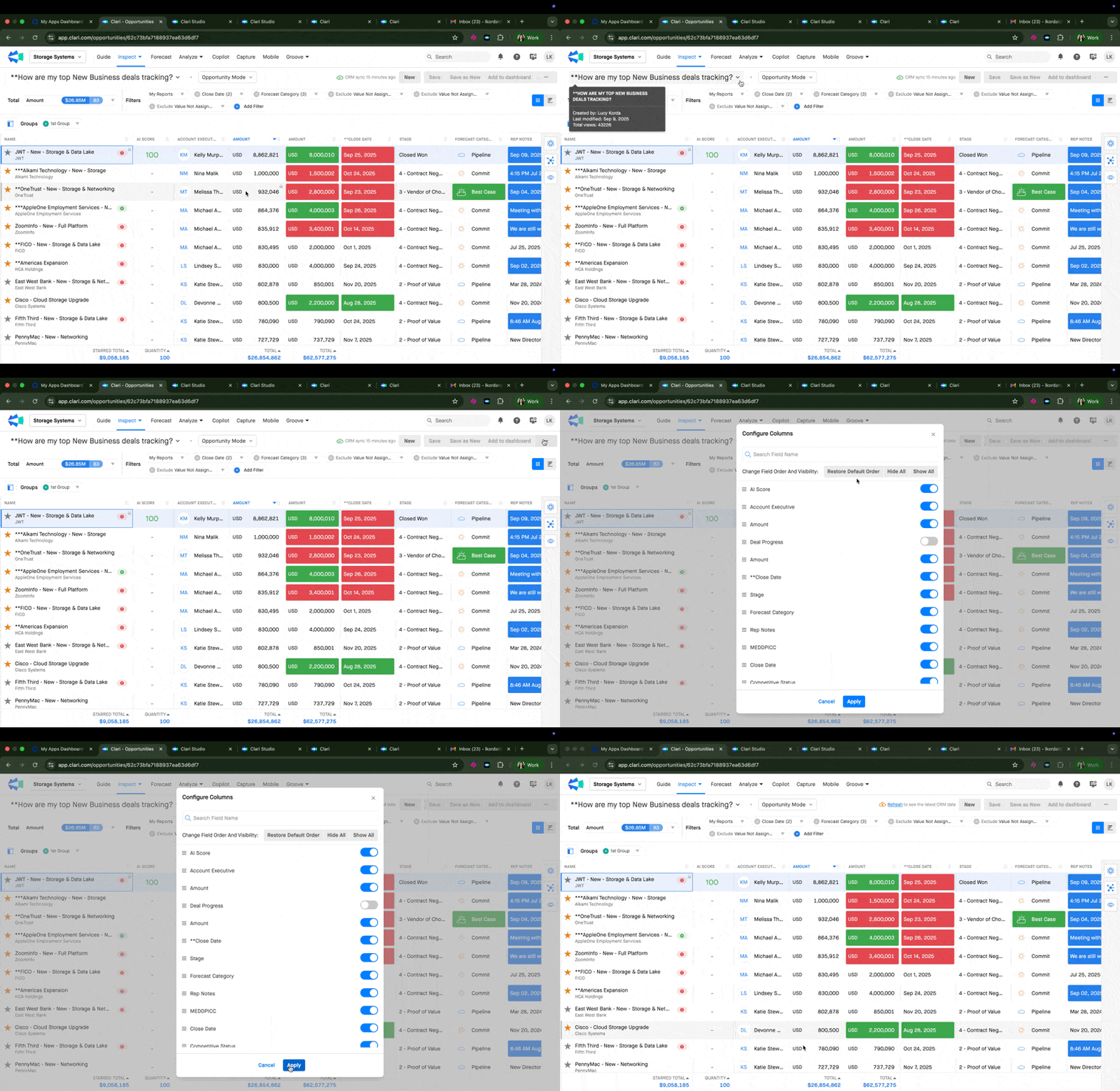
Note: While there is no way to bulk update saved views from the UI, once you have a list of the views that need updating, this manual process should only take about 10 seconds per view.
We hope this helps you and your team maintain clean and consistent views across Clari. If you have any further questions or need help updating a specific set of views, feel free to comment below or reach out to our Support team!