




Clari is all about giving your teams the right information to make key decisions based on data as quickly as possible.
Bookmarking Saved Views with Stars 🌟allows admins to bookmark high priority saved views that are shared across your GTM organization in Clari.
Bookmark specific views and make them easily accessible to ensure everyone on a team is looking at the same information. Bookmarked views will appear at the top of the view dropdown menu, preventing them from getting lost.
Here’s a quick guide on how to create a bookmarked view for your team.
How to Bookmark a Saved View
Follow these simple steps to bookmark a view for a specific role:
- Open Clari Studio by navigating to https://app.clari.com/studio/
- Click the menu button in the top-left corner and select Saved View Management.
- Choose your desired module type (e.g., Opportunities, Accounts, or Analytics).
- Find the Saved View you want to bookmark for a particular user role. You can filter views by role, user, last access, module type, and ownership.
- Select the view and click the star icon to bookmark it.
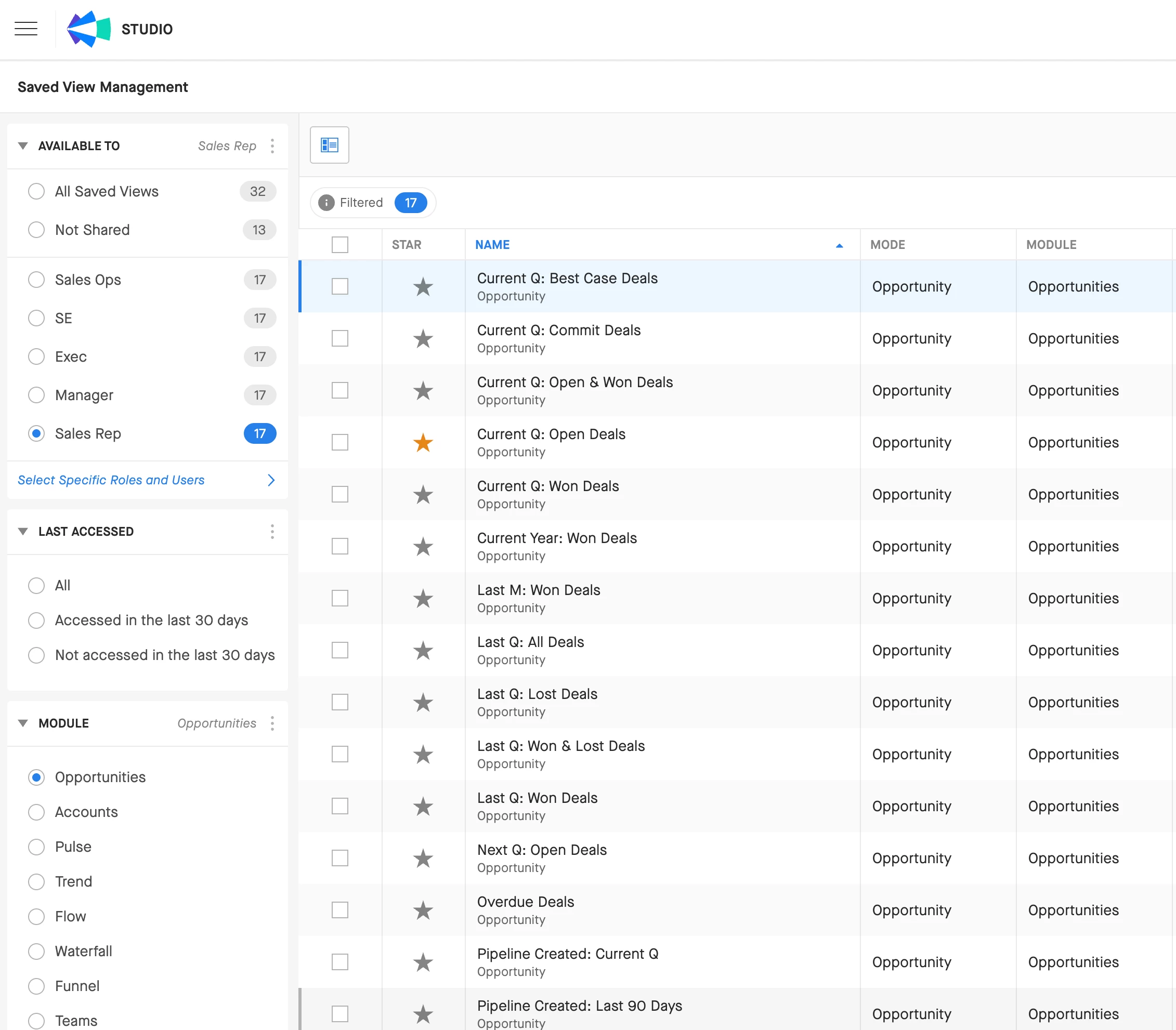
Admins can only bookmark views by Role. Bookmarks shared with individual users or all users will not be visible.
Important Information for Clari Guide!
To establish default Insights that users will land on when accessing Guide, Clari will use the most recent Bookmarked 🌟 Saved View by Role. To ensure that the Insights section of Guide is not left blank for users be sure to Star a Saved View for all your Clari User Roles.
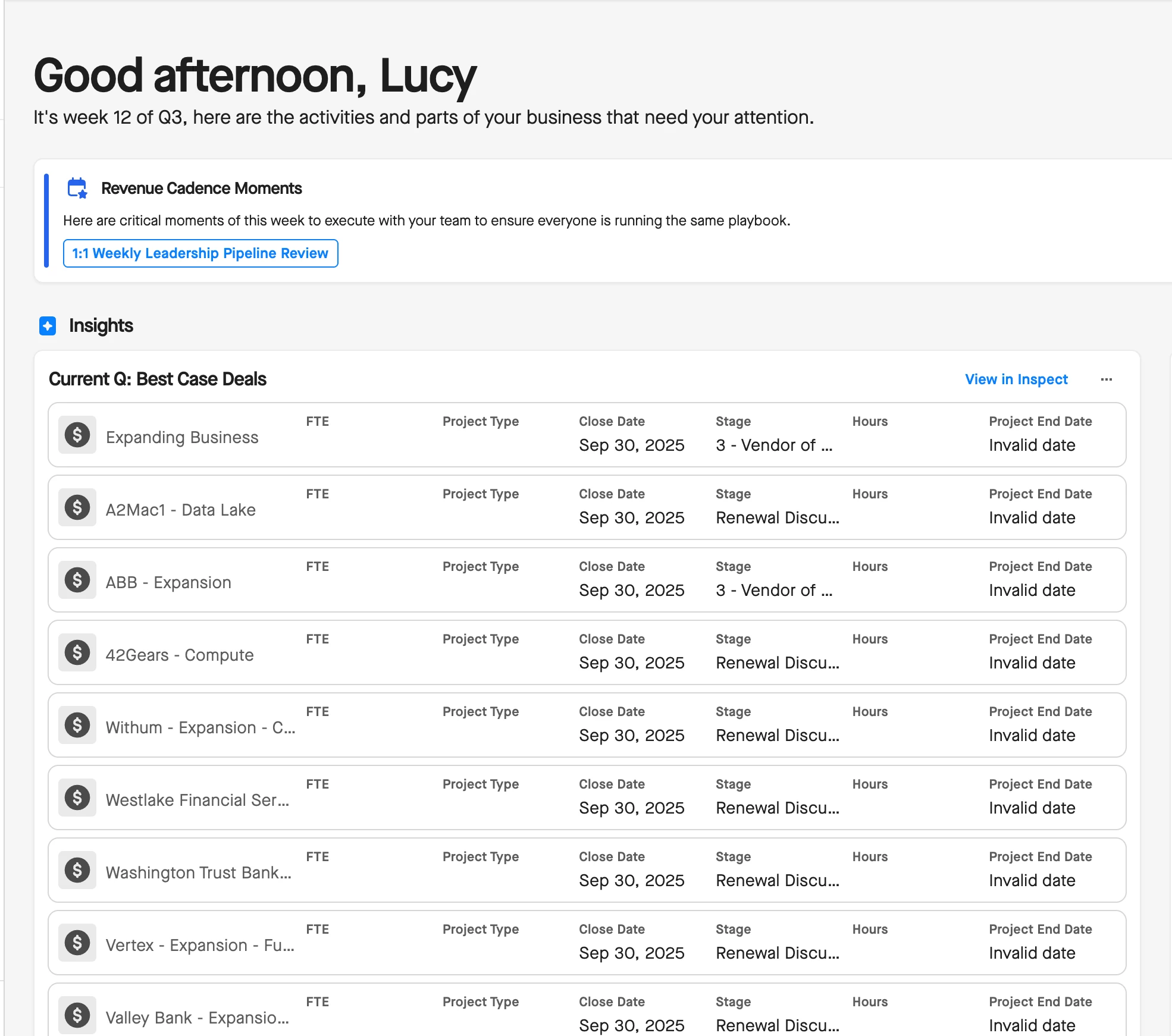
This helps standardize how sales teams view and discuss their data, leading to greater cohesion and speed! 📈