




Configuring AI Agents for Your Organization
AI Agents automate deal inspection across your pipeline, analyzing compliance with your sales process and surfacing gaps in deal documentation. RevOps admins configure agent behavior to match your organization's unique sales methodology.
What AI Agents Do for Your Organization
The Deal Inspection Agent monitors opportunities daily, evaluating each deal against criteria you define. The agent analyzes both structured CRM data from RevDB and unstructured activity data like call transcripts and emails.
Unlike tools that focus only on conversation intelligence, Clari AI Agents examine the full deal context. The agent validates CRM field accuracy, tracks engagement patterns, and assesses process adherence based on your specific sales methodology (MEDPICC, BANT, SPICED, or custom frameworks).
The agent runs automatically once per day at 11:00 AM CET. Results write back to RevDB, making them available for filtering, grouping, and reporting across Clari modules.
Requirements
- The agent requires RevDB access and respects all existing role-based permissions. Users only see agent insights for opportunities they have access to through saved views and lenses.
- Organizations without Copilot or activity data sources can still use the agent. The agent evaluates deals using RevDB fields alone if no call transcripts or emails are available.
Configuration Overview
Setting up a Deal Inspection Agent requires four components:
- Agent Hub Access: Navigate to AI Settings in Clari Studio to view and manage agent templates. Your organization starts with AI Agents disabled. You must opt in through the feature toggle to begin configuration.
- Deal Stage Configuration: Define qualification criteria for each stage in your sales process. Upload your sales methodology document to auto-generate criteria, then refine the output to match your requirements.
- Target Rules: Specify which opportunities the agent should analyze using SQL-style queries against RevDB fields. Target rules determine the deals included in each agent run.
Setting Up Your First Agent
Start by accessing AI Settings through the Studio dropdown menu. All organizations default to AI Agents disabled. Toggle the feature on to begin.
From the Agent Hub, select Create New Agent to launch the setup flow. The configuration wizard guides you through four steps.
Step 1: Define your deal stage field
Select the RevDB field that identifies deal stages. Most organizations use the standard Stage field from Salesforce or your CRM. You can choose an alternative field like Forecast Category or a custom field if your process differs.
The field you select determines how the agent organizes inspection criteria. Each value in this field represents a distinct stage with its own qualification requirements.
Step 2: Upload your sales methodology
Upload a PDF or document that outlines your sales process. The document should list stages and the specific information required at each stage.
The Clari agent analyzes your document and generates deal categories and criteria automatically. This includes parsing stage names, extracting qualification questions, and organizing criteria into logical groups.
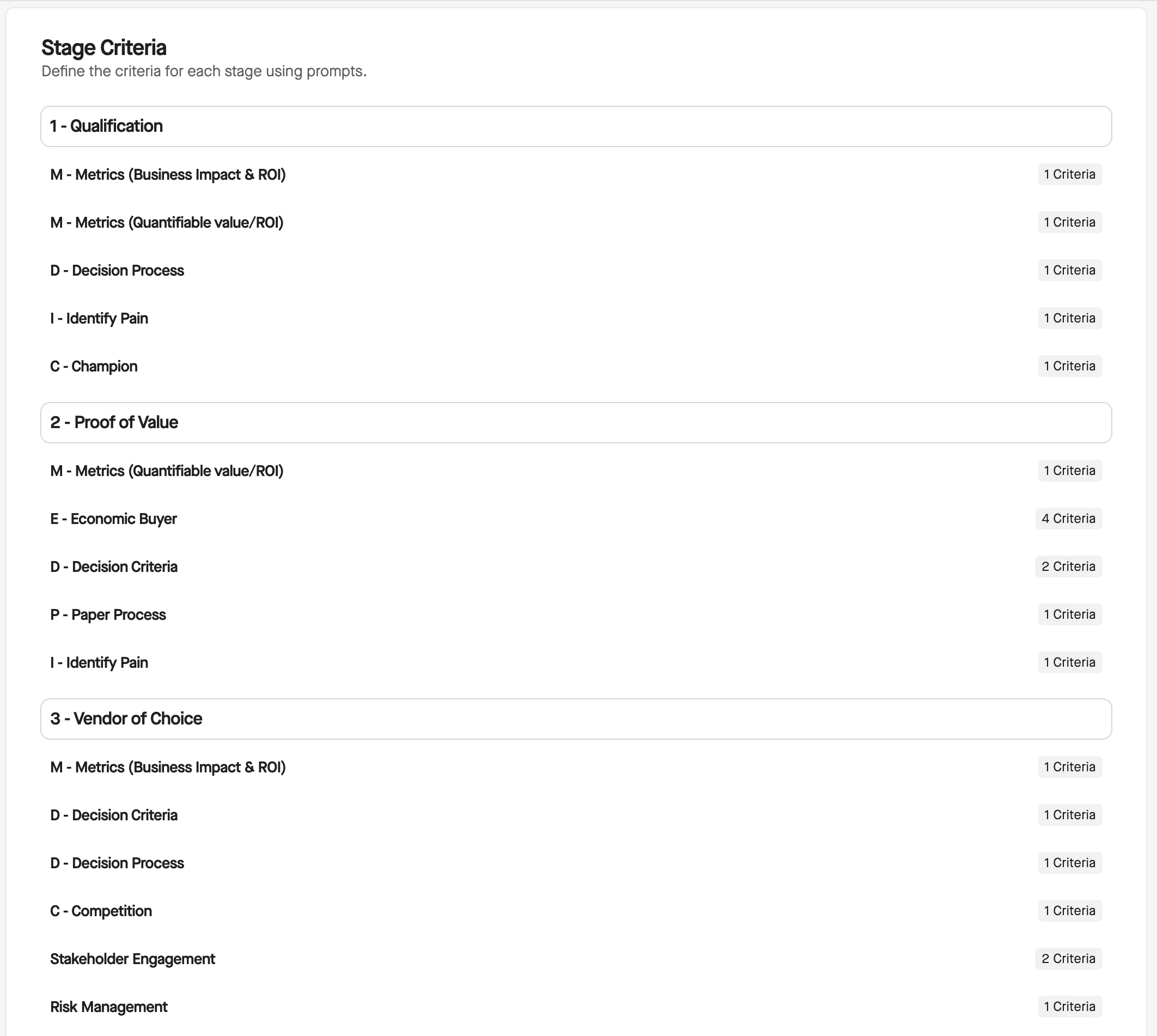
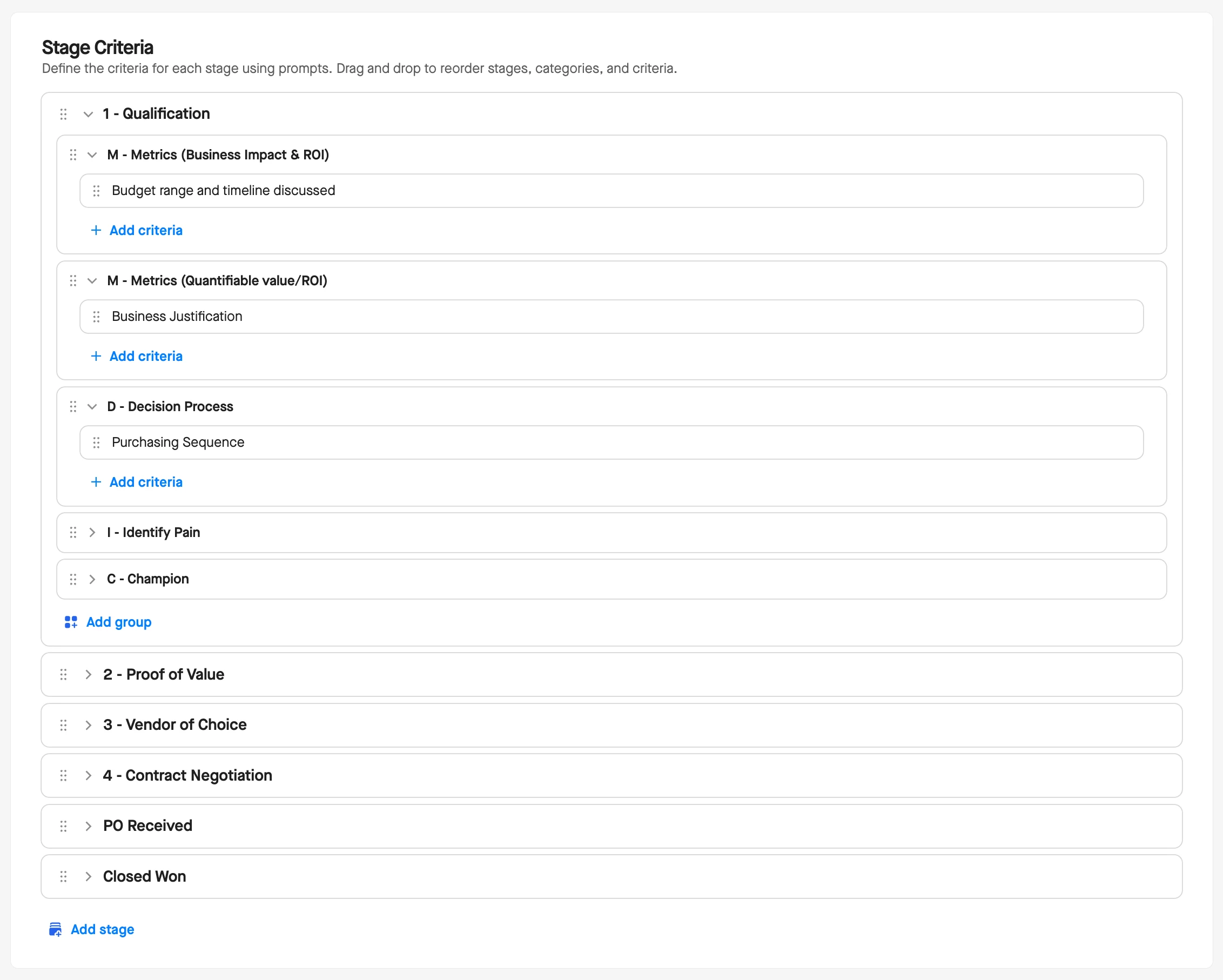
After processing, you will see a draft configuration showing the categories and criteria the agent extracted. Review each item, and click Modify Stage Criteria if needed to modify language, add missing criteria, and remove items that don't apply.
Step 3: Set targeting rules
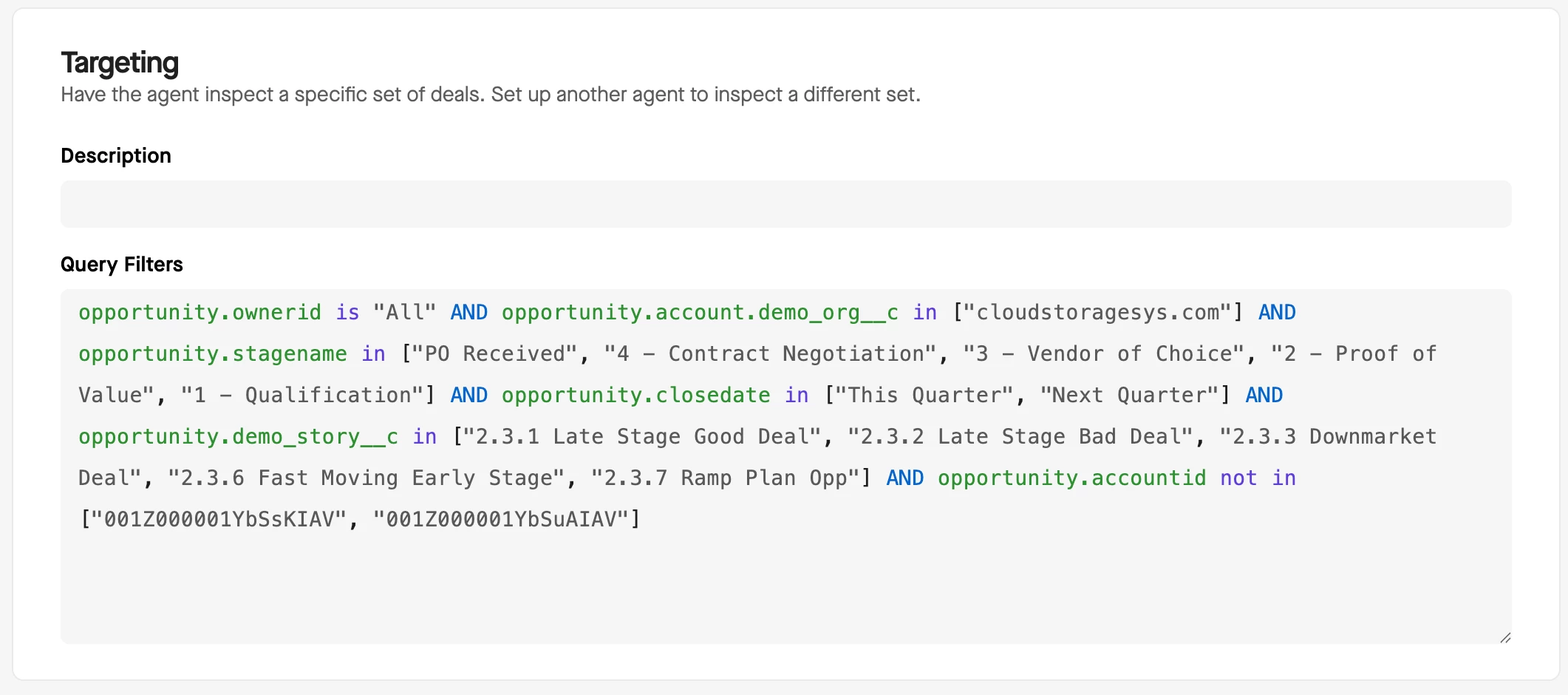
Write an SQL query that defines which opportunities the agent should inspect. Use RevDB field names and standard SQL operators.
For example, to target open opportunities in your current quarter:
Stage != "Closed Won" AND Stage != "Closed Lost" AND Close_Date >= "2025-Q4"
The preview function shows which opportunities match your query. Validate the results before proceeding.
Step 4: Review and publish
Review your configuration. The Clari agent remains in draft status until you publish. Draft agents do not run or generate insights.
When ready, click Publish. The agent will execute during the next scheduled run at 11:00 AM CET and write results to RevDB.
Advanced Configuration Options
After initial setup, you can refine agent behavior through advanced settings.
Prompt Customization
Each criterion includes an underlying prompt that instructs the LLM on what to evaluate and how. Edit prompts to add specific instructions, define edge cases, or clarify interpretation rules.
Keyword Targeting
Specify keywords the agent should look for when evaluating specific criteria. For example, target competitor names when assessing competitive displacement risk. Keyword targeting launches in November 2025.
CRM Field Selection
Choose specific RevDB fields the agent should analyze for each criterion. This focuses evaluation on relevant data points and improves accuracy. Field selection launches in November 2025.
Category Management
Create custom categories to organize criteria in ways that match your sales methodology. Move criteria between categories, reorder items, and nest related concepts together.
Managing Agent Templates
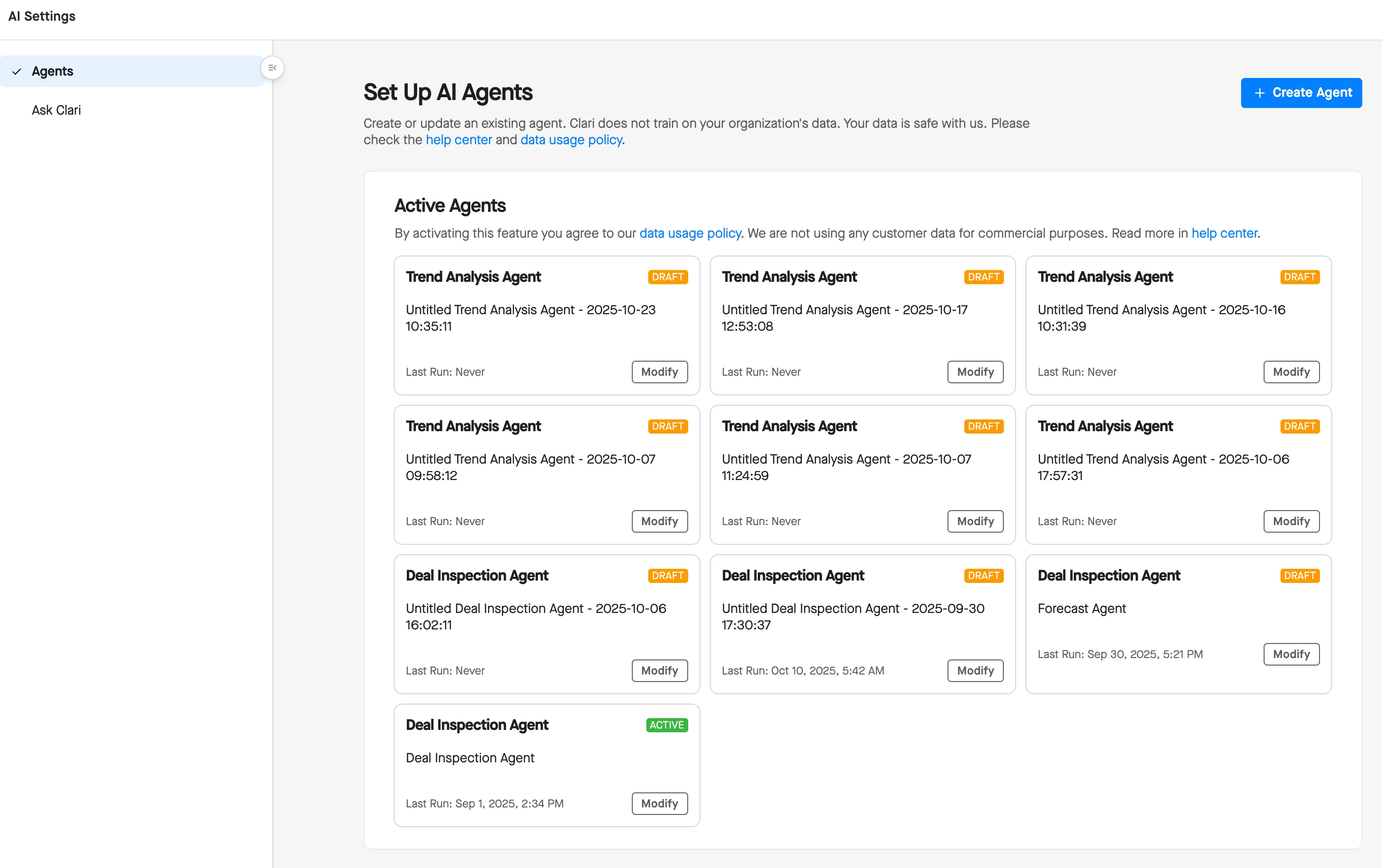
The Agent Hub provides centralized management for all agent templates in your organization.
View all templates, check publication status, and see when each agent last ran. Published agents show a timestamp for their most recent execution and the number of opportunities analyzed.
Currently, each organization supports one active Deal Inspection Agent. You can create multiple templates to test different configurations, but only one template can be published at a time. To activate a different template, pause the current agent and publish the new one.
Future releases will support multiple simultaneous agents targeting different pipelines, territories, or business units.
Draft and Publish Workflow
Agents operate in two states: draft and published.
Draft agents exist in your Agent Hub but do not run automatically. Use draft status to test configurations, preview criteria, and validate targeting rules without generating insights.
Published agents execute during each scheduled run. Only published agents write results to RevDB and surface insights in Guide and Inspect views.When you modify a published agent, changes apply at the next scheduled run. The agent pulls the latest configuration and processes all targeted opportunities with updated criteria.
If results appear incorrect or the agent generates unexpected insights, pause the published agent immediately. This stops execution while you diagnose configuration issues. Fix the problem, then republish to resume automatic runs.
Expected Behavior and Current Limitations
The agent operates with several constraints in the initial release.
Daily Batch Processing
The agent runs once per day, not in real time. When a deal changes mid-day, the agent will not analyze the change until the next scheduled run. Plan your process around this 24-hour cycle.
Limited RevDB Field Support
The agent works with standard CRM fields but may struggle with multi-product deals, complex pricing configurations, or CPQ integrations. Enterprise customers with highly complex deal structures may receive incomplete assessments.
Basic Methodology Support
The agent accepts methodology uploads but cannot customize evaluation rules or weighting by stage or segment. Organizations with granular, nuanced processes may find recommendations generic.
Single Deal Evaluation
The agent evaluates opportunities individually. It cannot prioritize across a pipeline or recommend which deals need attention based on revenue and risk. Account-level and portfolio-level analysis is not available.
No Predictive Learning
The agent tracks current deal data but does not match against historical wins or losses. It cannot predict outcomes based on past patterns or recommend actions to improve specific business metrics.
Insights Surface Only in Clari
Agent results appear in Guide and Inspect views. The agent does not push notifications to Slack, email, or CRM task systems. Managers must manually communicate findings to reps.
No Competitive Intelligence
The agent does not flag competitor mentions from call transcripts or apply battle card logic. Integration with competitive intelligence features is not available.
Explainability Limitations
Users may struggle to validate AI insights or trace recommendations back to source data. Clari continues to invest in transparency features to build user trust.
Getting Help
For configuration guidance, reference the Studio setup documentation or contact your Customer Success Manager.
The Solutions Engineering (SE) team has tested agent setup across multiple demo organizations and trial customers. Reach out to your SE contact for recommendations on messaging, demo scenarios, or configuration best practices.
Report bugs or unexpected behavior through your standard support channel. Include the agent template name, affected opportunity IDs, and screenshots of incorrect insights.