Question

Marking non-working phone numbers

  • January 17, 2025
  • 3 replies
  • 79 views

Izzy Aguilar
New Contributor
Forum|alt.badge.img+2

Is there a way in Groove to visually flag non-working phone numbers so we can avoid repeatedly calling them?

Just a note—we don’t have the dialer, in case that matters.

3 replies

elijah
Clari
Forum|alt.badge.img+12
  • Clari
  • January 18, 2025

Hi ​@Izzy Aguilar— Thanks for sharing this question!  The best way to accomplish this in Groove would be by using and referencing the Groove Omnibar.  There are a couple options your team could consider: 

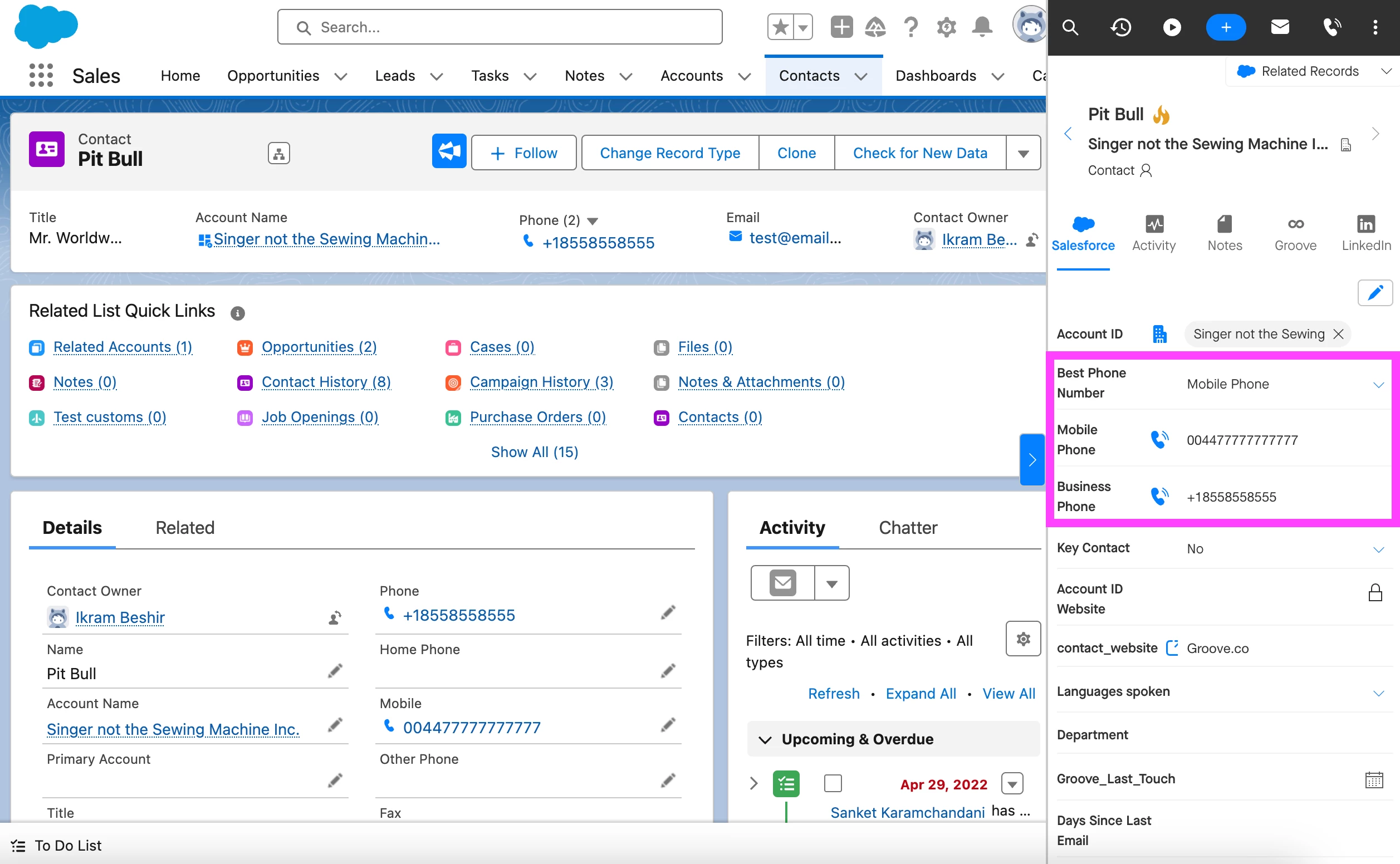
  1. Creating a custom picklist field in Salesforce, such as [Best Number] whose values are all the relevant phone number fields in your org, that teammates can update in the Omnibar as they make calls.  Any updates teammates make to this field from the Omnibar would save back to Salesforce in real time.  That way, other teammates know which phone number they should start with when calling a Contact/Lead in the future.  


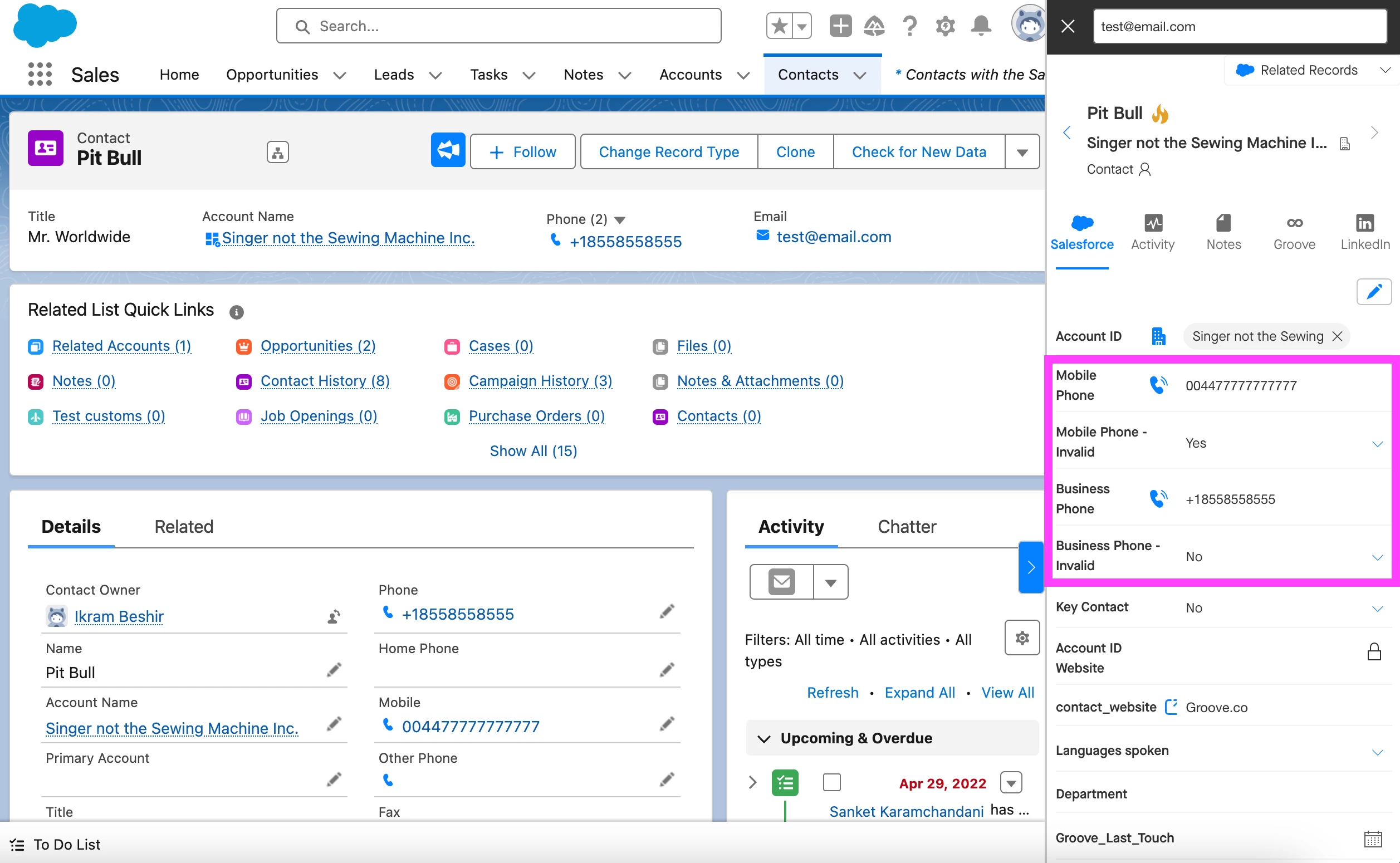
  2. Creating a custom checkbox field in Salesforce for each phone number field your team uses to track whether a number is invalid or not (e.g., [Mobile Phone - Invalid], [Business Phone - Invalid], etc.).  Teammates could then mark the checkbox for any numbers that are not working.  When other teammates go to call that same Contact/Lead in the future, they could refer to those checkbox fields in the Omnibar to determine which numbers are worth calling.  The advantage of this option is that, because this information all saves back to Salesforce in real time, your team could run Salesforce reports on your Contacts/Leads to generate a list of Contacts/Leads who have invalid numbers stored on their records.  This would make it easier to clean these numbers up in the future (at which point, you could uncheck the corresponding checkbox again).  


If either of these options sound helpful, I’d recommend working with your internal Salesforce admin team on creating these custom fields in Salesforce and surfacing them in your team’s Groove Views (which control what Salesforce fields are shown in the Omnibar).  This guide might be a useful reference point for configuring Groove Views.  

If these options don’t meet your team’s needs, our product team is always happy to receive and consider feedback on potential product enhancements.  You can submit new product ideas as an “Idea” post in the Community here.  Our product team reviews those Ideas regularly when planning out their product roadmap.  


Izzy Aguilar
New Contributor
Forum|alt.badge.img+2
  • Author
  • New Contributor
  • January 18, 2025

Thank you I will reach out to my team about option 1.


I also input an idea post, here is the link 


elijah
Clari
Forum|alt.badge.img+12
  • Clari
  • January 18, 2025

Hi ​@Izzy Aguilar— Sounds good!  If you need any help with getting that option up and running, please don’t hesitate to circle back. Also, thanks for sharing your Idea with us.