


What is a Groove Flow?
An automated multi-step, multi-channel sales campaign enabling personalized interactions with customers and prospects at scale.
-
Set-up multi-step Flows, automating workflows across email, calls, SMS, LinkedIn, direct mail, and more
-
Execute Flow steps directly from within Gmail, Microsoft 365, Salesforce, or Groove.
-
Use Templates to communicate with multiple accounts at once, reusing high-performing content
Best Practices for Creating Flows
-
Make your Flow repeatable.
-
Use the 5/15 Rule for emails:
-
Keep email subject lines under 5 words
-
Emails should be skimmable and understood in less than 15 seconds.
-
Try using merge fields multiple times in each email message to drive a more personalized feel to the message.
-
-
Get their attention and show you’re not trying to waste their time by using a wide variety of steps across email, calls, SMS, LinkedIn, and more.
-
Create multiple Flows to tailor content, frequency of touch, and type of touch, to maximize the positive outcomes from each Flow and target group.
-
A/B Test cadences and channel mix to determine what works best for specific markets/personas.
-
Don’t use Flows to send out a huge volume of emails, leave that to Marketing, and avoid getting marked as a spam sender.
-
Don’t send the same message to multiple people at the same company on the same day.
Leverage Groove Flows to Automate Common Workflows
There are many ways to leverage Flows to automate common workflows. Here are a few thought starters.
Inbound Lead Routing and Qualification
Salesforce list view
-
Go into a list view in Salesforce. The list of recently viewed contacts is below, but you can add people from any list of Contacts or Leads.
-
Check the people (contacts or leads) you'd like to add.
-
Click the Groove drop-down. The number of checked people should appear in the drop-down.
-
Click Add to Flow.
Outbound Prospecting
Salesforce report
-
Select the FOLDER the Salesforce report is saved under
-
Search the Salesforce report name
-
Run Report!
Note: Make sure to search by folder first!
LinkedIn Prospecting
- Open up Gmail extension
- Select the ellipsis in the top right corner and open Omnibar in a new window
- While prospecting on LinkedIn, add new prospects using the yellow plus button on the omnibar.
Groove Master Flows
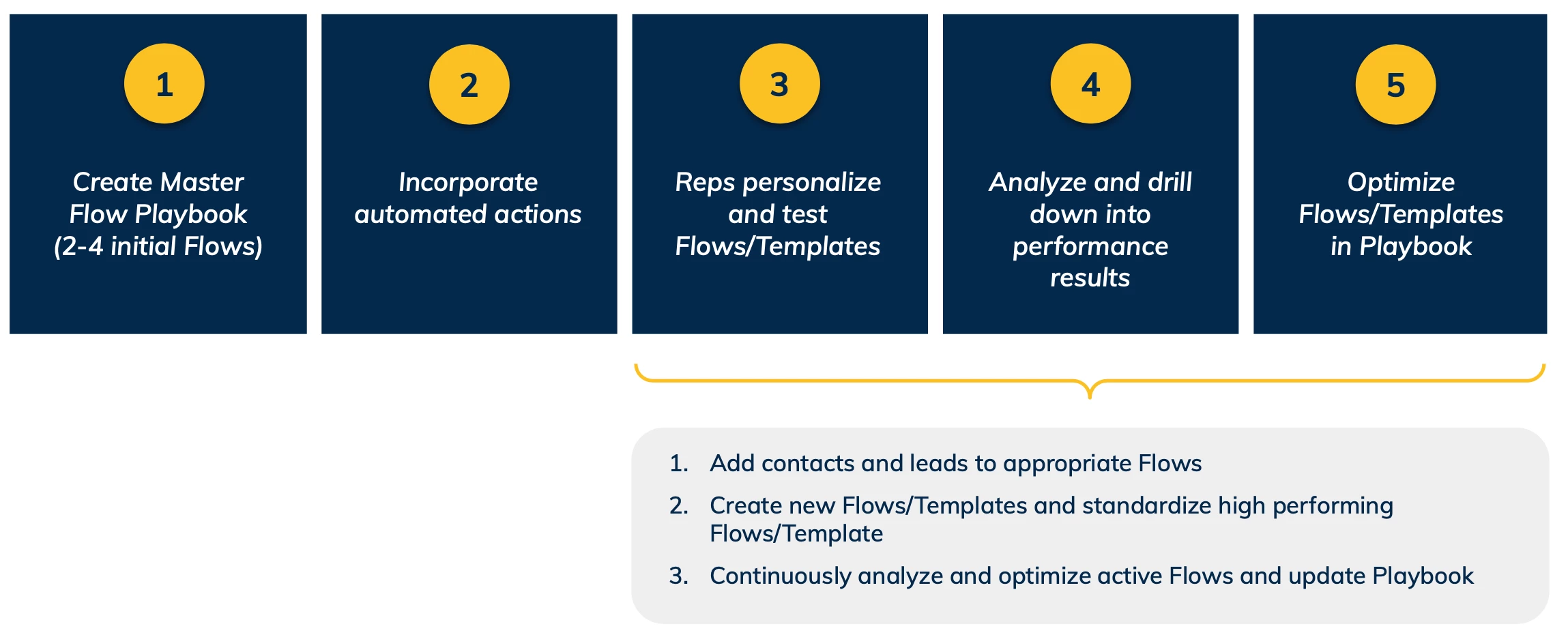
Master Flows are the Flows that all reps can see, add contacts to, and make copies of, providing you with centralized reporting on effectiveness across territories. Groove customers typically identify what their top performers are doing and standardize on that messaging using this capability.
Best Practices for Master Flows:
-
Create a Master Flow Library that reps can leverage without having to draft their own individual communications from scratch
-
Give them the freedom to personalize components of each message and optimize over time.
-
Build a repeatable playbook by reviewing Flow performance analytics and standardizing on what works.
Give reps playbooks and the freedom to personalize at scale. 20-30% personalization is where you see the greatest ROI for time invested.
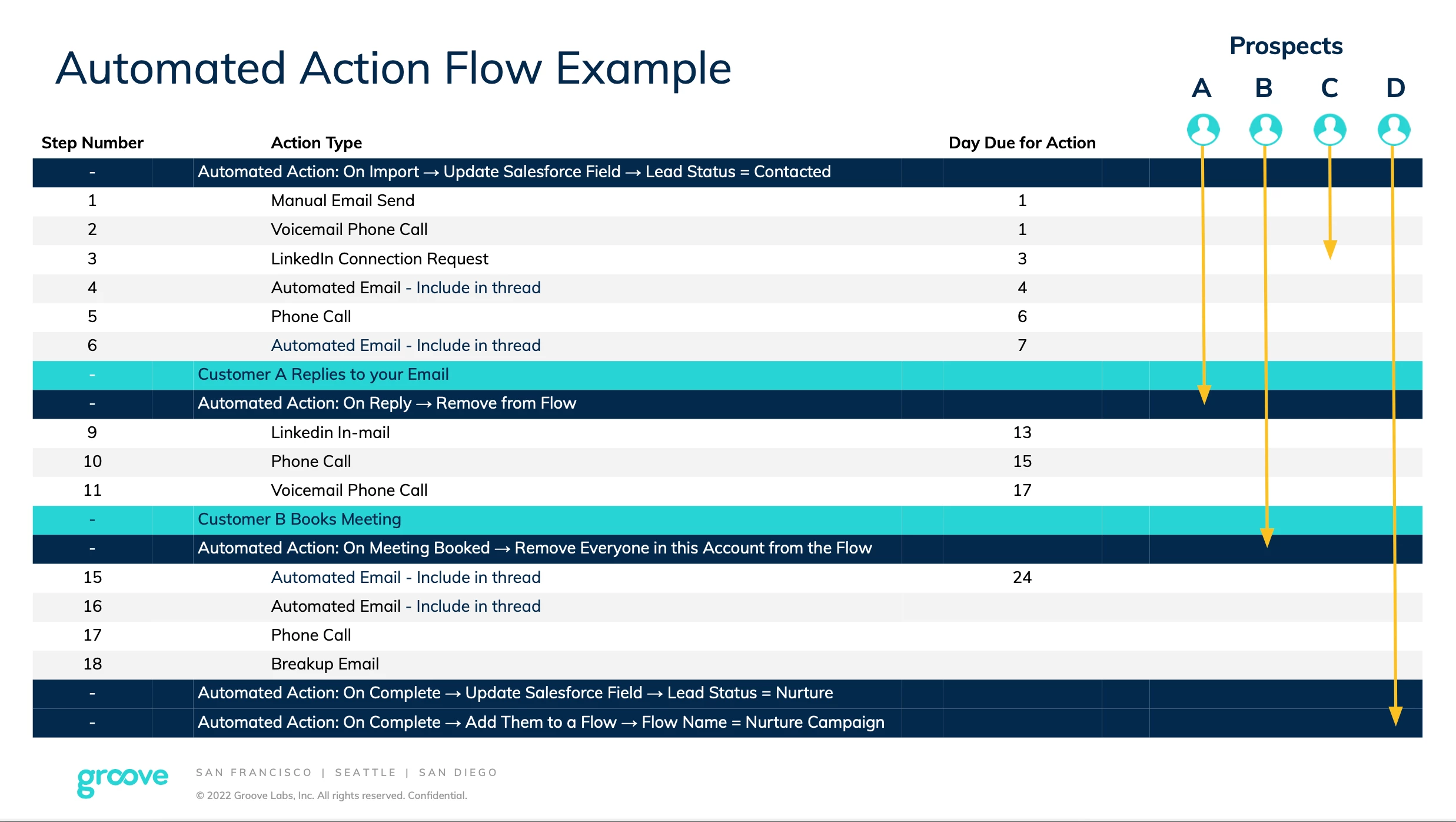
Automated Actions
Automated Actions in Groove allow you to define triggers that will cause certain actions to take place — and once they’re set up, you don’t have to lift a finger. Take a closer look at Automated Actions here.
Groove Analytics
We’ll show you a preview of the analytics related to the Groove Flows that you build below. Learn more about Groove Analytics here.
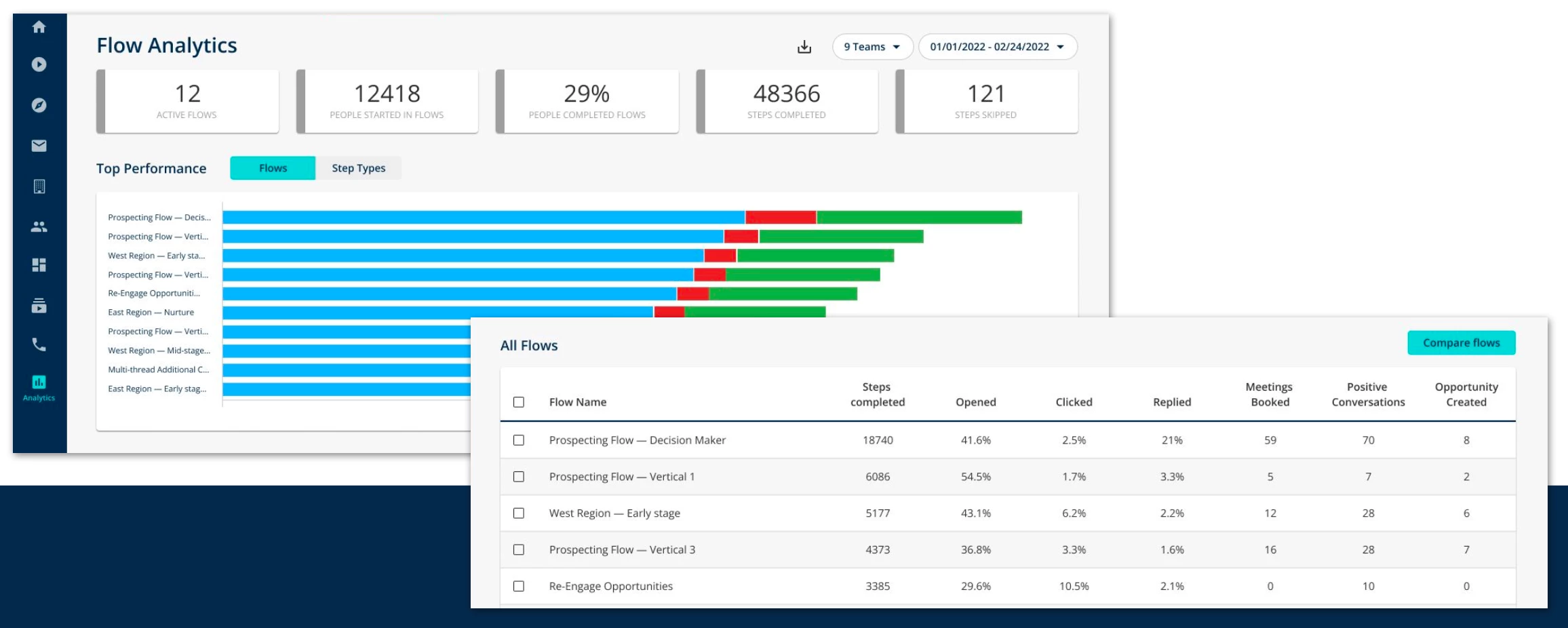
Flow Performance
Identify which Flows perform best and which need fine-tuning. Standardize high-performing Flows to increase account engagement across teams.
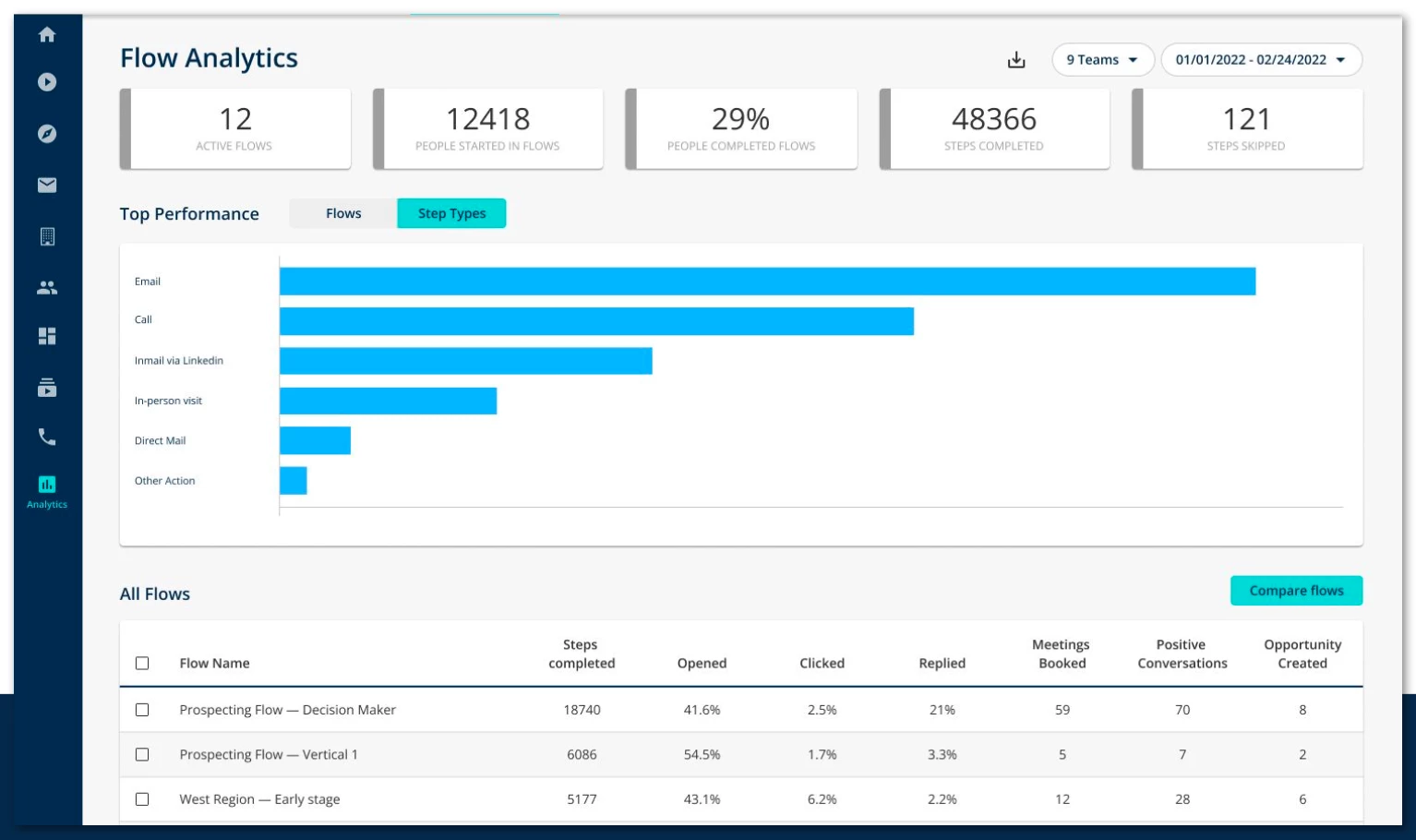
Flow Step Type Performance
Discover which step types and step numbers are top performers, and which need a closer look.
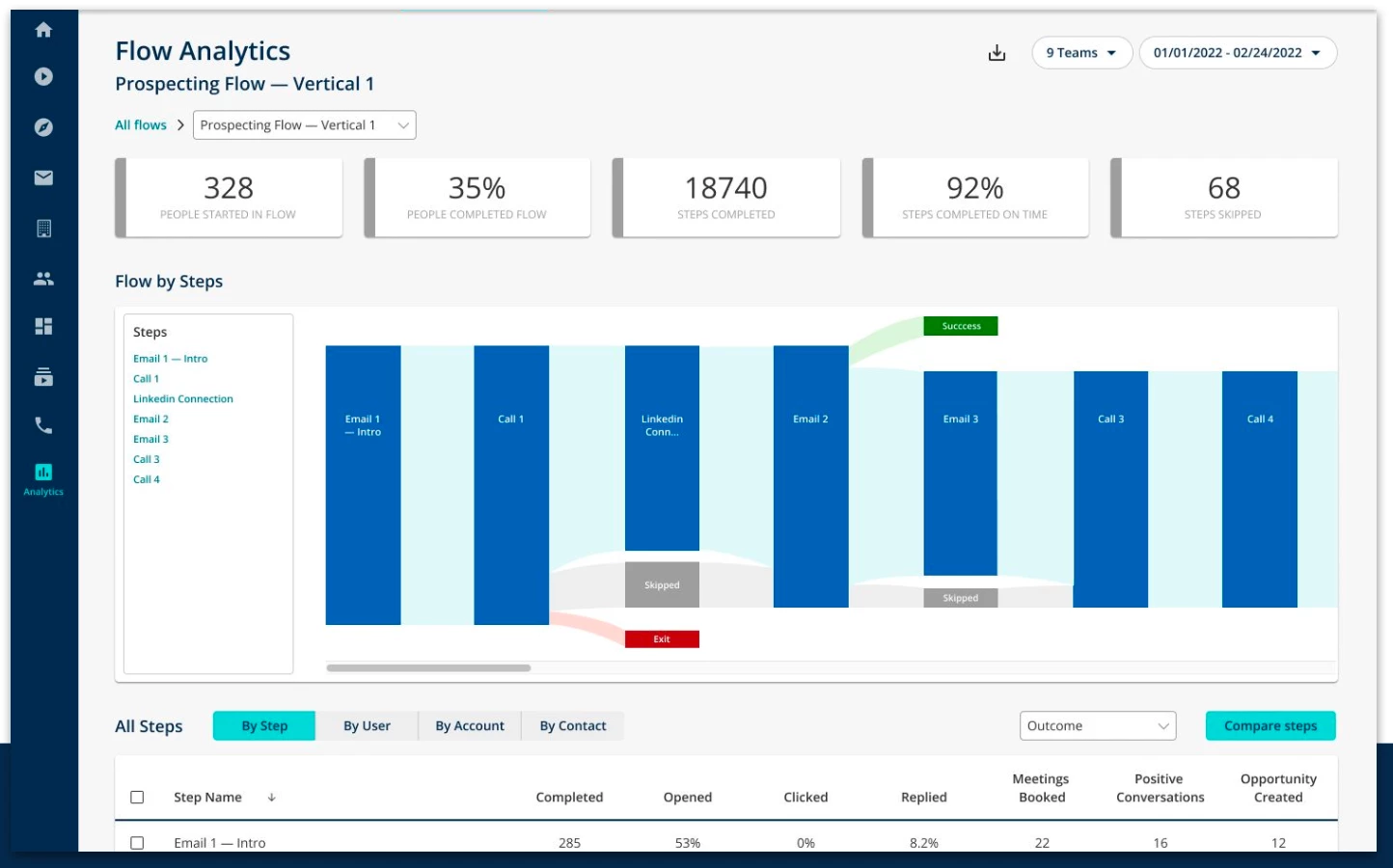
Flow Performance Visualization
Visualize each step in a Flow. Identify where contacts are dropping off, and which steps are leading to positive outcomes.
Best practices framework from Groove’s high-growth technology customer base
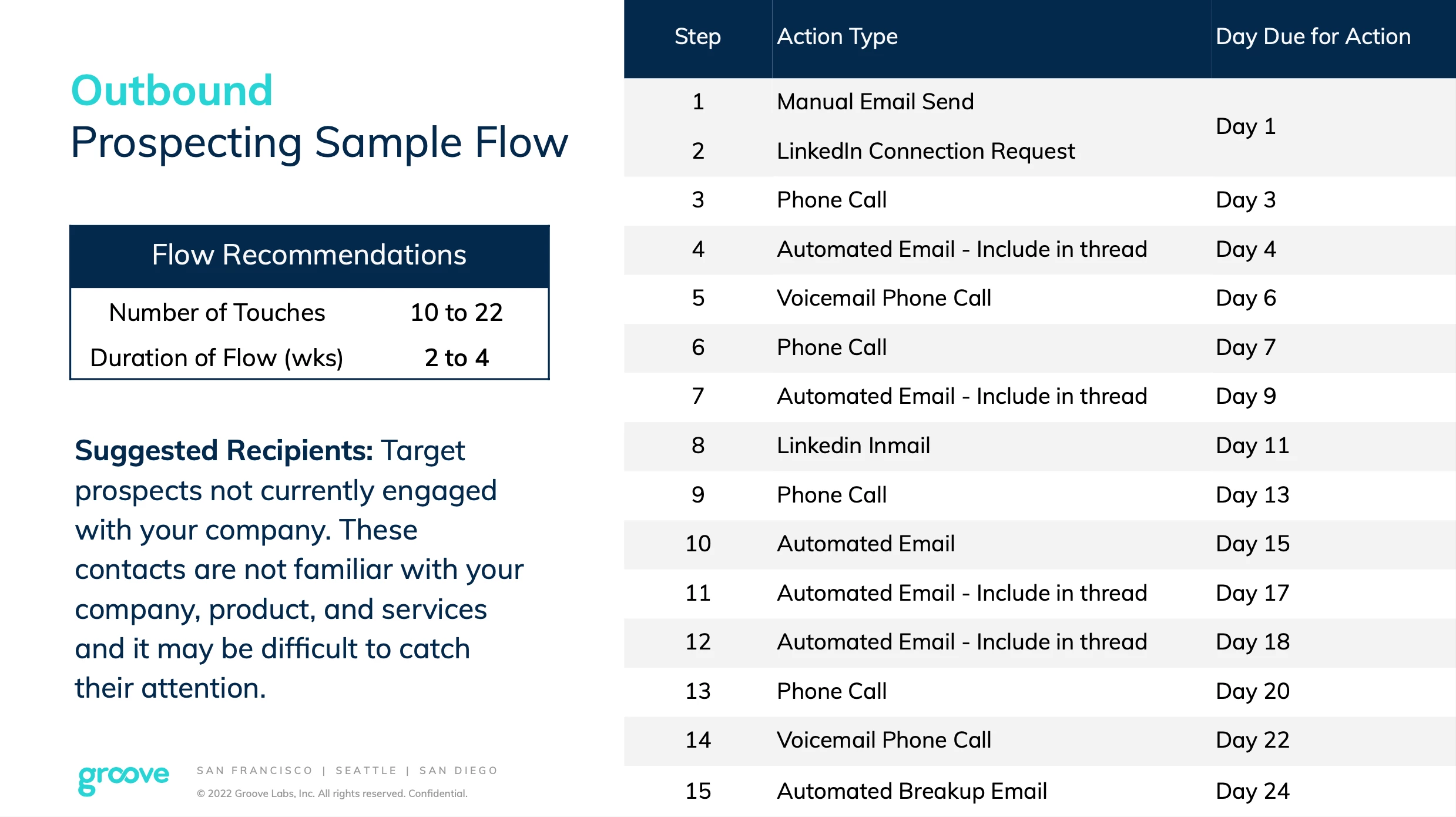
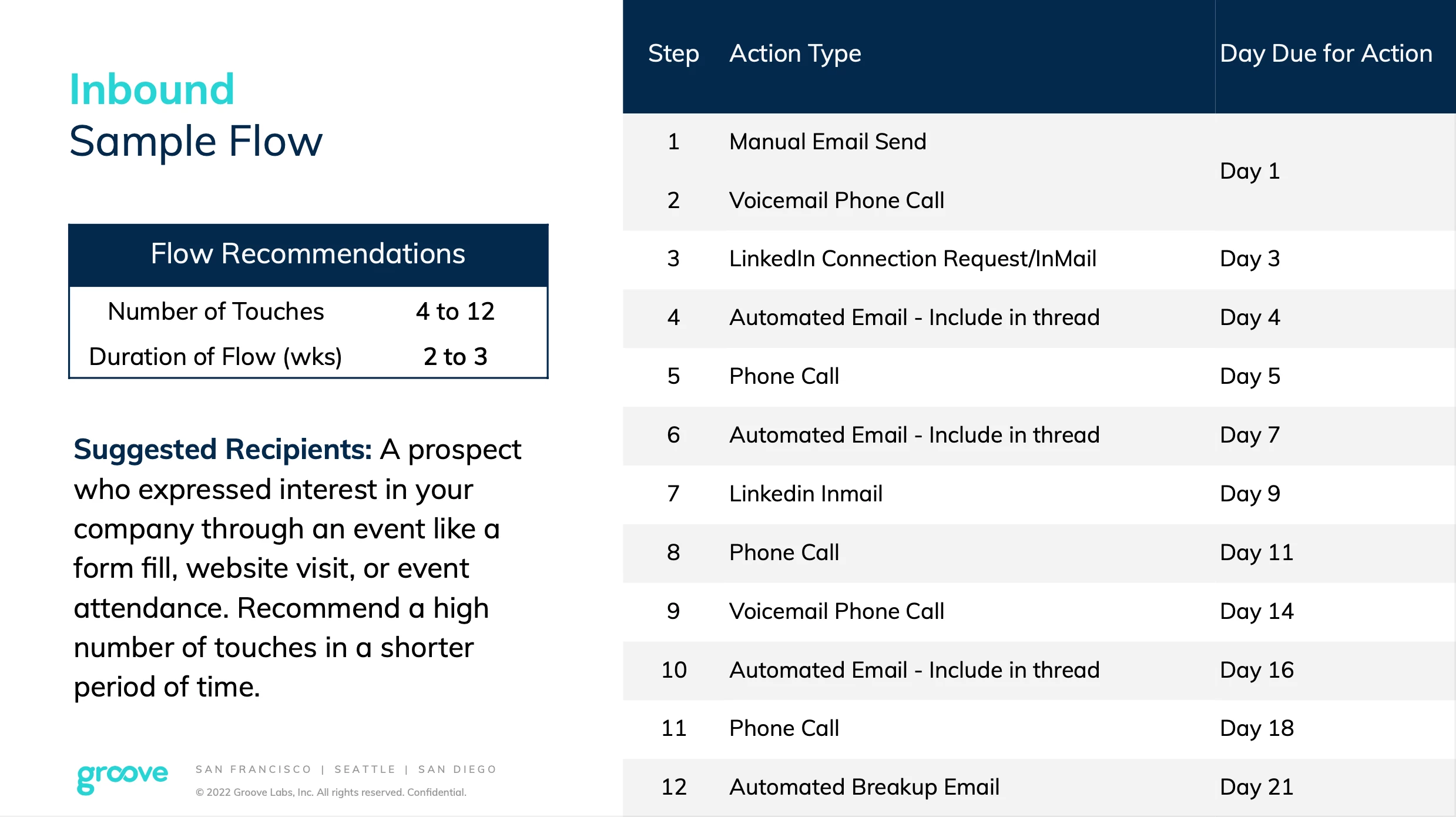
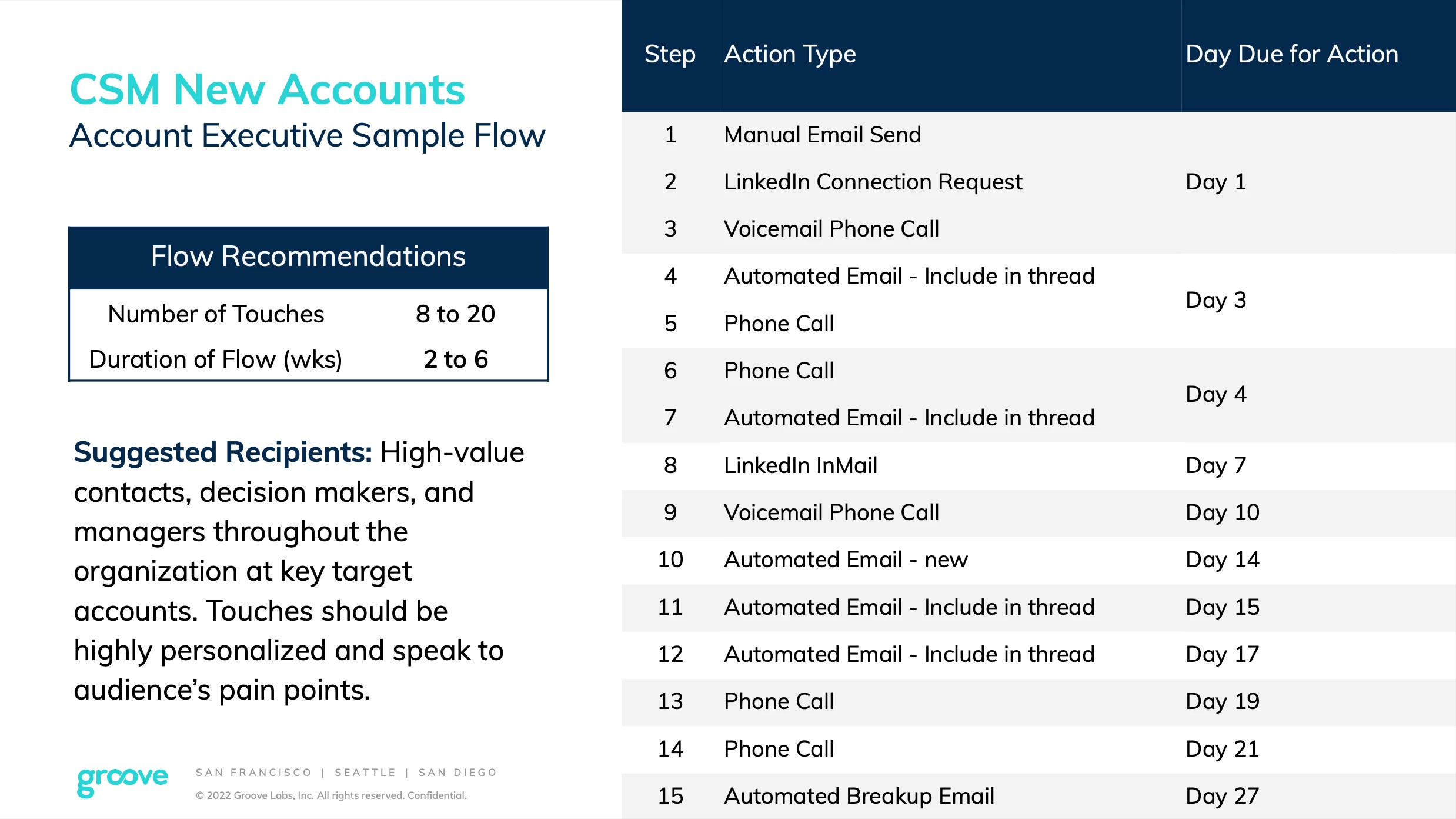
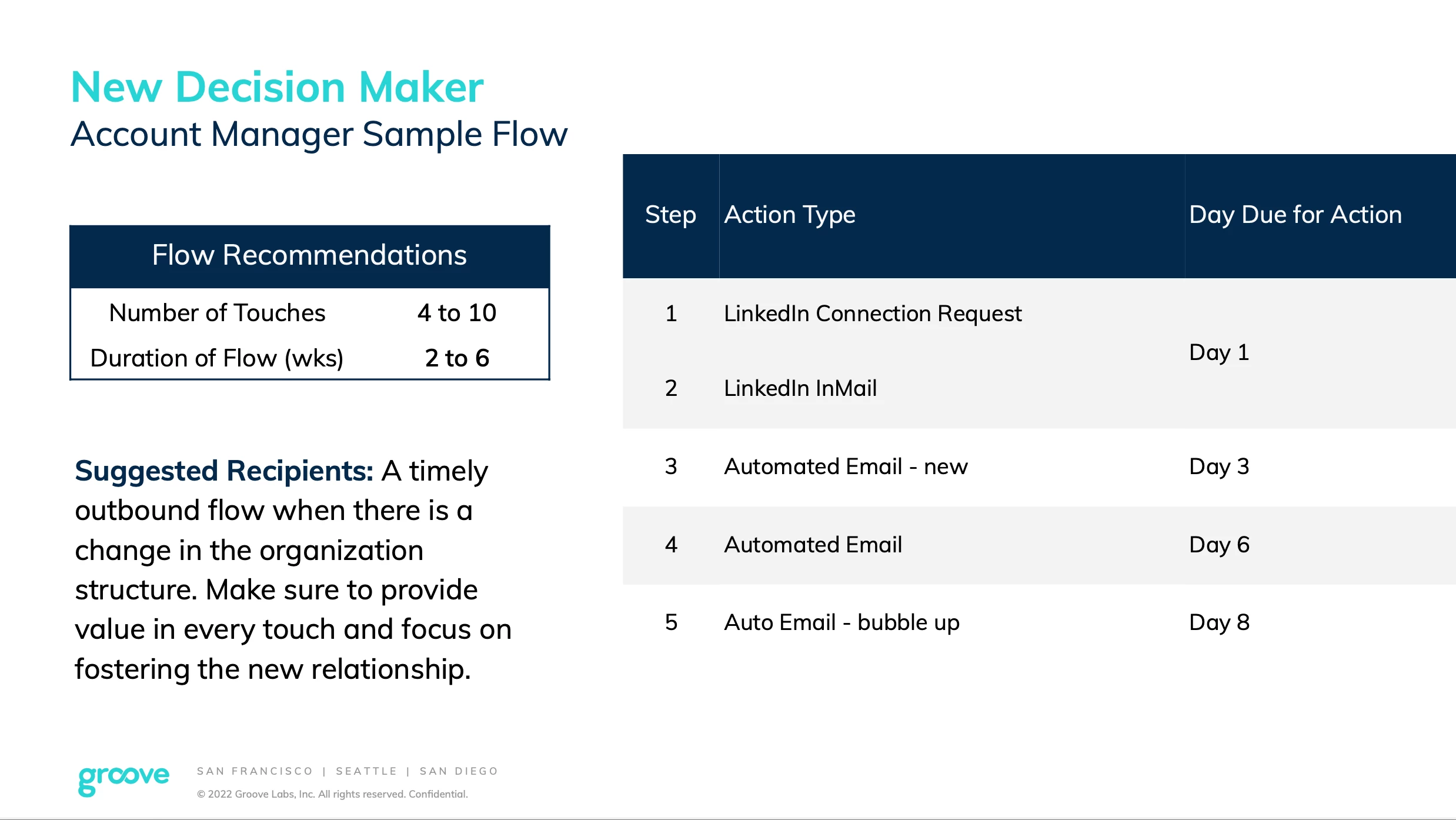
Flow Examples