




Managing Email Opt Outs in Flows
There are 2 key points where Groove manages people who opt out of emails.
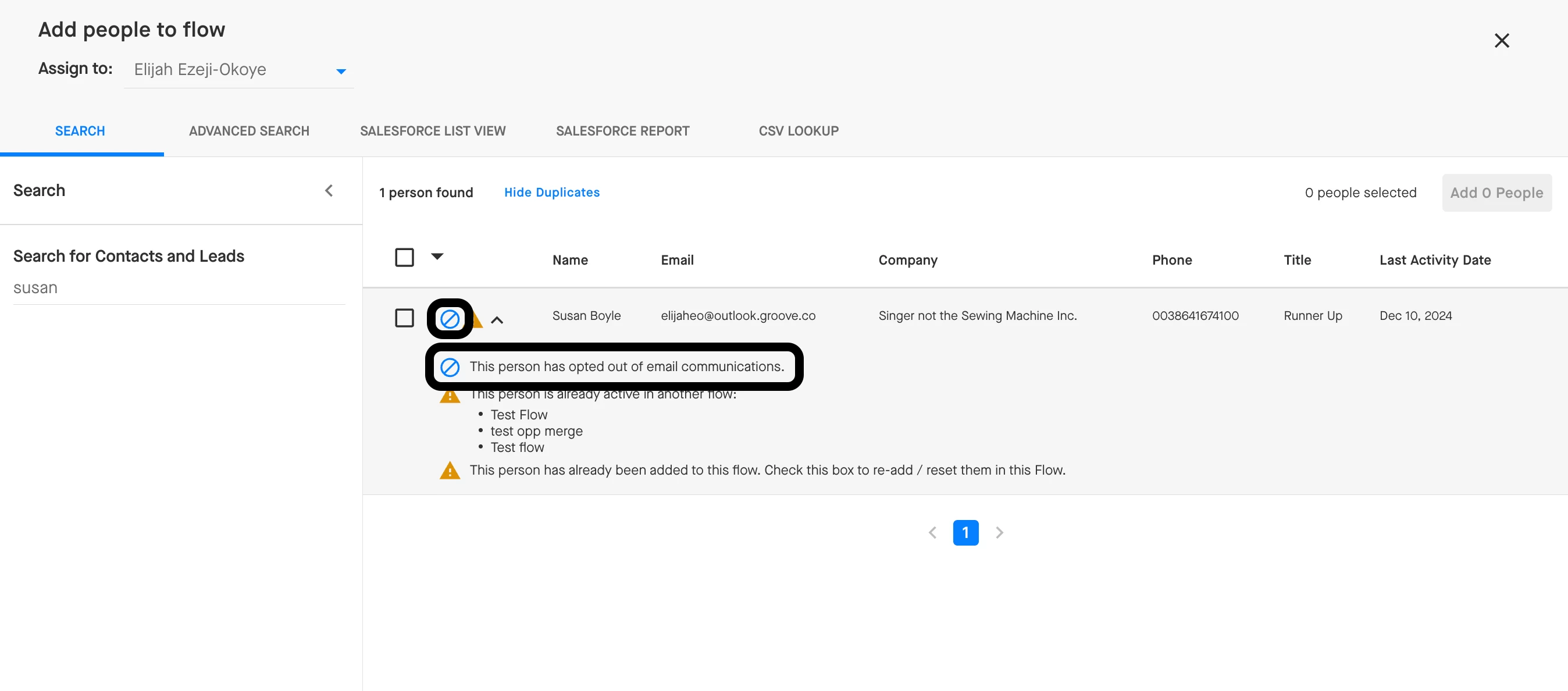
1. When you add people to a Flow, Groove will flag any Contacts and Leads who have opted out of email communications with a blue circle with a slash through it by default. This warning lets you know of their email opt out status so that you can decide whether you want to continue with importing them into the Flow.
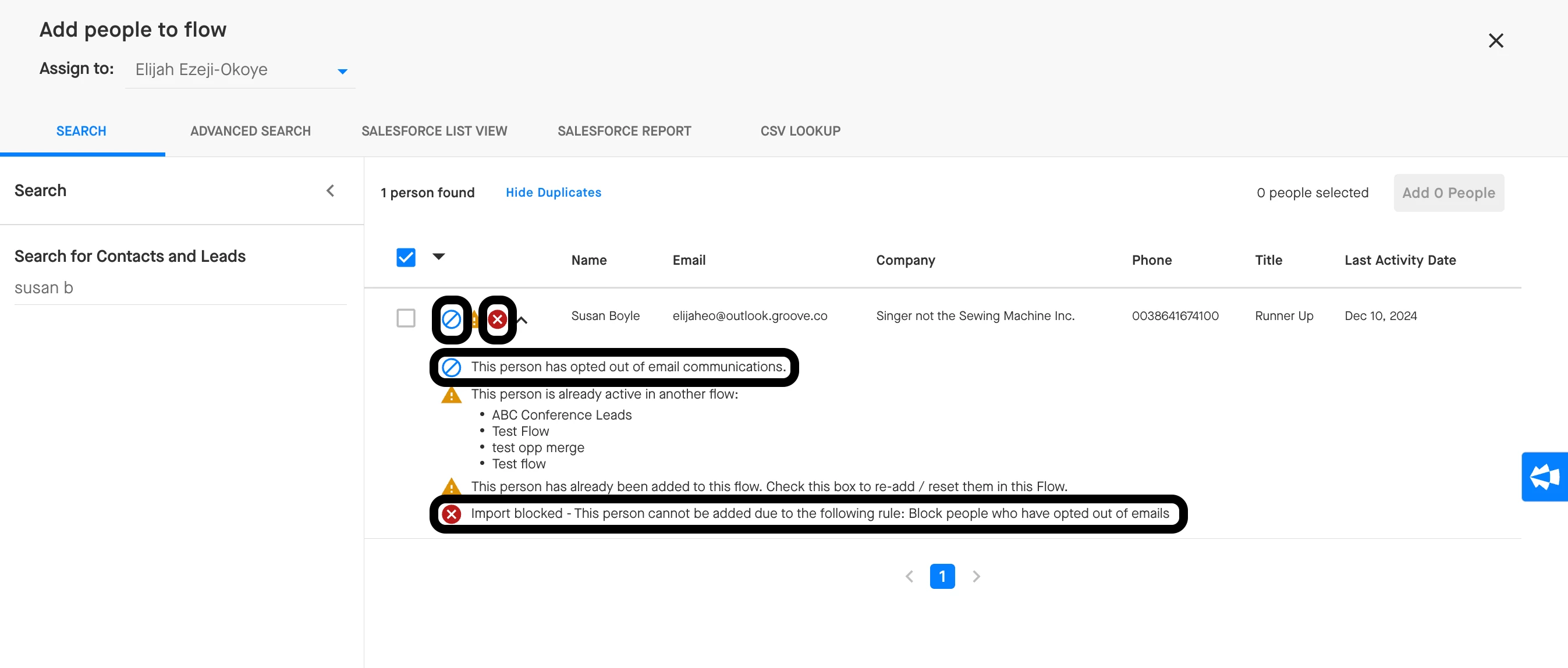
In some cases, your admin team may have configured additional Import Block Rules to entirely prevent Contacts and Leads that have opted out of email communications from being imported into the Flow. These Contacts and Leads will also have a red circle with an “x” next to their names.
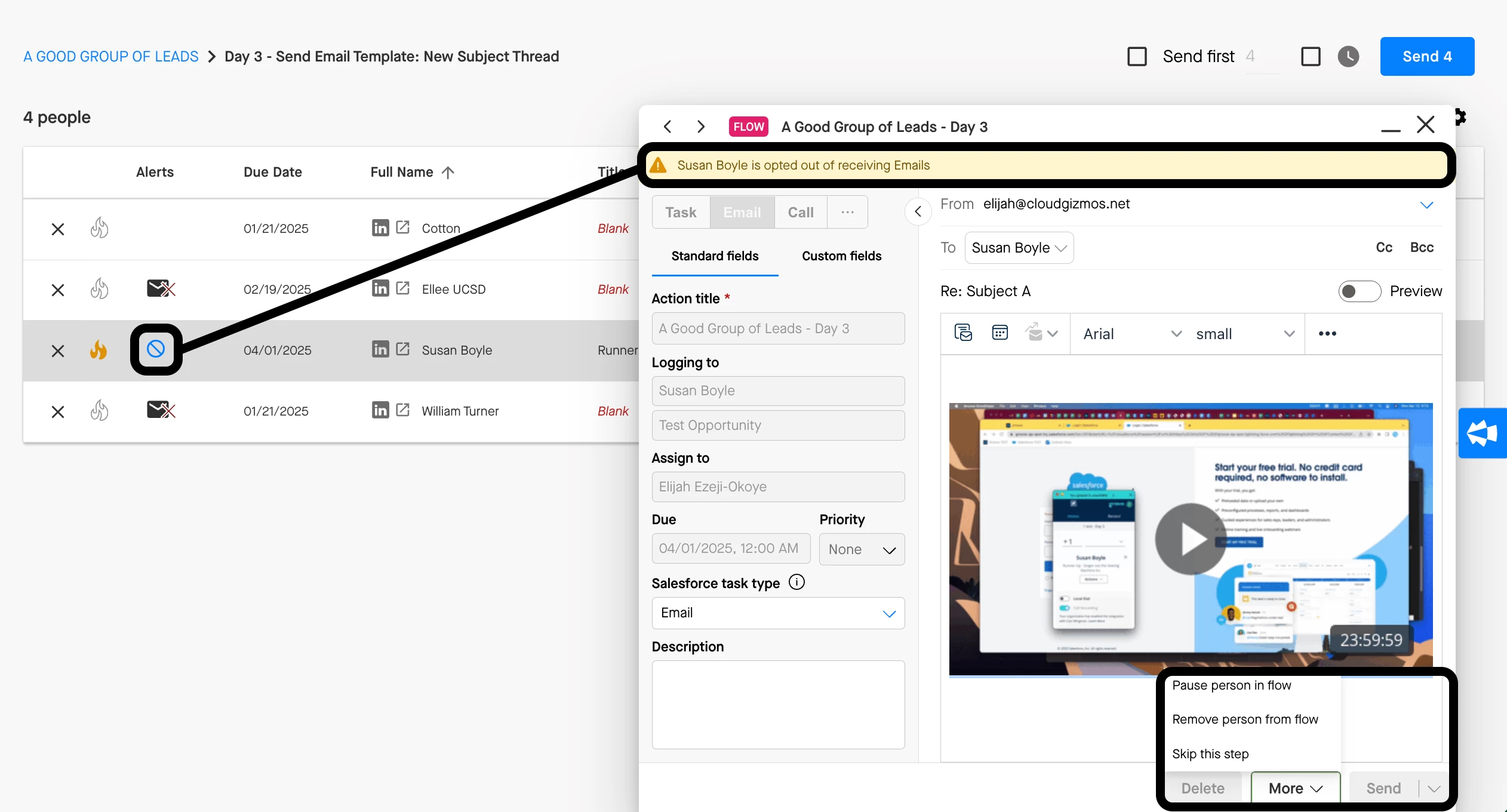
2. If a person opts out while in a Flow, you will see an error message if you attempt to execute the next email step in that Flow for them. The send button will also be grayed out, preventing you from sending another Flow email to them. If this happens, we recommend removing them from the Flow entirely by using the ‘X’ button to the left of their name, or skipping them through the email step by click ‘More’ > ‘Skip this Step’.
Managing Call Opt Outs in Flows
If your team is using Call Opt Out fields to manage whether users can call prospects who have opted out of calls or not, then when users attempt to execute on their call actions in the OmniDialer, they will see that the ‘call’ button is grayed out. When they hover over the ‘call’ button, the following message will surface to indicate why the prospect cannot be called: Call blocked: Prospect has opted out of calls.
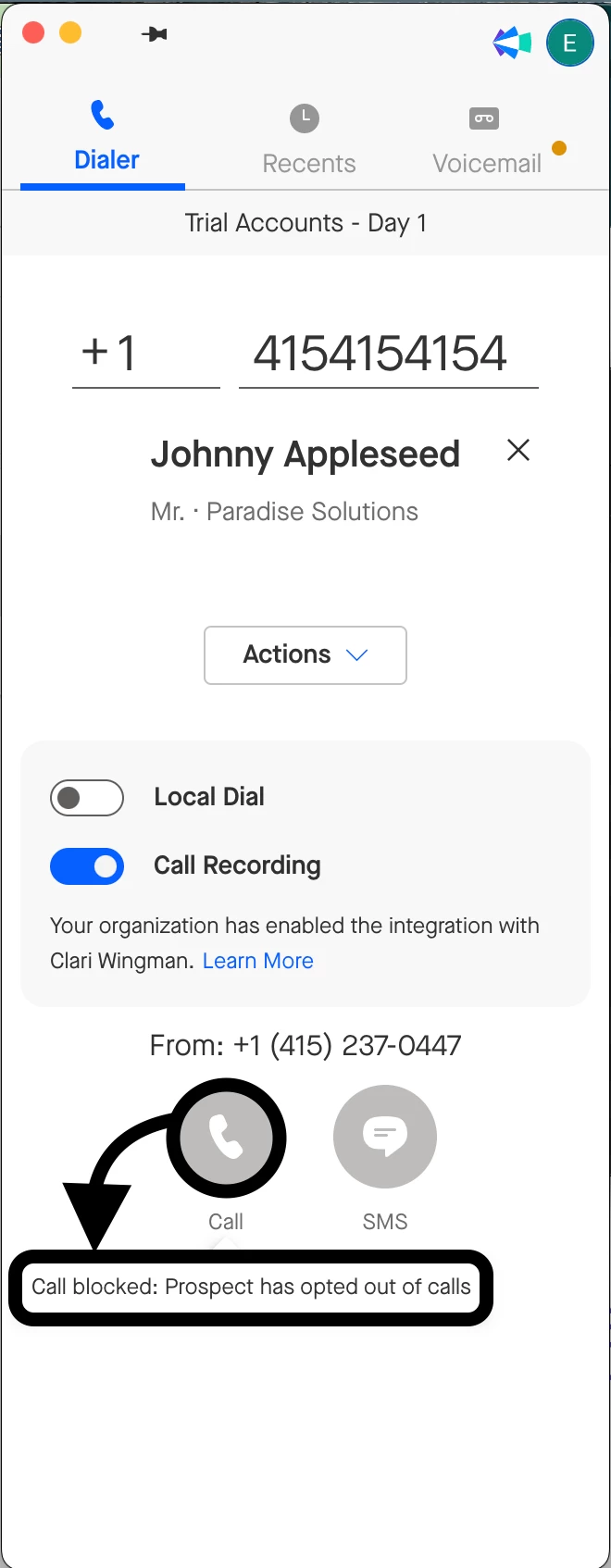
Contacts and Leads who have opted out of calls are not flagged with a warning icon at the time of import. However, your team could configure a custom Import Block Rule to entirely prevent the import of these Contacts and Leads into Flows, which may be especially helpful on call-only Flows.