




The Groove template editor does not offer native spell check, so users should use their browser’s built-in spell check or extensions.
To avoid formatting issues, apply styles exclusively using the formatting tools within the Groove Template editor. This will help ensure no messy formatting or extra styling information is carried over from the first text editor, which could alter how the text appears when it’s sent in an email.
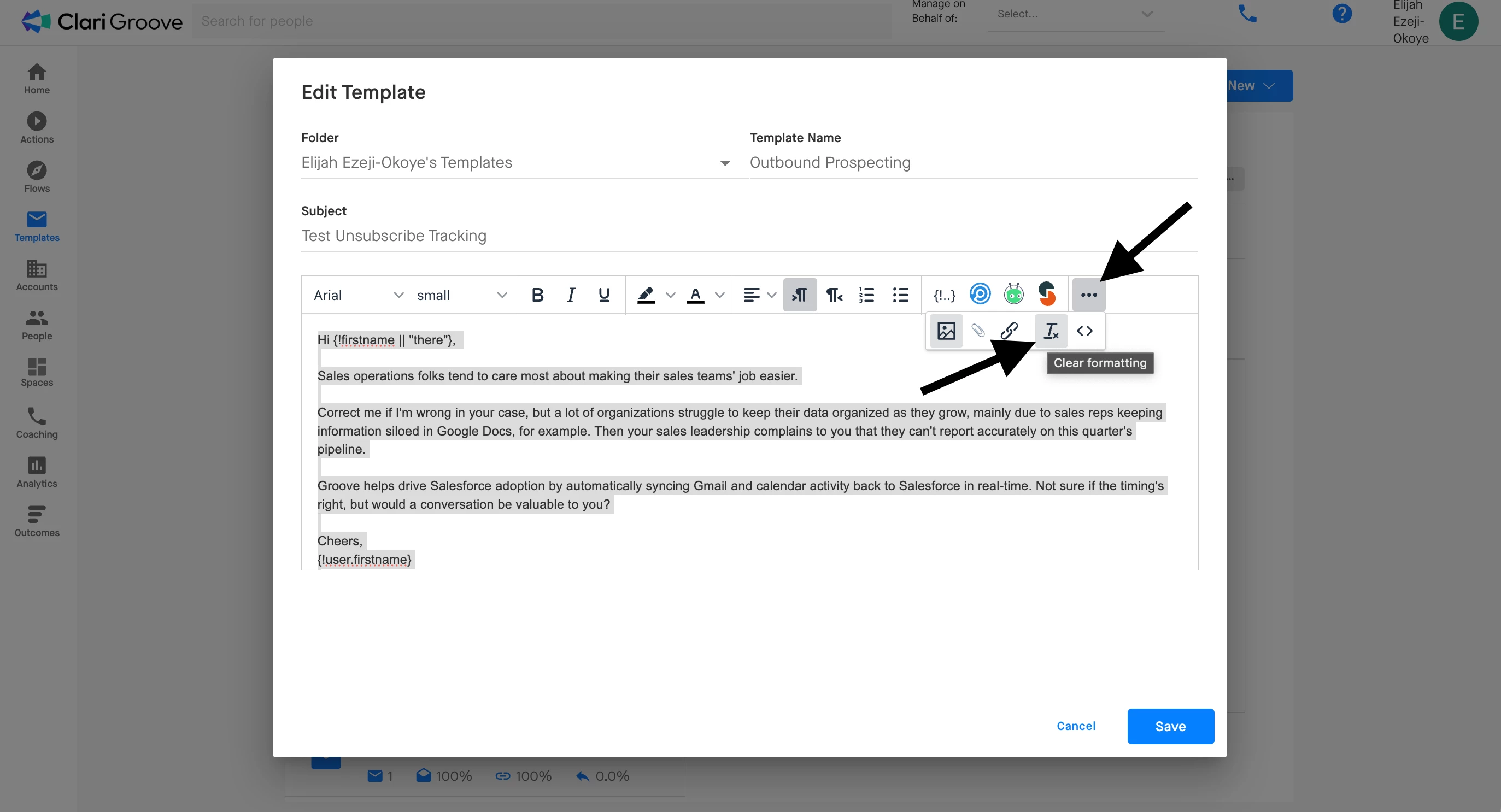
If copy/pasting content from another source (e.g., Microsoft Word, Google Docs, Pages, etc.), paste without formatting by pressing Ctrl+Shift+V on PC or Cmnd+Shift+V on Mac. Alternatively, paste with formatting, highlight the entire text, and then click the ‘Tx’ clear formatting button. Then, reapply any styles using the the formatting tools within the Groove Template editor.
Always send a test email and use the built-in preview to confirm appearance, including proper display of signatures and unsubscribe footers. There are a couple ways to send test emails and preview a template’s appearance.
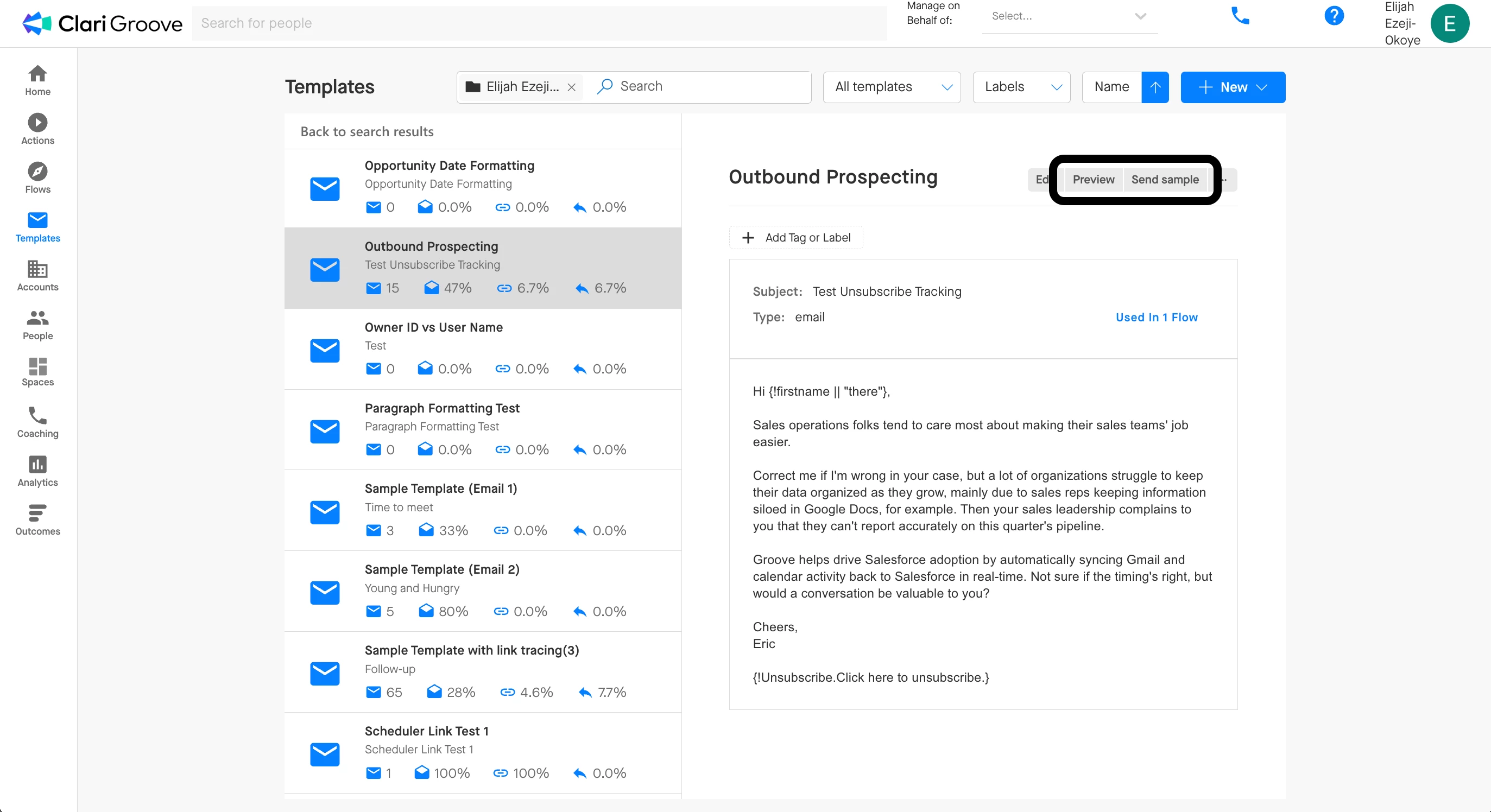
1. In the Groove Templates page, press the ‘Preview’ or ‘Send Sample’ icon to have a copy of the email Template sent to your Groove email address. The ‘Preview’ button will enable you to choose a Contact or Lead to preview the Template with so that you can see what any merge fields in the Template look like when they’re resolved. This will enable you to review what your Template looks like to a recipient. (Note that email signatures and unsubscribe footers will not be appended to the sent sample emails.)
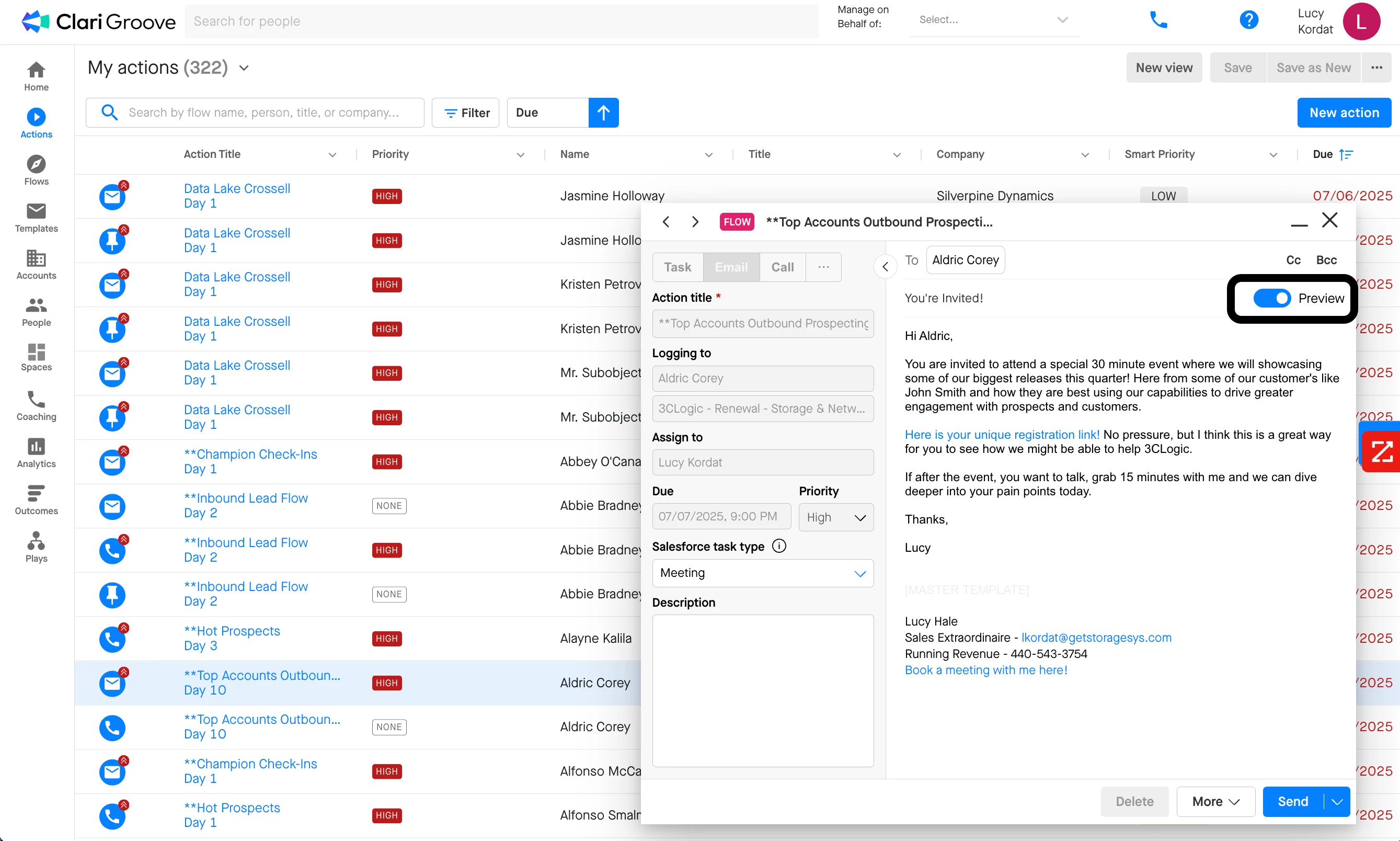
2. In the Action Compose window, turn the ‘Preview’ toggle on to see what your email looks like within the Action Compose window itself. If you are using an email signature or unsubscribe footer, these should be applied when the ‘Preview’ toggle is turned on.
3. In Flows, you can import a fake or a test Contact or Lead into the Flow, then execute on the all the Flow steps for the Contact or Lead. We recommend using a Contact or Lead whose with an email address you have access to, such as a dedicated testing email address or a personal email address, so that you can review what all of your Flow emails will look like from the recipient side.