


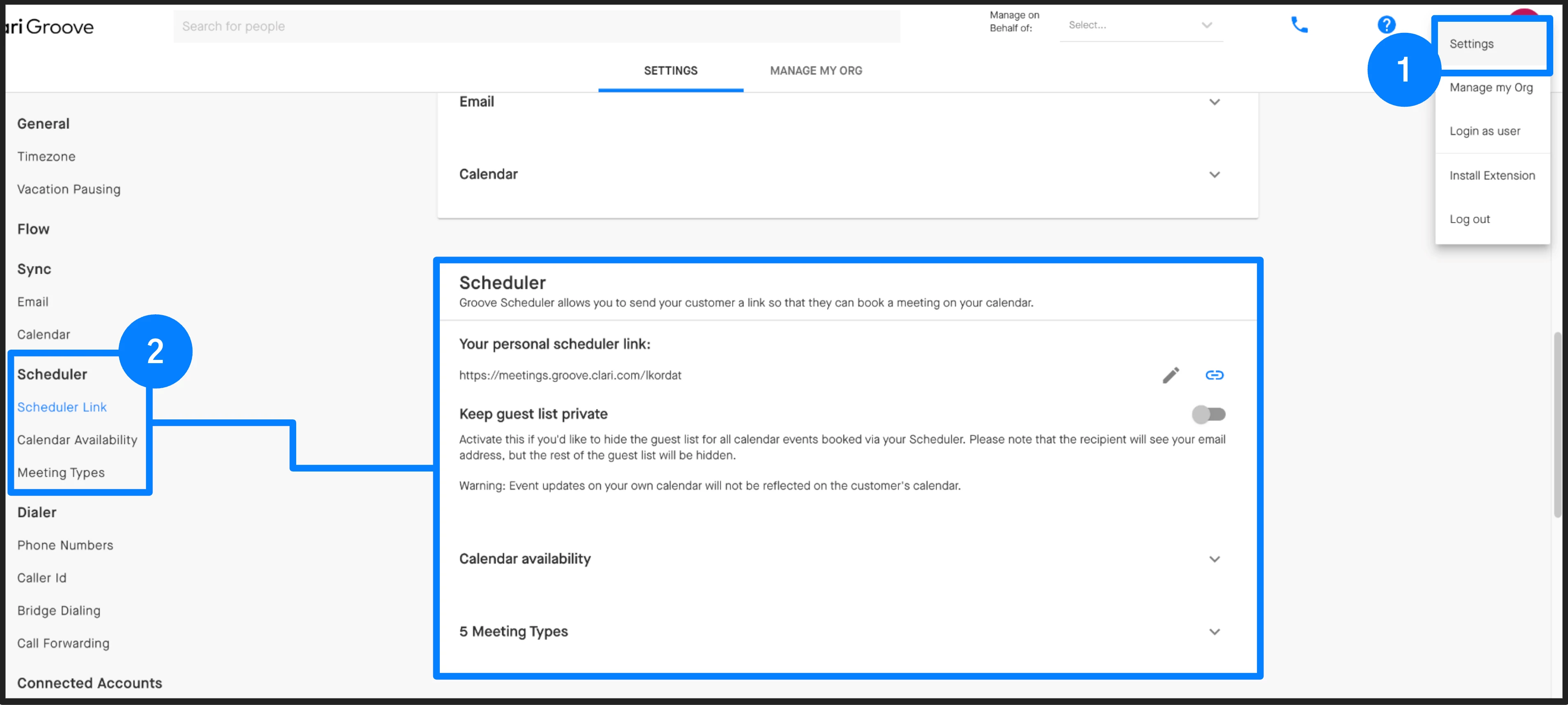
You can include your scheduler link in all your email templates within Groove. This is located in your Settings under Scheduler.
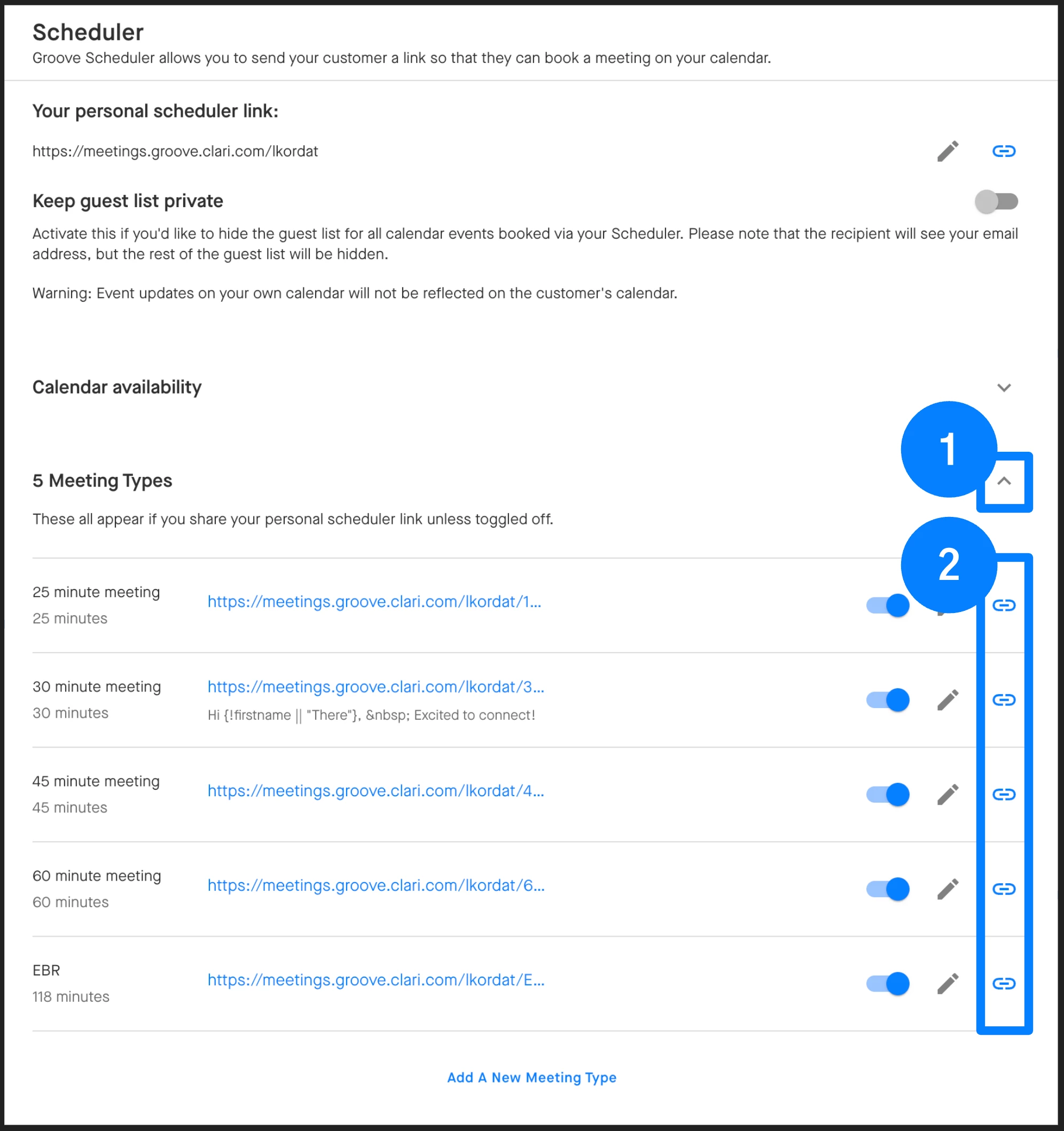
Select a meeting type (e.g. 30 minutes) from the out-of-the-box options or a customized option that you have set up, and copy the scheduler link by clicking the chainlink icon beside it. Now, you can easily add the link to an individual email, or one of your email templates so that it’s always there.
Groove syncs directly with your Outlook or Gmail account to reflect busy/free time on your calendar. If you need to set specific availability (e.g. blocking mornings) you can do that in Groove’s ‘Calendar Availability’ settings for Gmail users or Outlook’s ‘Working Hours’ settings for Outlook users.
Tip: You can learn more about how to set up and configure your Meeting Types in the Knowledge Base.
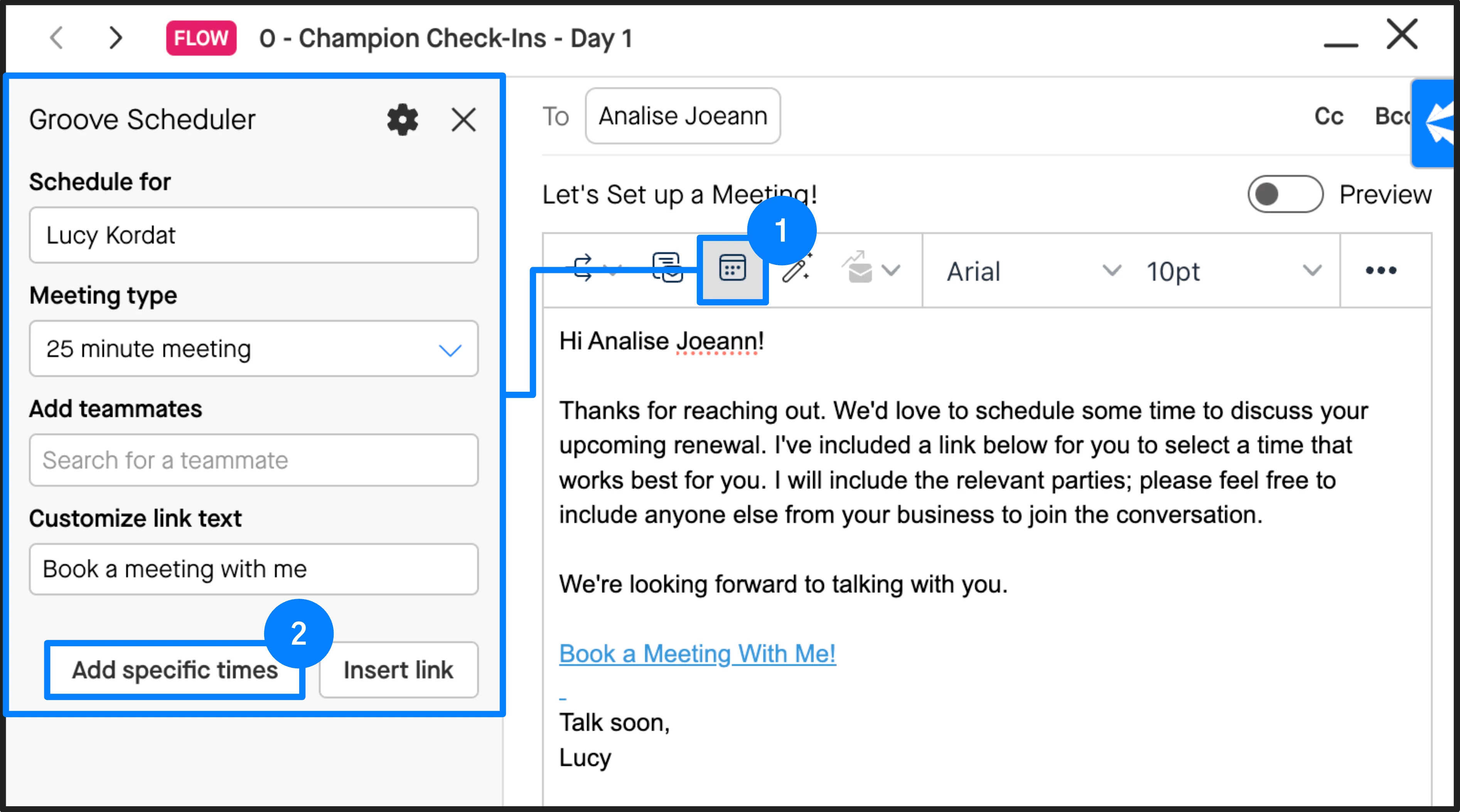
Additionally, you can insert specific times within a flow step. Just like in the inbox experience, you can now include specific times in any Groove Flow email step.
Note: You are not required to select specific times. You can also simply insert a link with your availability directly from you Google our Outlook calendar without selecting more specific times.
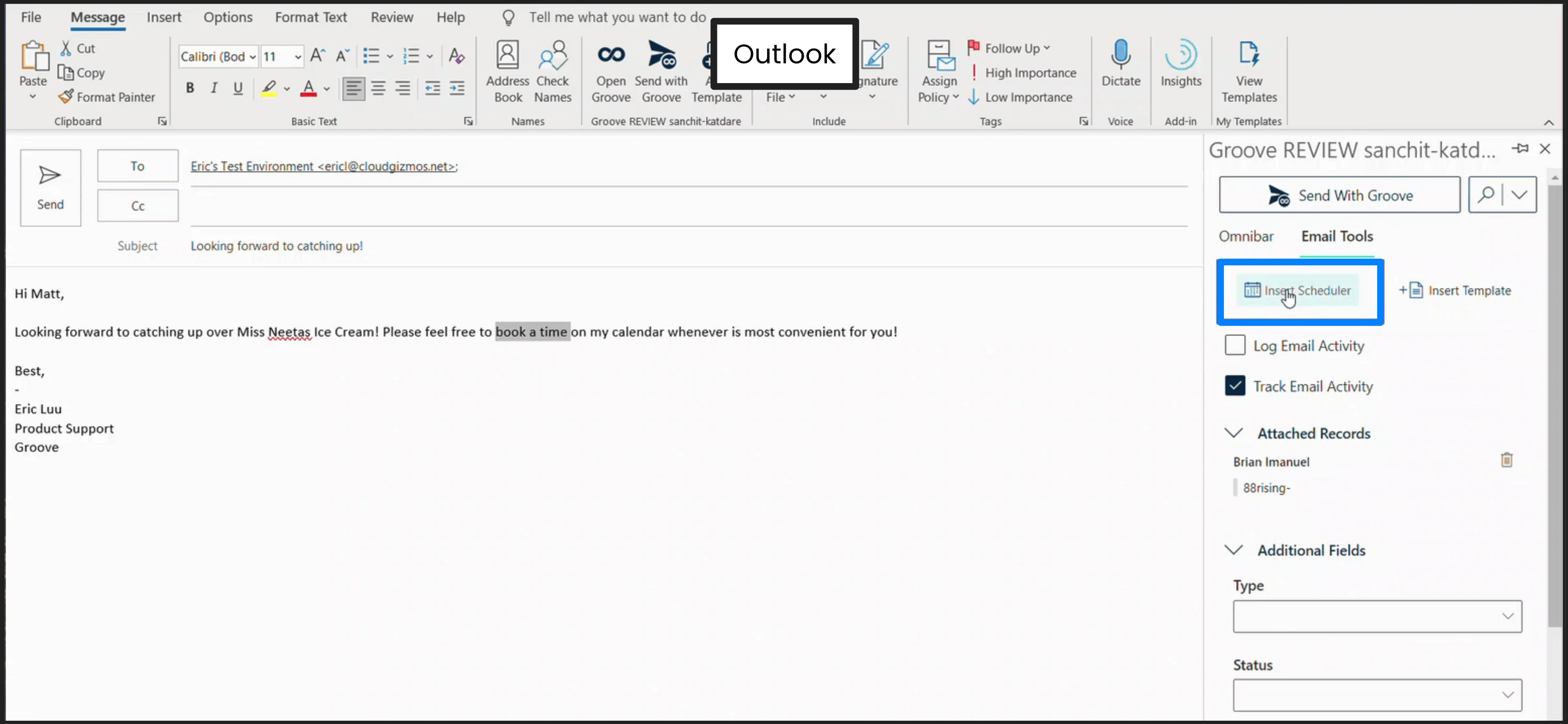
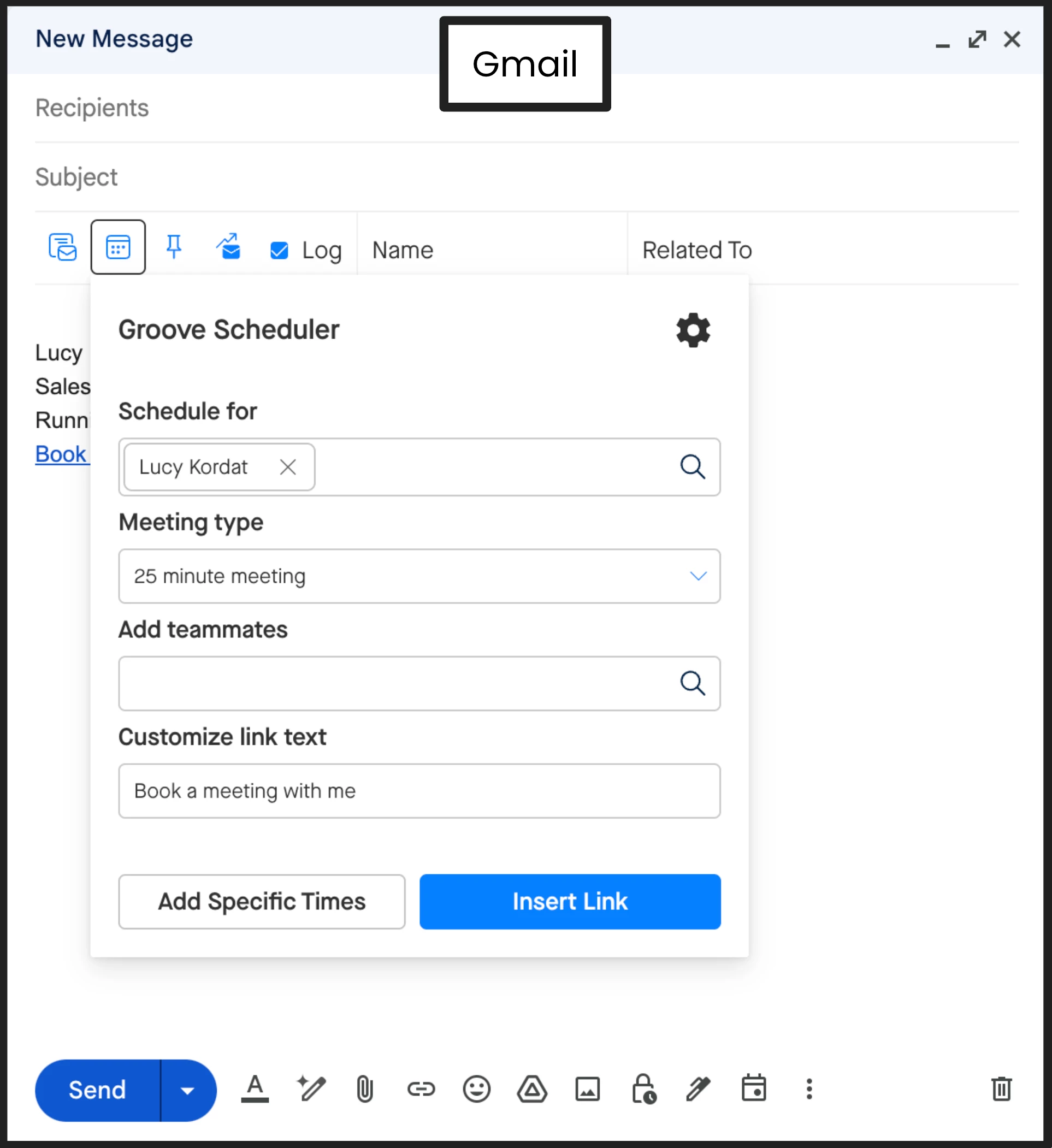
You can also insert a link to your scheduler directly from Gmail or Outlook.
In Gmail, you can insert a schedule link within the email composition window.
In Outlook, you can pin the Groove extension on the right side of your inbox, where you can insert the scheduler from the Email Tools section.