




If you’re not already familiar with how to track individual emails with Outlook or Gmail, you can review our knowledge base for the details here.
Automatically Track Emails
To make sure that you never miss out on important email engagement analytics, you can track all of your outbound emails with Gmail or Outlook by default by following these steps:
- Click your Groove extension in the top-right of your browser, then click the Settings icon.
- Check 'Track emails by default' and then 'Save and Close.'
Now Track will be selected by default when you write emails.
When you’re tracking email opens, you can be notified of when someone has opened one of your emails in a few different places where Groove will meet you in your existing workflows.
Email Open Tracking in Your Inbox
In your Gmail inbox, a count beside the email subject will keep track of open notifications for each email as shown in the video above.
In Outlook, each email thread will have an Email Engagement history as shown in this article.
Email Open Tracking with Your Browser Extension
If you pin Groove’s extension to your bookmarks bar in Chrome, then you’ll receive real-time alerts in the form of push notifications. A red counter will indicate how many unread tracking opens, clicks, and replies you have.
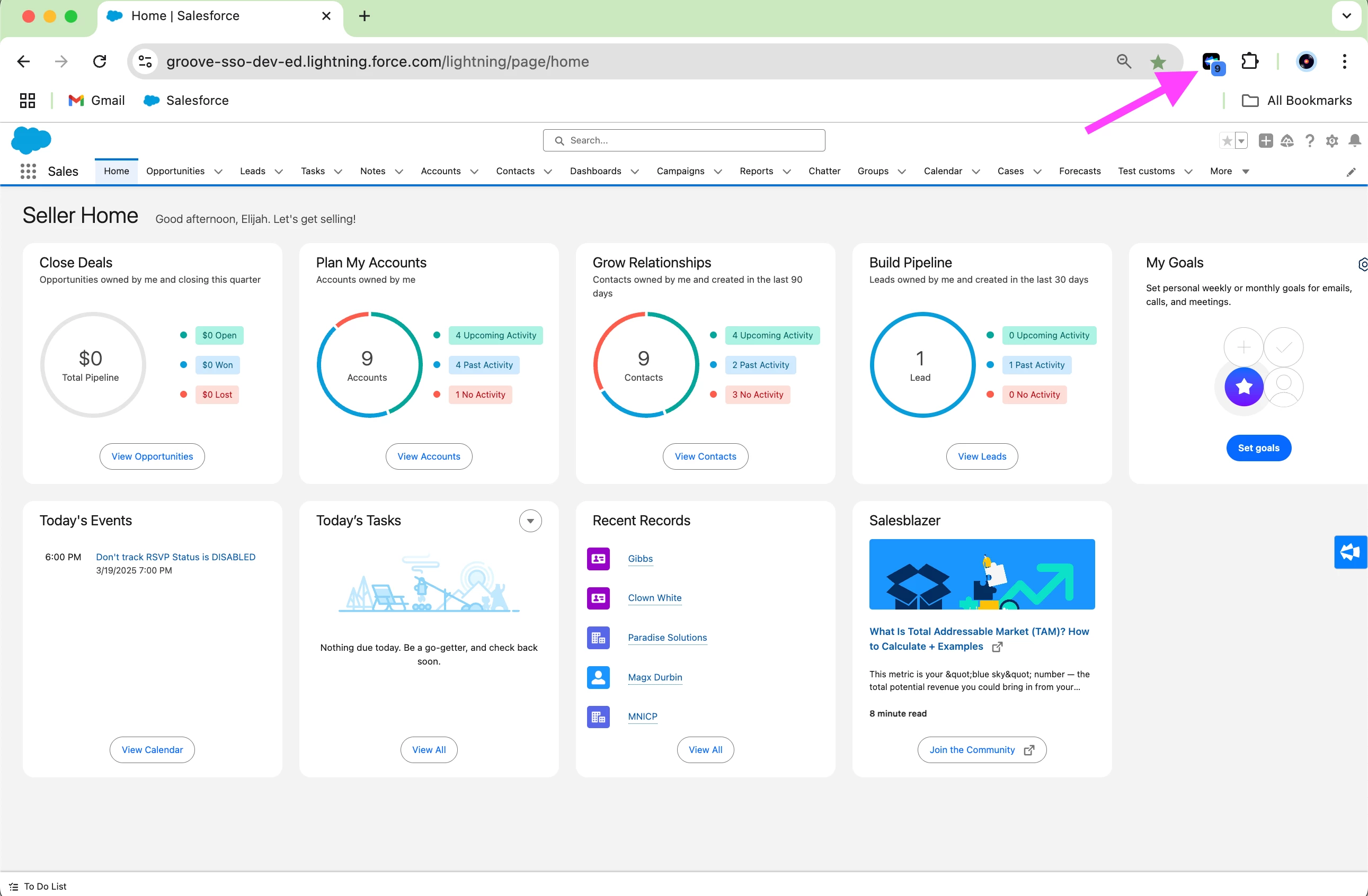
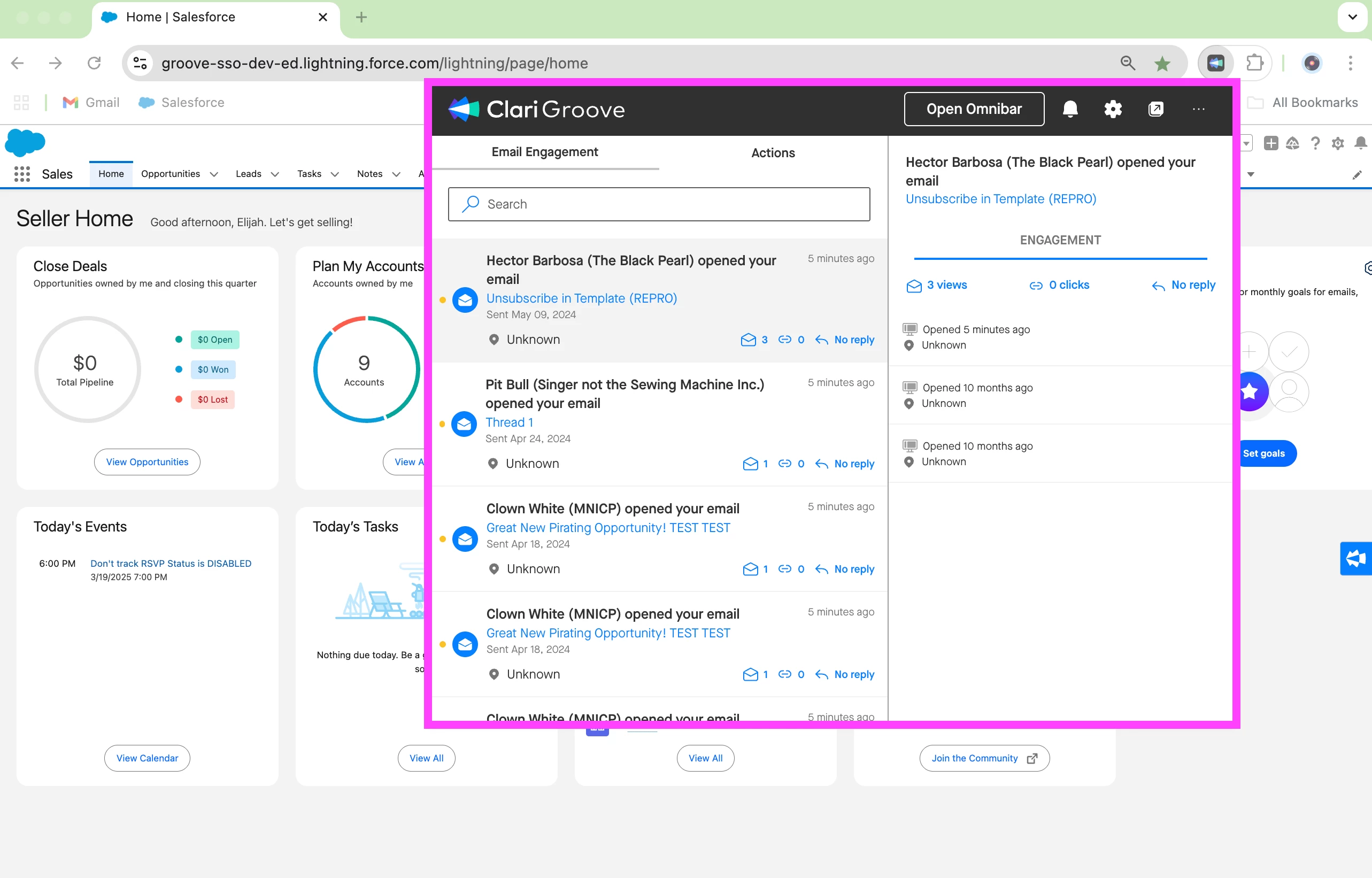
You can click on the Groove Chrome extension to open up the Notification Hub, which is where you can view additional details on exactly who has been interacting with your tracked emails and when those interactions happened.
Email Open Tracking with the Omnibar
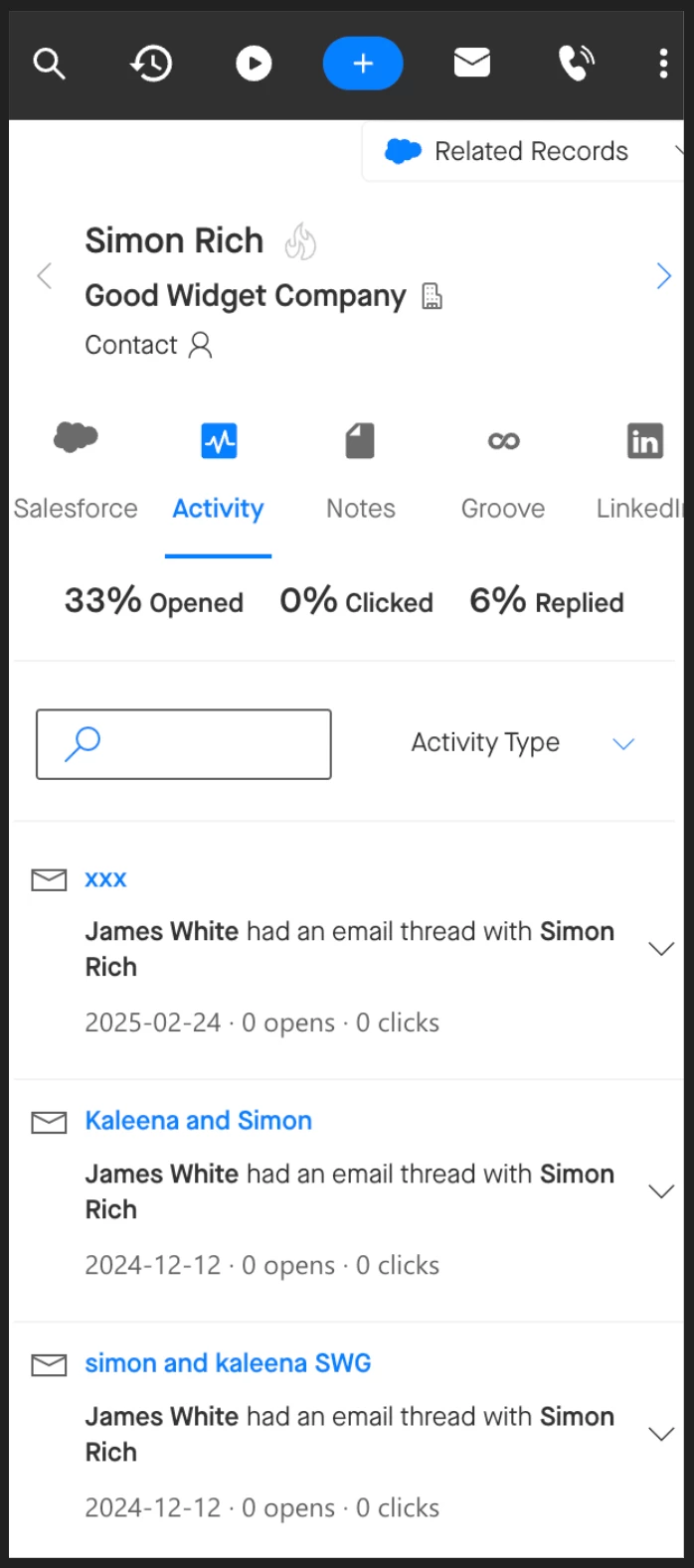
The Omnibar meets you where you’re working. Whether you’re in your inbox or the Groove web application, just as a few examples, the Activity tab will allow you to see past email opens, clicks, and replies associated with an account or contact.
Email Open Tracking in Salesforce
If you’re logging your tracked emails back to Salesforce, the Task records for your emails will be stamped with their email tracking metrics. This data is stored in the [Times Opened], [Times Clicked], [Last Opened Date], and [Replied] fields. You can review this data when looking on individual Tasks, or pull them into Salesforce reports to view which emails are generating engagement and which aren’t.
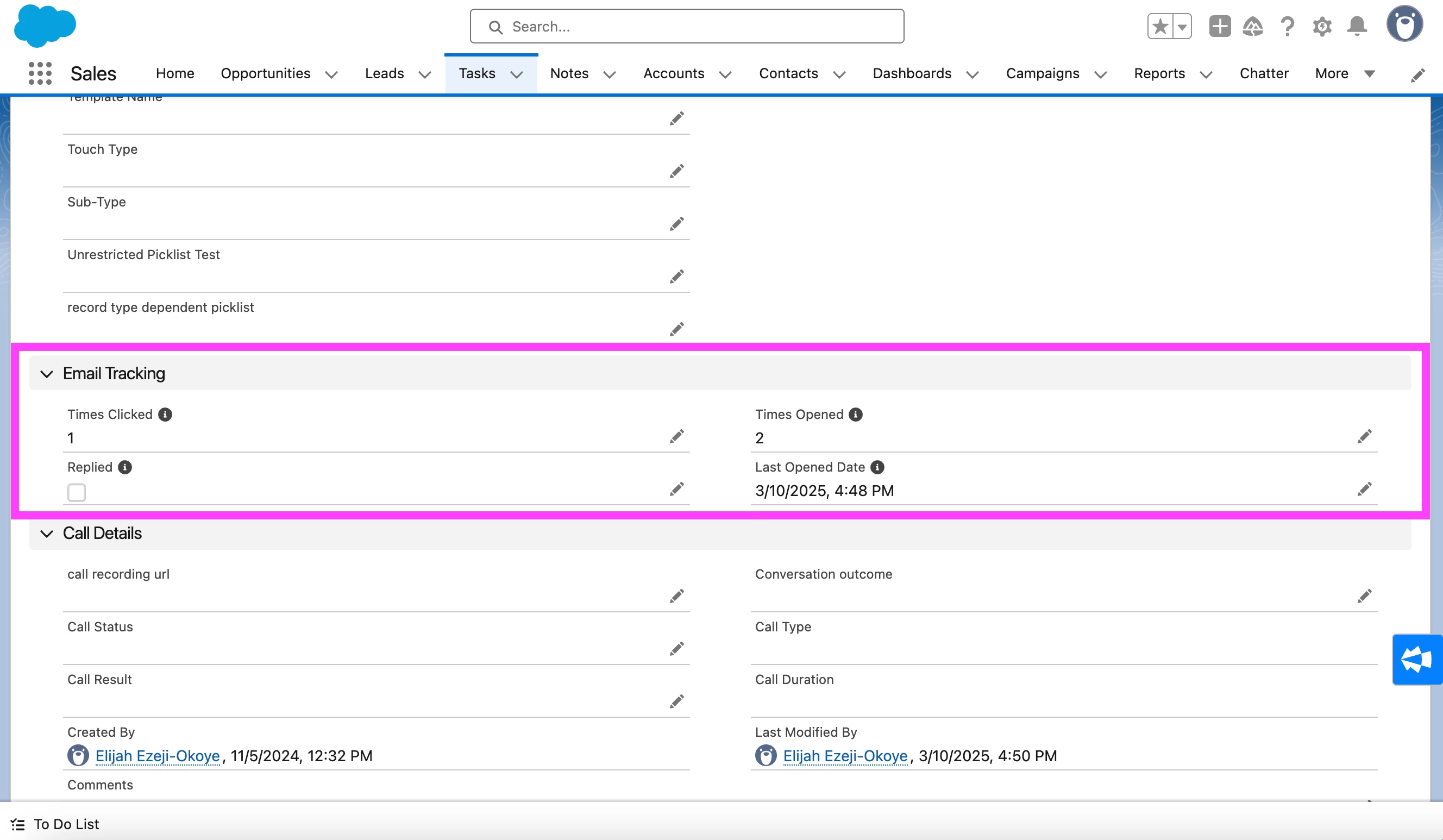
Note: If you don’t see these fields on the Salesforce Task record itself, they may not be added to your team’s Task Page Layout yet. Your team’s Salesforce admin can adjust the Task Page Layout to surface these fields where they make the most sense for your team.
If I click on a link in one of my own emails, will that count towards Groove’s email tracker?
No, if you click on your own link in an email you sent, it will not count as a touch or appear in your notifications. Tracking is based on the contact or lead you sent the email to. However, if your email is forwarded within a company, you may see more clicks as others engage with the link.
Is the email tracker notification count in Groove a cumulative total, or does it just count the notifications I haven’t viewed yet?
Regarding notification counts, once you click on a notification, it is marked as viewed. However, in places like the Omnibar, the count is cumulative, giving you a full summary of engagement over time.
Does email tracking count internal opens if someone forwards an email to colleagues within the same company domain?
No, Groove uses a block list that automatically excludes anyone with the same domain as you. This applies to both email opens and link tracking, as well as email and calendar logging. If an internal colleague clicks a tracked link or opens a forwarded email, those interactions won’t be recorded. This block list is built into Groove by default, so there’s no need for manual configuration.