




We recommend you take three quick steps when preparing to go out of office to ensure that nothing gets missed while you’re gone.
📅 Updating Scheduler Availability
Your Groove Scheduler link dynamically updates to reflect any events that are on the your Google or Outlook calendar. Before you head out of office, we recommend you add out-of-office or “busy” all-day events to your calendar for the days you’ll be away. Those days will then be blocked off on your Grove Scheduler link, preventing your prospects from booking a meeting with you on those days.
⏸️ Pausing Flow Actions
When you’re out of office, we recommend that you pause their Flows. While a pause is active, your Groove Flows will not advance, which will prevent your actions from being counted as “overdue” in Groove Analytics. Any auto-send emails that you have scheduled to send during a pause will also be safely re-scheduled to send after the pause ends, preserving the continuity of your outreach while ensuring no messages are delivered when you’re unavailable to handle potential replies. There are two types of pausing that can be configured in Groove.
Individual Pausing
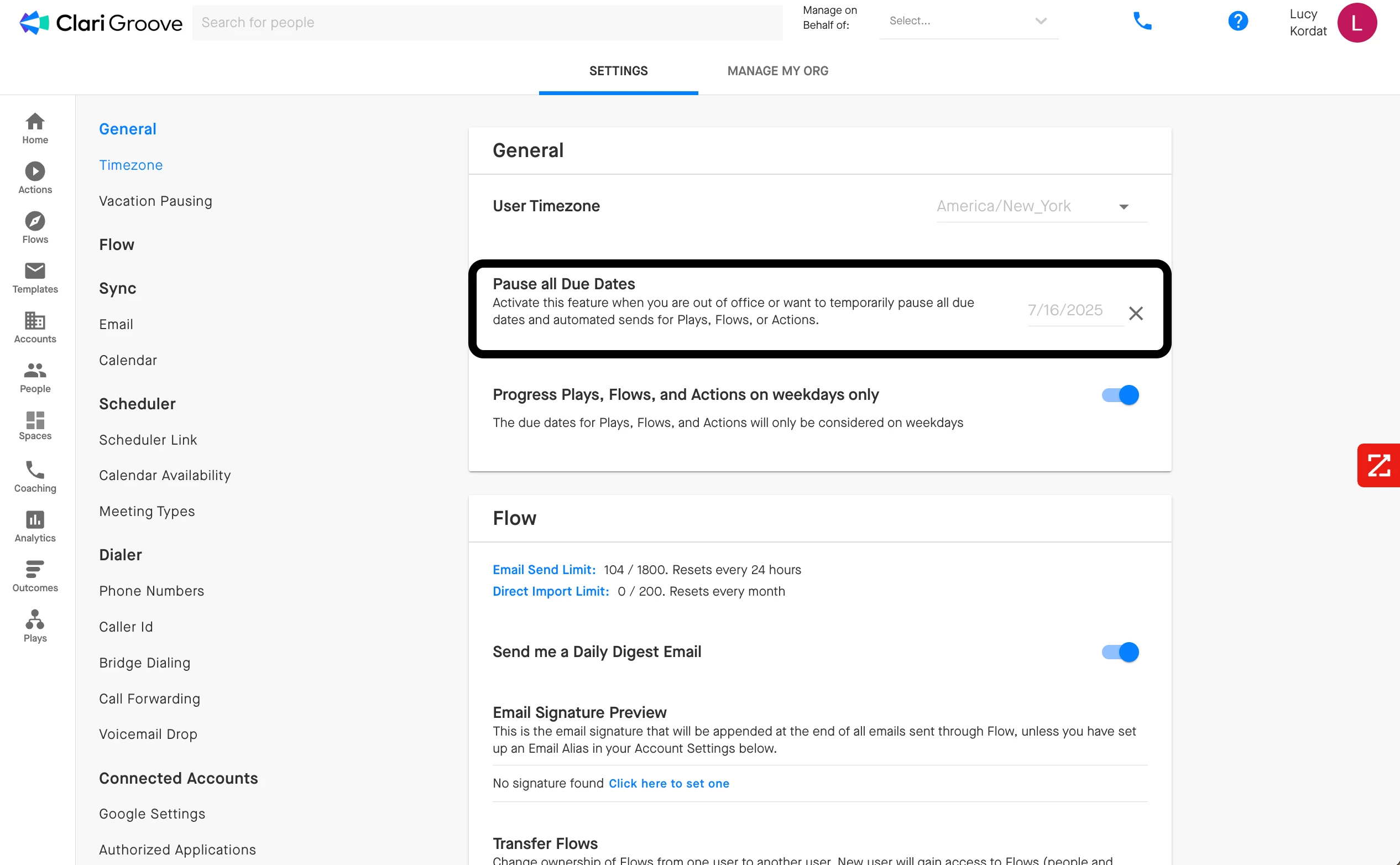
For an individual’s absence, users can activate the Pause All Due Dates feature in Groove Settings > General > Vacation Pausing. This type of pause will only pause the Flows and Actions that they manage, without impacting any other users at the organization. More information on individual pausing can be found in this guide.
Global Pausing
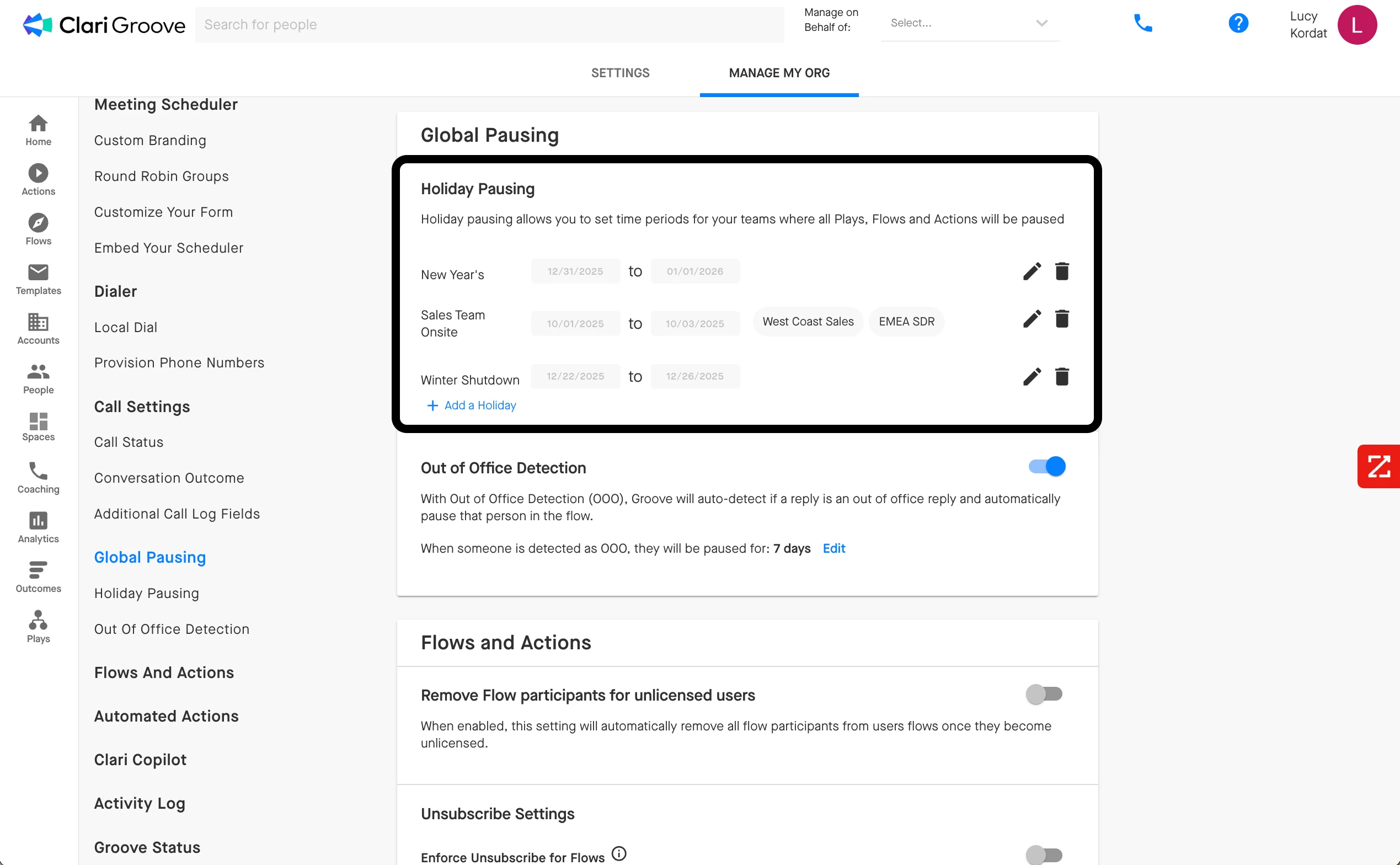
For organization-wide holidays, admins can configure global pauses that apply to larger groups of users from Manage My Org > Global Pausing > Holiday Pausing. This ensures no Groove Actions become due while users are off. These holiday pauses can be configured to apply to specific Groove Teams or to all users at the organization. More information on Holiday Pausing can be found in this guide.
👤 Reassigning High-Priority Prospects
We recommend working with your manager to have your high-priority prospects and Flows reassigned to a teammate who can cover for you while you’re out. When prospects are transferred to a teammate, your teammate will be able to continue their Flow outreach from where you left off. This step can help maintain the continuity of your planned outreach schedule while you’re away so that you don’t have to fret about hot prospects going cold.
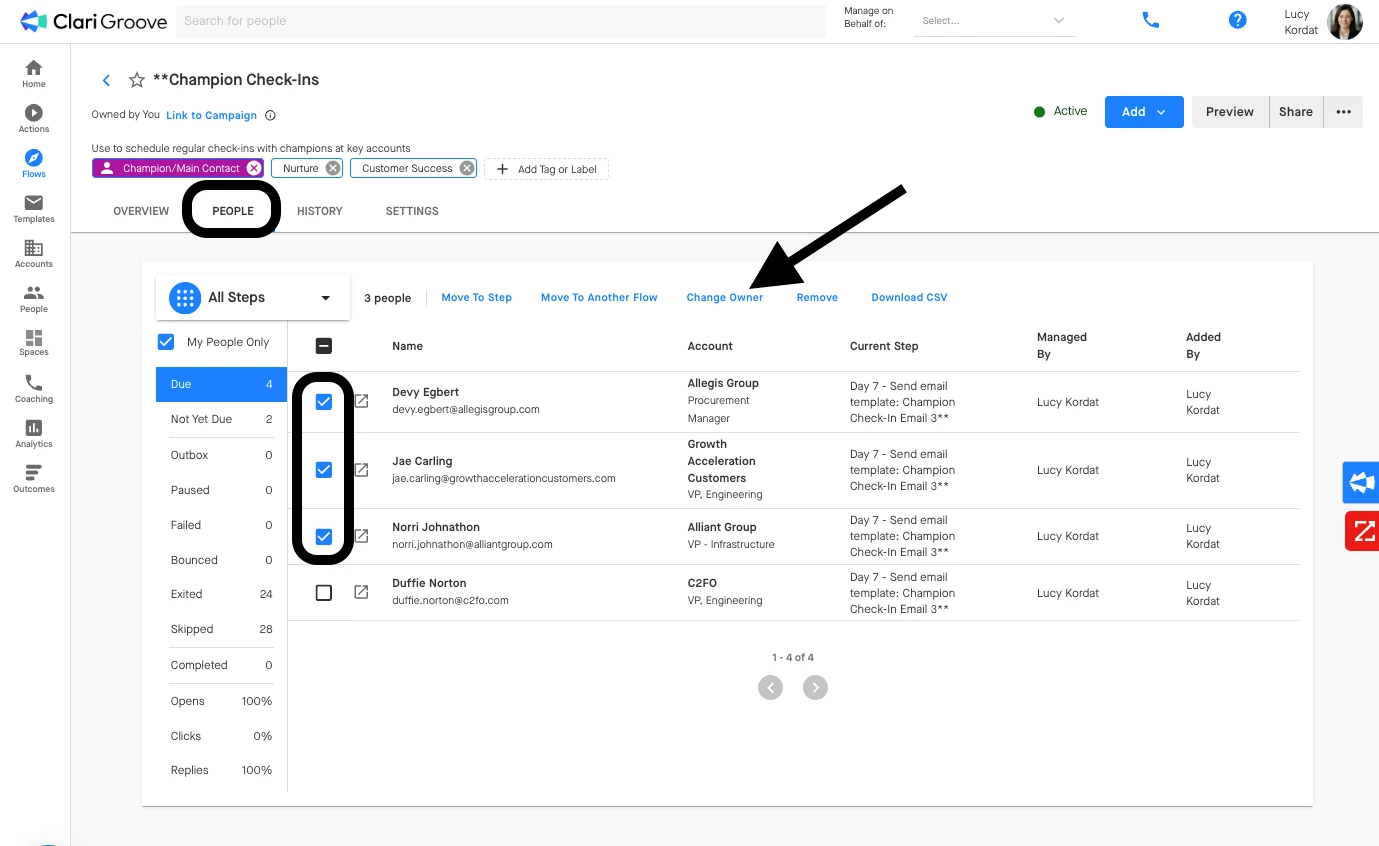
Your Groove Team Lead or Groove Admin can help you transfer your prospects to a teammate through the following steps:
- Click into the Flow that contains the prospects
- Navigate to the “People” tab of the Flow
- Check the box to the left-of the prospects you want to transfer
- Press the “Change Owner” button
- Select the user to whom you want to transfer the prospects
- Confirm the transfer
If the prospects have not completed the Flow by the time you return, your Groove Team Lead or Groove Admin can transfer them back into your ownership through the same steps. Learn more about the Flow Owner Transfer in this guide.