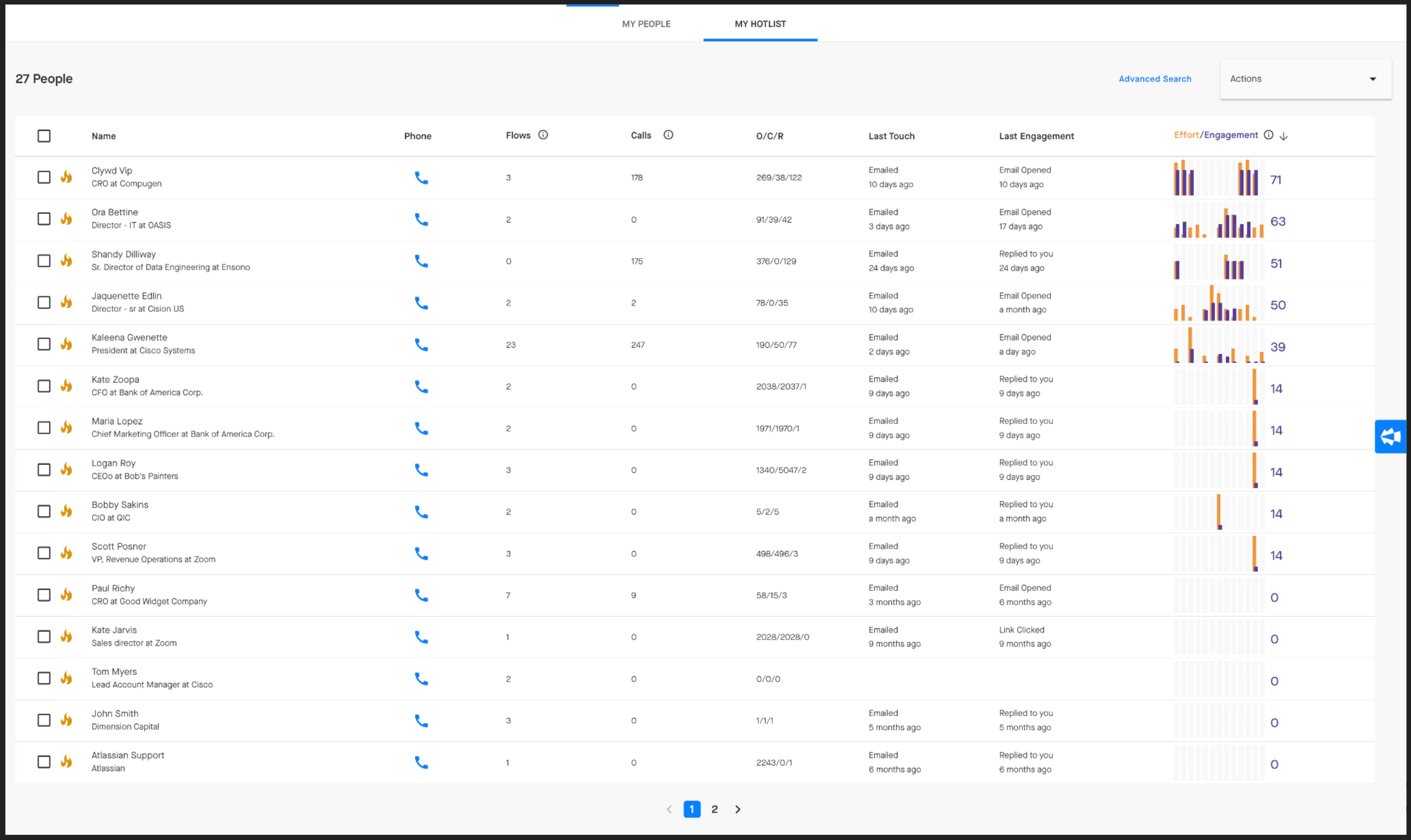



There are a few ways that you can put the right people into the right Flows.
If you're in an Account Space, you can click into any of those accounts.
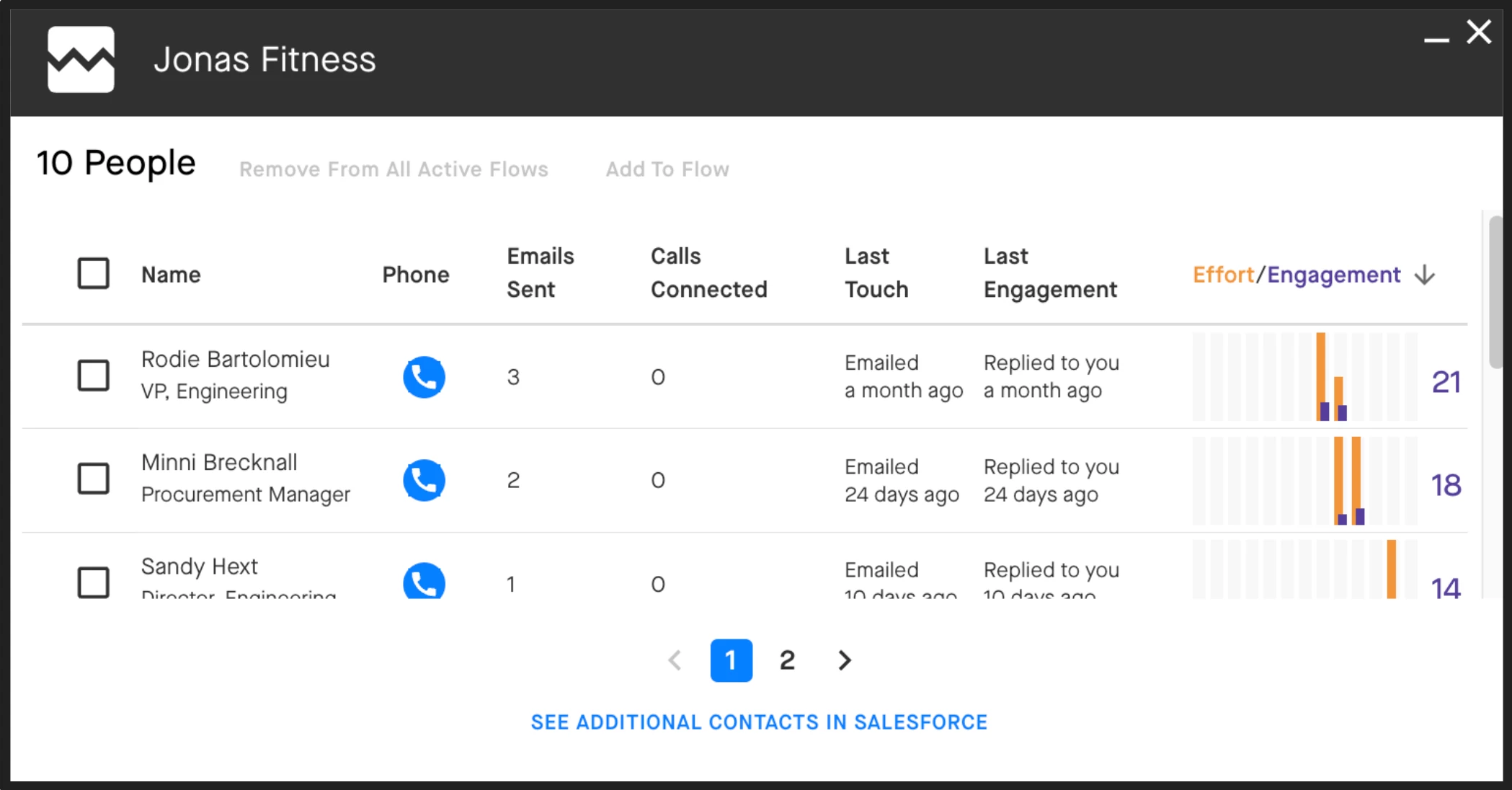
Within that Account, you’ll see who you have active in Flows currently, and you can see which additional contacts you might have in Salesforce that have not been contacted. If you’re looking at your accounts and account planning, for example, you can add people who perhaps have had some engagement in the past, but that you haven’t contacted in a while — drop them into an appropriate Flow directly from your Space.
To import any of the Contacts you see to a Flow, check the box to the left of their name(s), then click the 'Add to Flow' button at the top of the pop-up menu.
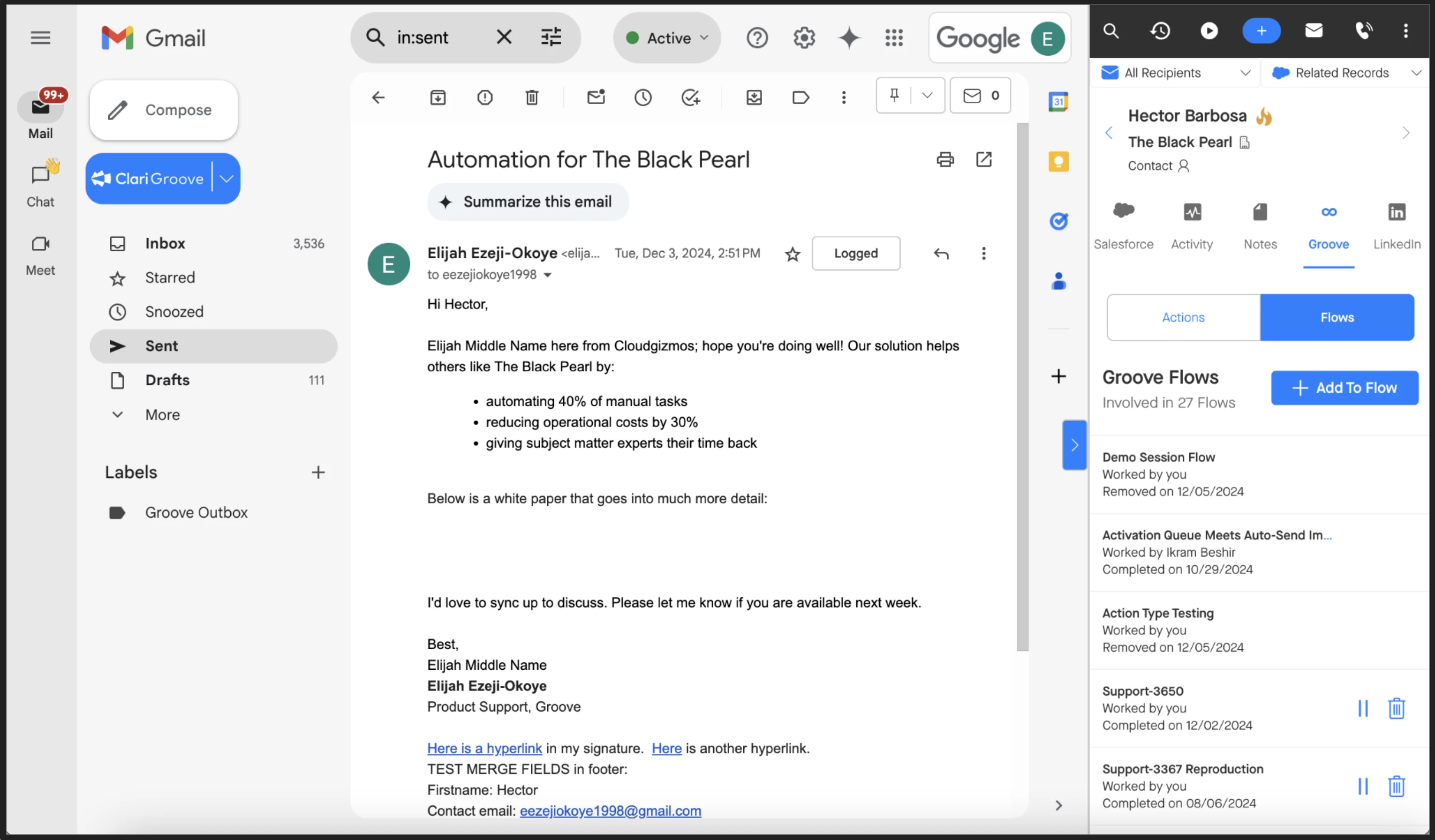
You can also import people into your Flows from your email inbox, Salesforce, or anywhere else you can see the Omnibar. To do this, click into the Groove tab of the Omnibar, select the 'Flows' option, then click the blue '+ Add To Flow' button. (screenshot attached below)
Hotlist your key Contacts and Leads to highlight their importance.
You can Hotlist a person by clicking the fire icon next to their name in the Groove People page, the Flow Workstep Execution page, or the Groove Omnibar. This is a good way to remind yourself to pay extra close attention to these contacts. To see all your hotlisted contacts in one place, select the My Hotlist tab at the top of the People page.