Meeting recordings are essential for modern business, but compliance doesn't have to be complicated. Here's everything you need to know about setting up and customizing Copilot's Consent Page to protect your organization while creating a seamless experience for participants.
Why Consent Pages Matter
The Bottom Line: Copilot's recording consent page appears before participants join meetings, ensuring your recordings are legally compliant from the start. See how it works here.
This explicit consent approach is considered best practice for organizations serious about privacy and transparency.
Flexibility When You Need It: Beyond the consent page, Copilot offers email and audio consent options, so you can choose what works best for your team's workflow. Read more here.
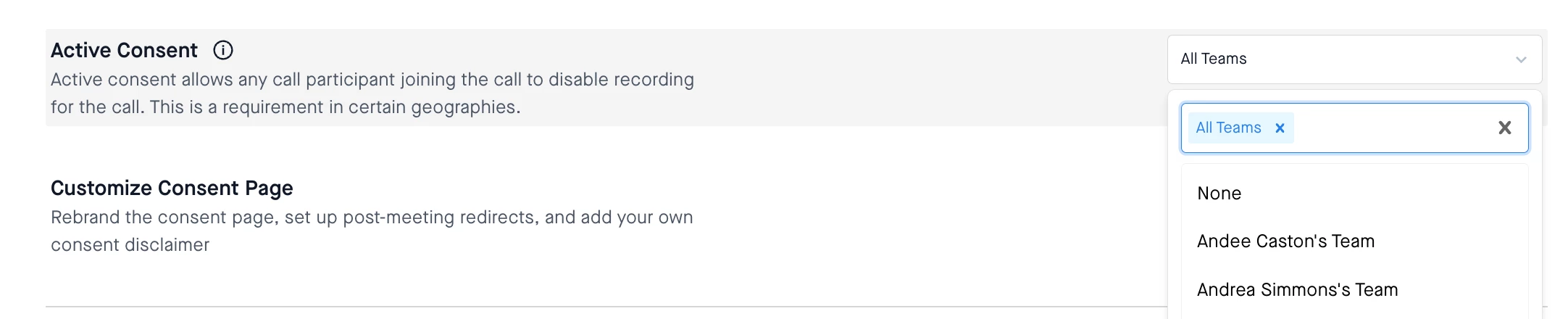
Advanced Compliance: Active Consent
Operating in regions with strict privacy laws? Copilot's "active consent" feature gives participants the power to stop recordings before joining the call. This extra layer of control can be crucial for international organizations navigating complex regulatory landscapes.
Schedule Meeting Link Replacement: Timing is Everything
Before diving into customizations, it's important to understand when your consent page goes live. Copilot replaces your original meeting links with consent page links at a time you control:
Timing Option
10 minutes before
15 minutes before
30 minutes before
60 minutes before
This timing flexibility ensures participants have adequate notice while maintaining your meeting flow.
💡 Customization That Actually Matters
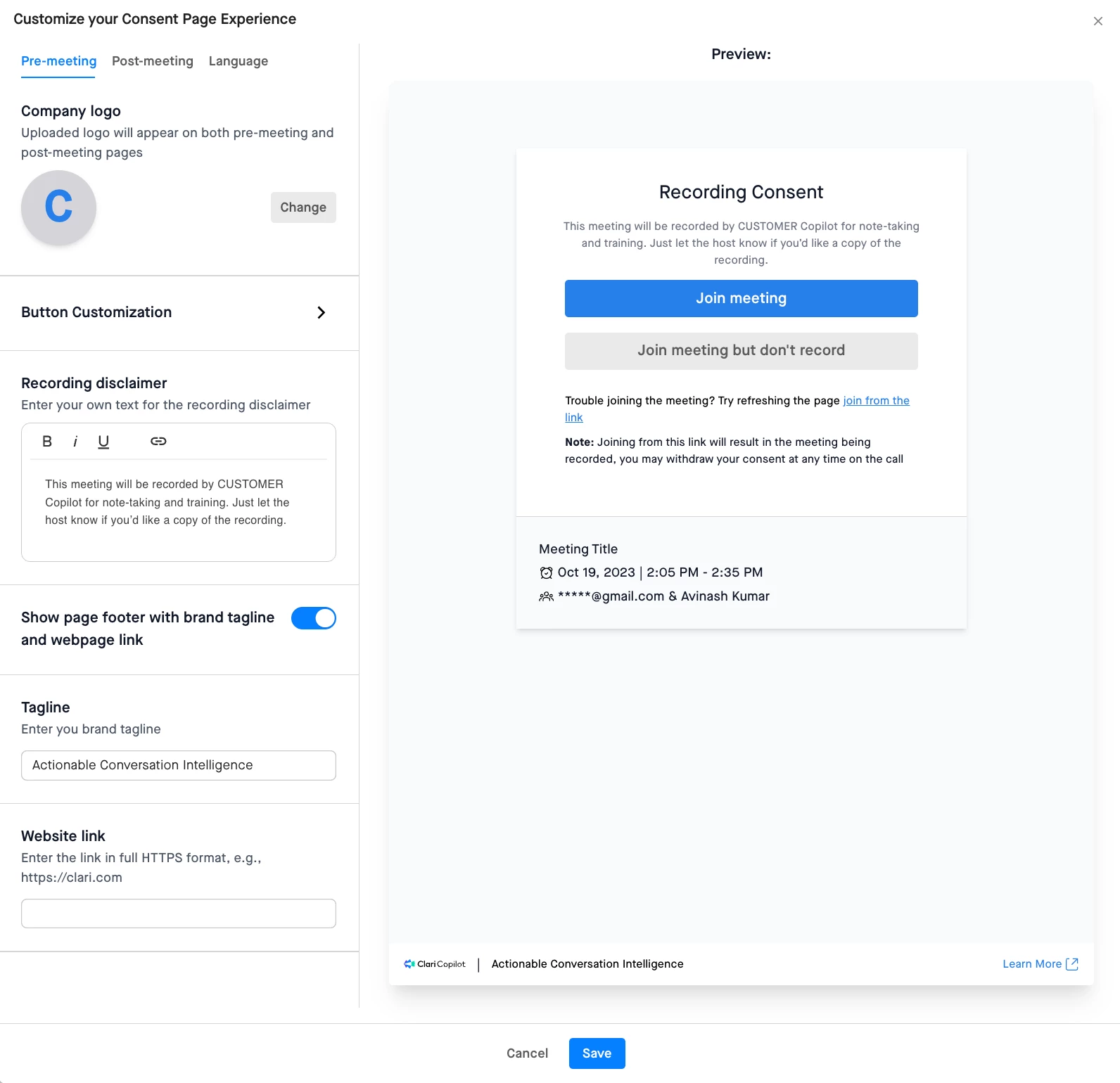
Here's where Copilot shines: full customization to match your brand and communication style. Admins control these settings, and if you don't see the options mentioned below, reach out to Support.
Customize text colors (hex codes) and button backgrounds
Match your brand colors perfectly
Recording Disclaimer
Write custom text in your voice
Clear communication in your company's tone
Brand Footer
Add tagline and website link
Unified brand experience
Example Disclaimer:"This meeting will be recorded by [Your Company] for note-taking and training purposes. Contact the host if you'd like a copy of the recording."
Real-Time Preview: See your changes instantly as you build your consent experience.
📄 Post-Meeting: Close the Loop
Option
Description
Benefit
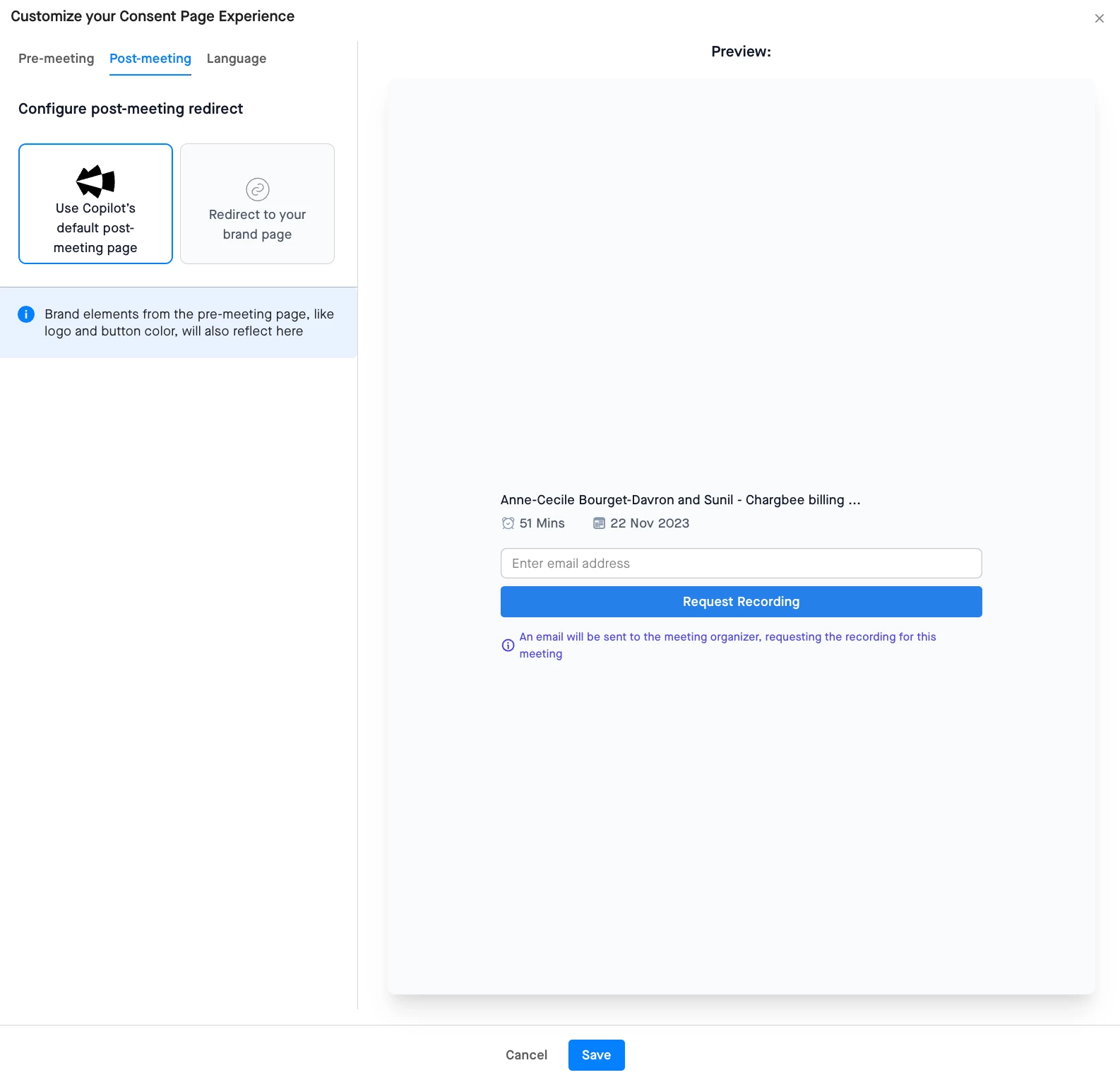
Copilot Default Page
Use the standard post-meeting page
Quick setup, no additional configuration
Custom Brand Page
Redirect to your own URL
Complete control over the participant experience
Brand Consistency
Logos and colours carry over automatically from your settings on the Pre-meeting page
Seamless brand experience
Note: The post meeting page opens up when a participant clicks on “Join meeting” button on the consent page.
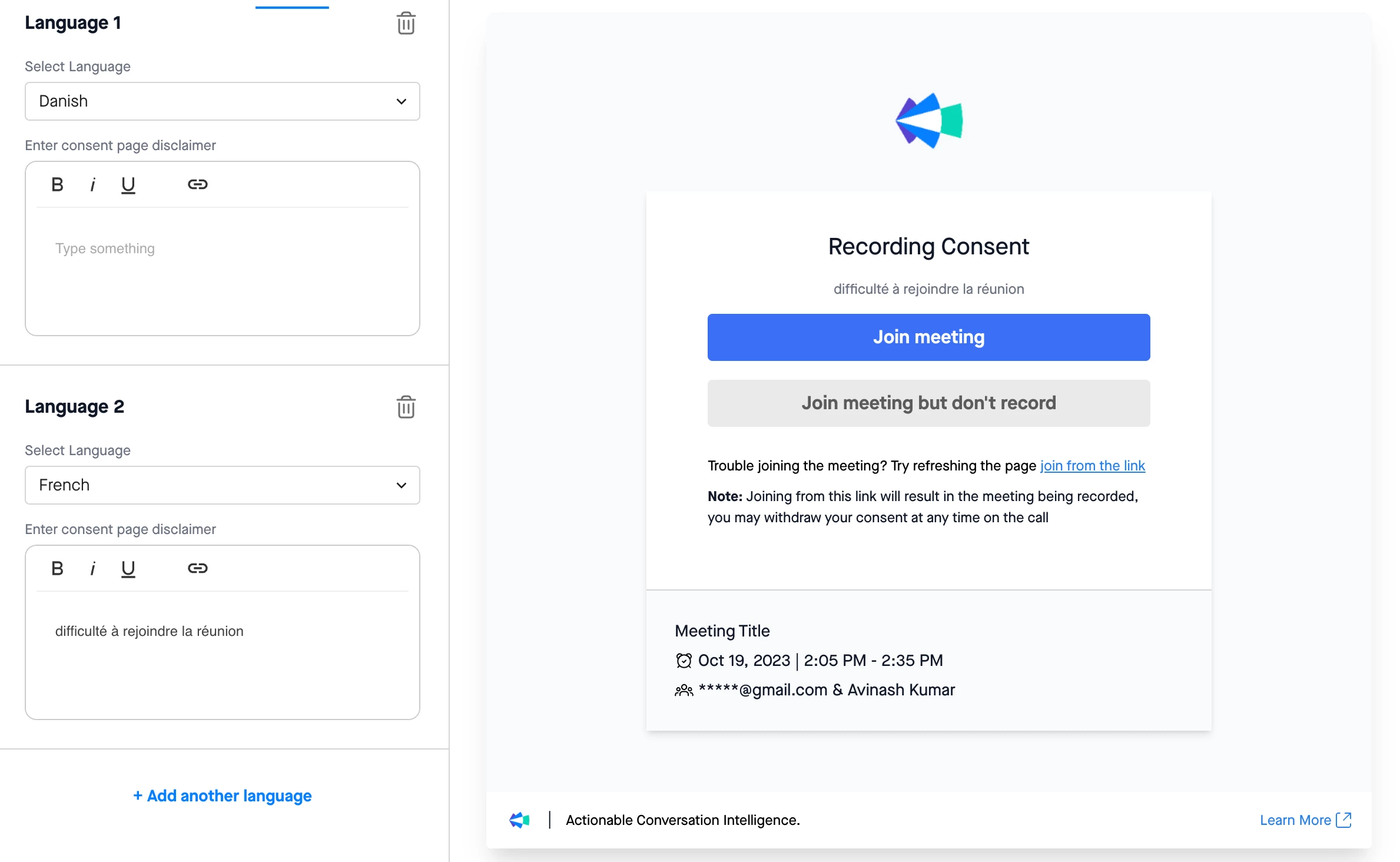
🌍 Multi-Language: Global Ready
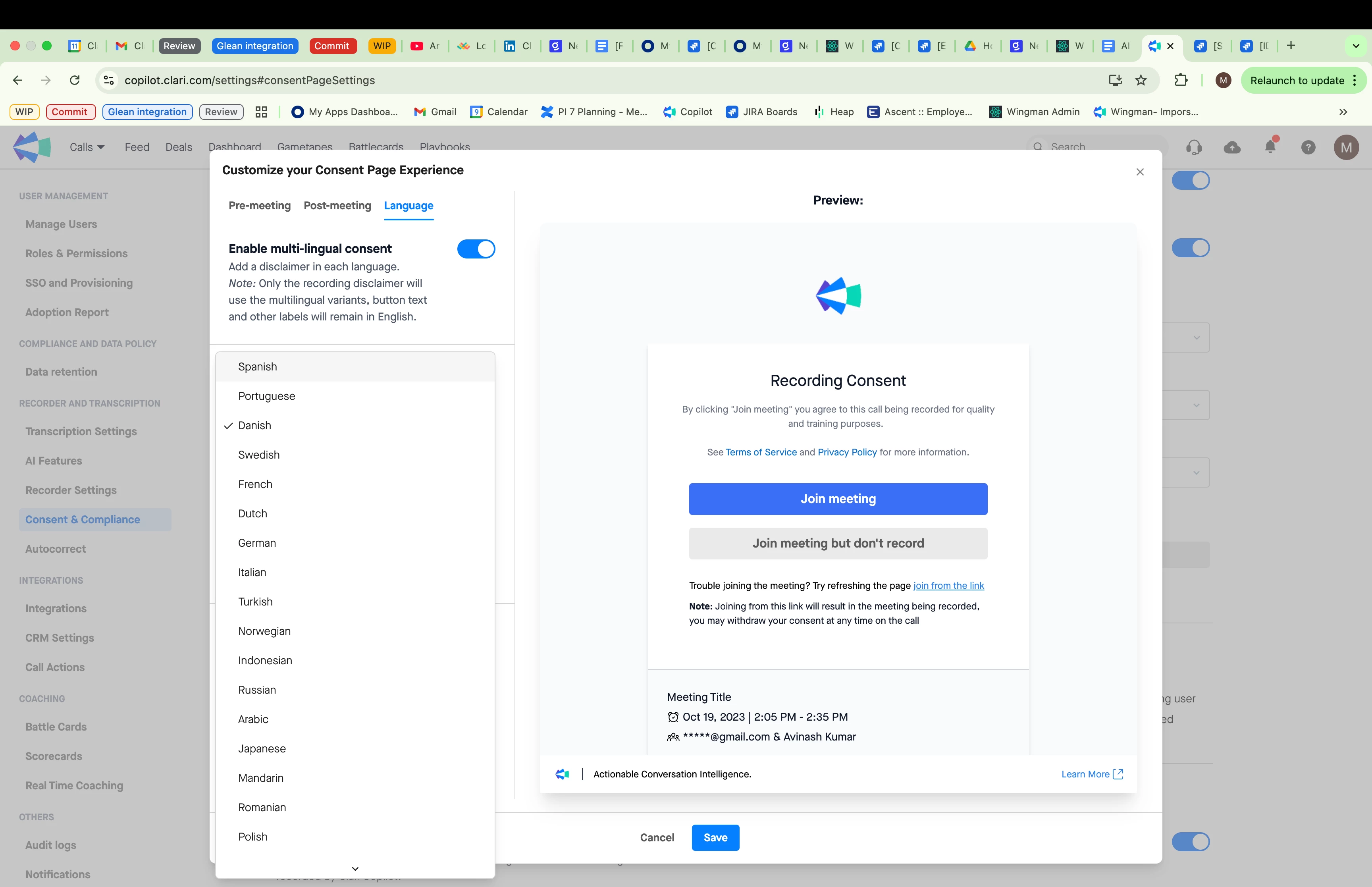
Configure consent pages in multiple languages for international teams. Because compliance should speak everyone's language.
Note: Copilot will showcase the recording disclaimer in the respective language based on the participants browser language settings.
🛎 Pro Tips for Success:
Tip
Action
Start Simple
Begin with logo and basic colors
Test Everything
Use preview feature extensively
Document Process
Keep record of customization choices
Stay Compliant
Consult legal team when uncertain
Ready to Get Started?
A well-configured consent page protects your organization while creating a professional experience for meeting participants. With Copilot's customization options, you can maintain brand consistency while ensuring compliance.
📌 Implementation Checklist
Based on the current interface, here's the correct order:
Step
Task
1
Access Workspace Settings
2
Navigate to Consent Page Settings
3
Enable Consent Page (toggle on)
4
Set meeting link replacement timing
5
Click "Customize Consent Page"
6
Upload logo and customize branding
7
Create custom disclaimer text
8
Test with preview feature
9
Roll out to your teams
Questions about setup or need help with customization? Drop them in the comments below or reach out to Clari Support directly.
Sign up
Please create your account below.
Clari customers and employees with an app.clari.com login can click the first blue Log in button below.
Align, Copilot, or Groove customers, Clari Partners, or other guests can enter a username and password below to log in.
Please reach out at community@clari.com if you need any help to log in.