

Copilot's notification system ensures you stay informed about critical call activities, feedback, and team interactions. Whether you prefer Slack, Microsoft Teams, or email alerts, this guide will help you configure the perfect notification setup for your workflow.
🚀 Why Set Up Notifications?
Stay in the loop with:
- Real-time alerts for call activities and team feedback
- Instant notifications when calls are shared or viewed
- Timely updates for scoring and collaboration
- Customizable alerts that match your workflow
📱 Notification Channels Overview
Slack & Microsoft Teams
Real-time notifications in your preferred workspace
Email Notifications
Comprehensive updates delivered to your inbox
🎯 Quick Start: Choose Your Notification Style
👤 I'm a Recording User - Focus on call activities
Essential notifications to enable:
- ✅ Post-call alerts (call summaries, action items, smart follow-ups & update CRM fields)
- ✅ Pre-call alerts (get ready for upcoming calls using the right context)
- ✅ Scoring & Coaching feedback (stay informed on feedback & performance)
👥 I'm an Admin - Manage org-wide settings
Key configurations to set up:
- ✅ Slack/Teams integration
- ✅ Call sharing policies
- ✅ Notification preferences
- ✅ Call actions
🎭 I'm a Manager - Monitor team engagement
Recommended notifications:
- ✅ Onboarding status updates
- ✅ Filter alerts for key criteria
- ✅ Coaching feedback
🔧 Step-by-Step Configuration
Slack & Microsoft Teams Setup
📞 Call Activity Notifications
| Notification Type | Who benefits | How to Enable |
|---|---|---|
| Post-call alerts | Recording Users | Recording User: Preferences/Profile Settings → Call Actions Admin: Workspace Settings → Call Actions → Toggle On |
| Pre-call alerts | Recording Users | Recording User: Preferences/Profile Settings → Call Actions Admin: Workspace Settings → Call Actions → Toggle On |
🤝 Engagement Notifications
| Notification Type | Who benefits | How to Enable |
|---|---|---|
| Call sharing views | Recording Users | Admin: Workspace Settings → Call Sharing User: Set when sharing individual calls |
| Scoring & feedback | Recording Users | Admin: Workspace Settings → Notifications |
| Comment tagging | All Users | Admin: Workspace Settings → Notifications |
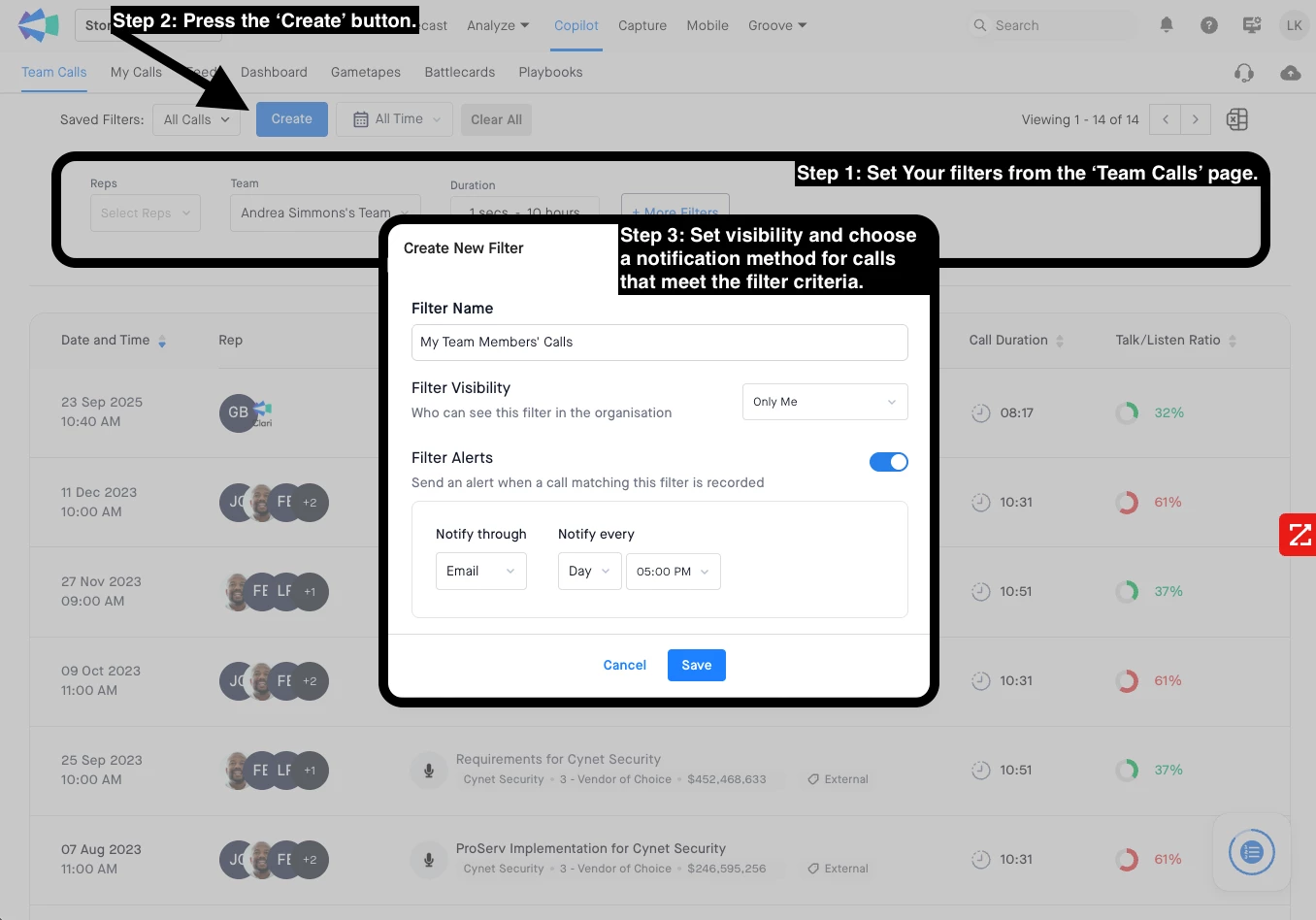
| Smart filter alerts | All Users | Creator(all users): Configure in filter settings(Team calls page) |
📧 Email Setup
📞 Call Activity Emails
| Notification Type | Who benefits | How to Enable |
|---|---|---|
| Post-call emails | Recording Users | Recording User: Preferences/Profile Settings → Call Actions Admin: Workspace Settings -> Call Actions -> Toggle On (common setting for Slack/MSTeams/Emails) |
| Pre-call emails | Recording Users | Recording User: Preferences/Profile Settings → Call Actions Admin: Workspace Settings -> Call Actions -> Toggle On (common setting for Slack/MSTeams/Emails) |
🤝 Engagement Emails
| Notification Type | Who benefits | How to Enable |
|---|---|---|
| Call sharing views | Recording Users | Admin: Workspace Settings → Call Sharing User: Set when sharing individual calls |
| Scoring & feedback | Recording Users | Admin: Workspace Settings → Notifications |
| Comment tagging | All Users | Admin: Workspace Settings → Notifications |
| Smart filter alerts | All Users | Creator(All users): Configure in filter settings (Team Calls page) |
📚 Onboarding & Management
| Notification Type | Who benefits | How to Enable |
|---|---|---|
| User onboarding | All Users | Admin: Workspace Settings → Notifications User: Profile Settings → Notifications |
| Manager onboarding status | All Users | Admin: Workspace Settings → Notifications |
🎯 Configuration Paths at a Glance
🔧 Admin Dashboard Routes
- Workspace Settings → Call Actions (for call alerts)
- Workspace Settings → Call Sharing (for sharing notifications)
- Workspace Settings → Notifications (for scoring, tagging, onboarding)
👤 User Profile Routes
- Profile Settings/Preferences → Call Actions (for personal call alerts)
- Profile Settings/Preferences → Notifications (for personal preferences)
📱 Call-Level Setup
- Individual Call → Share → Configure notification preferences
🚨 Troubleshooting Quick Fixes
- Not receiving Slack/Teams notifications? → Check if admin has completed integration setup
- Missing email notifications? → Verify both admin and user settings are enabled
- Filter alerts not working? → Review filter criteria and ensure proper permissions
If you face any other challenge feel free to reach out to our Support Team.