




Clari at its core is Opportunity-centric in its function - but what do we do when we want to Forecast and run our revenue platform on Splits Mode?
🎉 The good news is that Clari does support the Split Mode Functionality! 🎉
However, there are some caveats that we will want to cover to ensure that we are not double counting and we are rolling up accurate numbers while leveraging the Split Mode functionality. This guide will cover the basic rudiments necessary to get this mode up and running properly in YOUR Clari platform!
—
- In Clari Studio’s Field Configuration, go to ‘Create New Mode’ and under ‘Standard Mode’ select ‘Splits.’
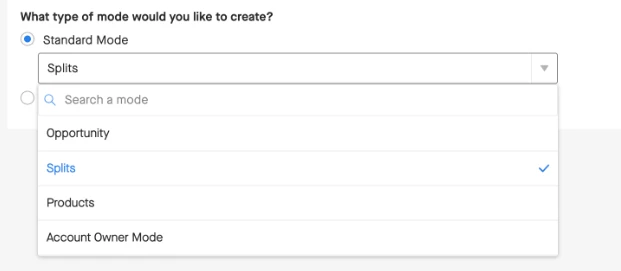
- The first part of creating a mode will be to have a User Role field. If we are going off of the Out of the Box Splits object in SFDC (which is our recommendation), we can go off the field – opportunitysplit.owner as our main User Role field.
- The second part we will need is an amount field. We highly recommend leveraging the Out of the Box Split amount field, which is opportunitysplit.amount. This will be the amount we can use to allocate the appropriate split amount to each split owner on the Opportunity.
- The third part, and perhaps the most important part, is needing a Split Label. We recommend leveraging the opportunitysplit.splittype.masterlabel. This will allow us to determine who gets what split when we are leveraging the Clari Splits Mode. One quick tip is to create a “Revenue” Split and an “Overlay” Split, as an example seen below. It doesn’t always have to be 100% split all ways – should we have multiple sales reps on the opportunity, for example, we could go 60% and 40%, as an example, depending on your needs 🙂
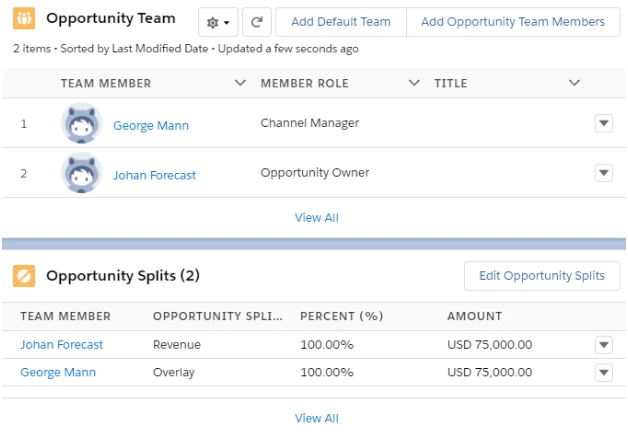
After, we can create several saved views, but always remember to ensure that we have the correct Split Label set up! This can ensure we don’t double count the amounts on our rollup fields. Should you have any additional questions, please don’t hesitate to reach out to our CSM Team on the Support Portal.