



Note: This guide provides an overview of Smart CRM Suggestions and how it helps maintain accurate CRM data. For detailed setup and configuration instructions, please refer to our complete configuration guide.
Say Goodbye to Manual CRM Updates 👋🏻
Let's face it – keeping your CRM data accurate and up-to-date is essential but often tedious. Smart CRM Suggestions changes that by automatically capturing key deal information from your sales conversations and making CRM updates quick and painless.
Why You'll Love Smart CRM Suggestions ❤
✅ Maintain Better CRM Hygiene
Keep your CRM data clean, complete, and up-to-date without the manual effort. Smart CRM Suggestions ensures critical fields are populated with accurate information from actual conversations.
✅ Gain Complete Deal Visibility
AI helps identify key details like decision criteria, economic buyers, and next steps – ensuring nothing falls through the cracks and giving you comprehensive deal insights.
✅ Enhance Your Deal Reviews
Walk into deal reviews fully prepared with all fields populated. Focus on strategy instead of scrambling to update basic information.
✅ Update From Anywhere
Whether you're in Copilot reviewing a call or checking notifications in Slack, updating your CRM is just a click away.
Updating Your CRM is Now Super Simple ✌🏻
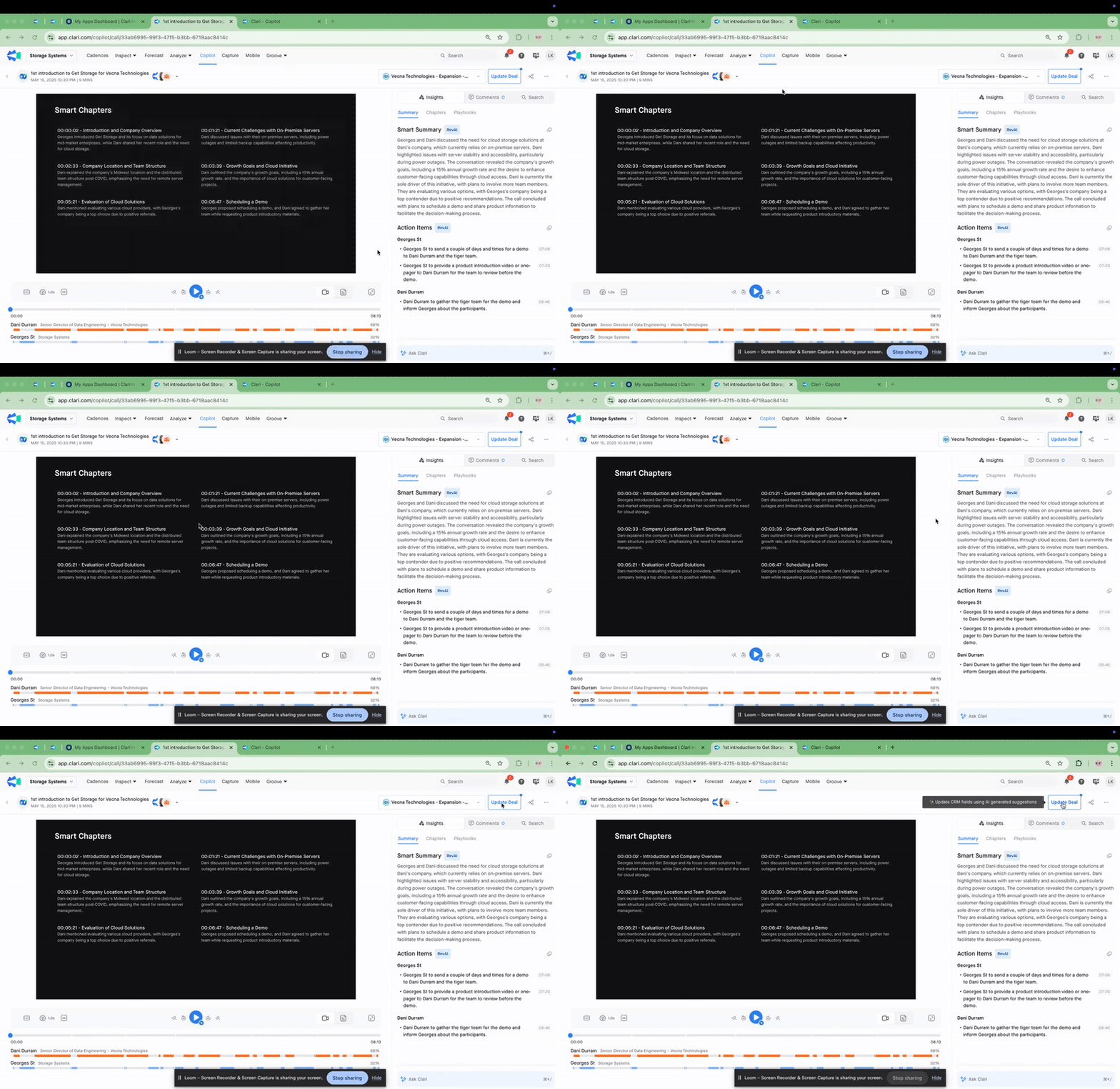
From Copilot (After Your Call):
- Go to "Call Review" in Copilot
- Select "Update Deal"
- Review the AI suggestions, make any edits (Smart Merge/Append)
- Click on “Push to CRM” to update Salesforce instantly
From Slack (On the Go):
Received a Slack notification after your call? Great! Just:
- Click "Update Deal" at the bottom of your Smart Summary
- Choose which field group to update
- Review, edit if needed, and accept


Known feature request from customers: Microsoft Teams integration for updating CRM Suggestions. No defined timelines to share yet.
Make Deal Reviews Actually Productive 🤘🏻
With Smart CRM Suggestions keeping your deal data current, Clari deal reviews transform from data collection exercises to strategic discussions:
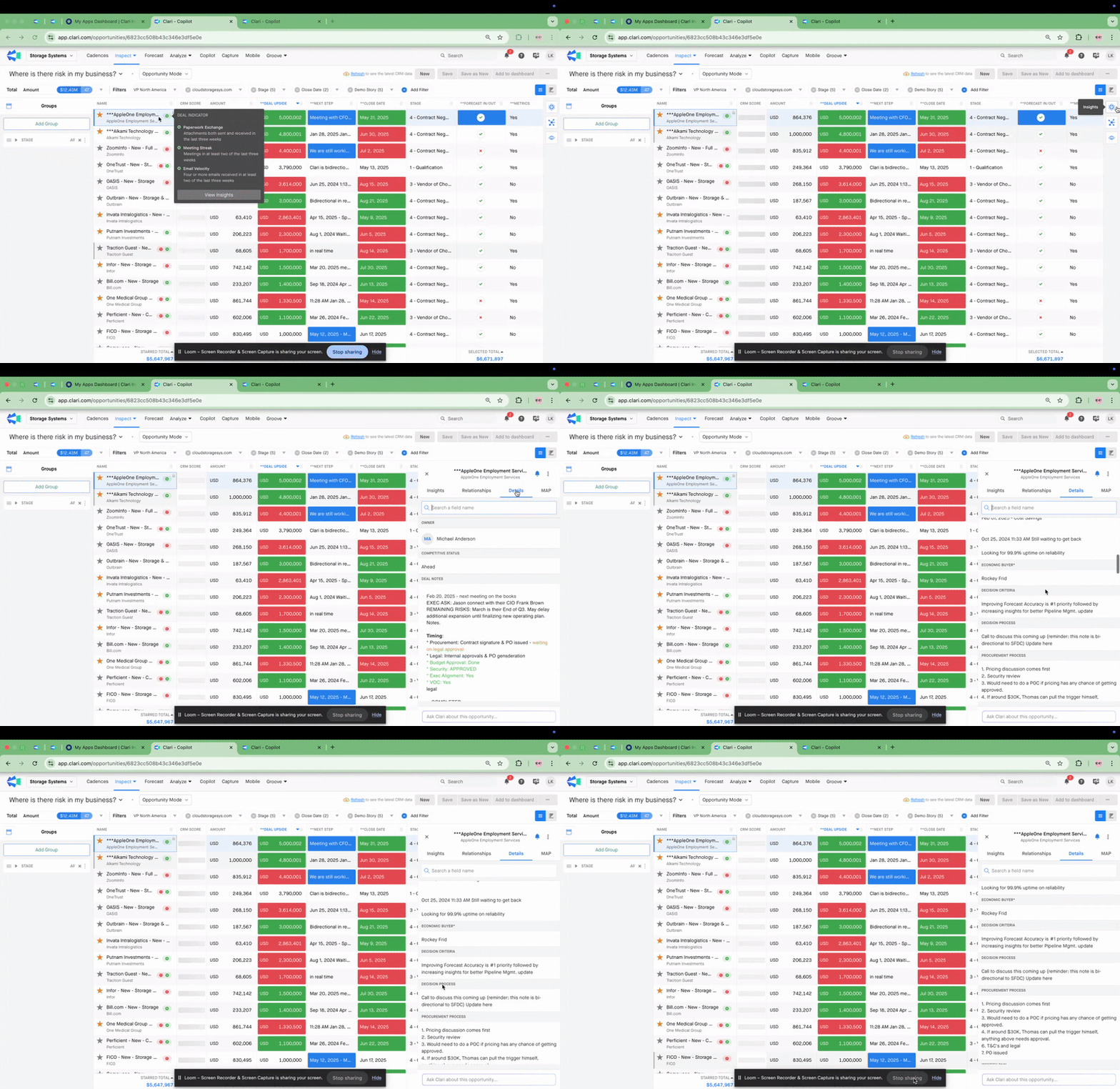
- Open your opportunity in Clari
- Open up the Insights panel → Click on the “Details” tab
- See/review all fields update via the above CRM Suggestions workflow at a glance
- Spend your valuable time discussing strategy, not hunting for basic information
Who Benefits? 😇
Sales Reps: Dramatically reduce administrative time and focus on what you do best – selling!
Managers: Coach more effectively with complete deal information and standardized data across your team.
Revenue Leaders: Make confident decisions based on accurate data and improve forecast precision.
Getting Started 🔎
- Confirm your admin has enabled Advanced AI Features in Copilot’s Workspace settings
- Configure the Smart CRM Suggestions
- Start using Smart CRM Suggestions after your next call
- Review the AI suggestions and approve updates
- Watch your CRM data quality improve immediately!
Pro Tips for Smart Field Setup 🎯
Quick Setup Checklist:
✅ Use clear field names (e.g., "Next Steps" not "Future Plans")
✅ Write detailed descriptions with context
✅ Include real conversation examples
✅ Focus on what customers say, not reps
✅ Test and refine regularly
Key Success Factors:
- Data Safety: Your existing CRM data is preserved - new info gets appended, not overwritten
- Smart Grouping: Create different field groups for different deal stages
- Quality Focus: Better to have fewer, well-defined fields than many generic ones
- Character Limits: System alerts you before hitting field limits - no data loss surprises
Troubleshooting Field Accuracy 🔧
If your Smart CRM fields aren't extracting the right information, here's how to fix it:
Problem: Getting sales rep commentary instead of customer insights
Solution: Rewrite your field description to focus on the customer's voice
- Instead of: "Timeline" → Use: "What timeline did the customer mention for their project?"
- Instead of: "Budget discussed" → Use: "What budget range did the customer share?"
Problem: Extracting irrelevant information
Solution: Be specific about what you want captured
- Add context: "What did the customer say would happen if this problem isn't solved?"
- Use keywords: Include terms like "customer mentioned," "prospect said," "client indicated"
Problem: Missing information from calls
Solution: Check if the customer actually spoke about that topic - if they didn't mention it, the AI can't extract it
Available Fields: 21 pre-built fields are ready to use (MEDDIC, BANT, competitive analysis, and more). Refer to the guide below 👇 to learn more.
Need more details on configuration options or advanced features? Our complete Smart CRM Suggestions configuration guide provides step-by-step instructions for admins and users.