




Overview
When a Copilot call finishes processing, Copilot automatically creates a Task in Salesforce
How to Find if Copilot pushed a call to Salesforce?
For a given call in Copilot:
- Open the Call Review page.
- In the right-hand CRM Info panel, look for the Salesforce section.
- If the call has been pushed, you’ll see “Logged to CRM” plus an arrow icon (at the right corner) that opens the Task directly in Salesforce.
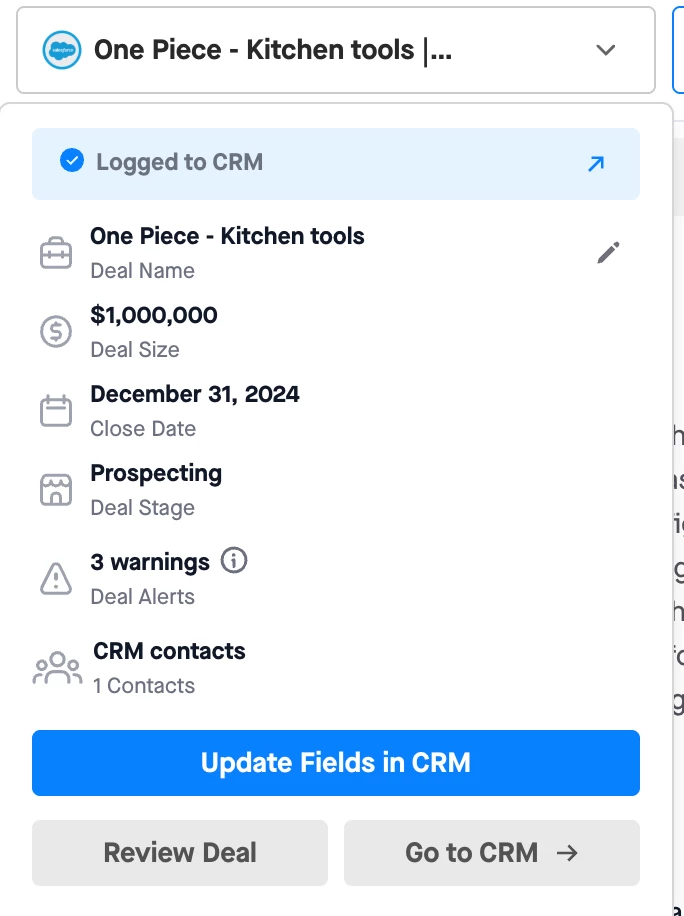
- If “Call Not Pushed to Salesforce” appears, the Task was not created.
Fields Automatically Pushed to Salesforce (Default)
These are the out-of-the-box Task fields Copilot populates without any additional CRM writeback configuration (i.e., what we push apart from any custom-mapped fields):
- WhoId
- What it is: SFDC Name Field (Contact).
- Value: Contact matched from external meeting attendees.
- WhatId
- What it is: SFDC Related To field (non-person object).
- Value priority:
- Opportunity linked to the external attendee(s) on the call
- If none, Account
- This drives where the Task appears in Opportunity/Account activity timelines.
- OwnerId
- What it is: SFDC Task owner.
- Value: Internal Primary Rep on the call (user with highest talk time).
- Subject
- What it is: Task subject/title.
- Value: Copilot call title/meeting name (e.g., calendar subject).
- Description
- What it is: Task Description/Comments.
- Value:
- Copilot recording link
- Smart Summary
- Action Items/Next Steps
- TaskSubtype
- What it is: Task Subtype field.
- Value: Always Call for Copilot-logged activities.
- Purpose: Lets you filter and report specifically on Copilot call Tasks vs. other Task types.
Additional Fields via CRM Writeback Mapping
Admins can map Copilot call properties to Salesforce Task fields under Workspace settings > CRM Settings > Salesforce CRM writeback.
Common Copilot fields that can be mapped to Task fields include:
- Topics Discussed (multi-picklist)
- Competitors Mentioned (multi-picklist)
- Attendees
- Reps
- Call Time
Behavior notes:
- Copilot shows only Task fields of compatible data types in the mapping dropdown (e.g., Copilot text > SFDC text/text area; multi-picklist > multi-picklist).
- Fields must be editable in SFDC for Copilot to see them in the dropdown.
To manually locate the Task in SFDC:
- In Salesforce, go to Tasks (or create a Task report).
- Filter on combinations like:
- Subject contains the call title/meeting name.
- Description contains “Recording available in Clari Copilot” or the Copilot call URL.
- Subtype = Call.
- Created By = your Copilot integration user.
- Once you find the Task, open it to see all Copilot-pushed fields (summary, action items, topics, competitors, etc., depending on writeback mappings).
Copilot - When Calls Are Not Pushed to Salesforce
This guide documents the common scenarios where Copilot does not create or update a Salesforce Task for a call, what you typically see in the UI, and how admins can resolve the issue.
Recording user/primary rep not present in Salesforce
Condition
- The recording user or primary rep on the call does not exist as a Salesforce user (or is inactive). At least one user on the call must exist in both Salesforce and Copilot for the event to be logged successfully.
What you see
- UI may show errors like Inactive / missing SFDC user or other owner-related errors.
How to fix
- Ensure the recording user / primary rep has an active Salesforce user record.
Email address mismatch between Copilot and Salesforce
Condition
- The user’s email address is different in Copilot vs Salesforce (for the same person).
What you see
- Calls are not pushed to Salesforce.
- Typical UI error: Inactive / missing SFDC user (because the mapping by email fails).
How to fix
- Align the email address for the user in Salesforce and Copilot, or
- Ask an admin to contact the Copilot Support team to add a secondary email for that user.
- Once the secondary email is added, the writeback should start working after 24 hours.
External contact not added to the calendar invite
Condition
- The call has no external contact added to the calendar invite (only internal attendees).
- Alternatively, the external person joined, but their email was never on the invite.
What you see
- The call is processed in Copilot, but no Task is created in Salesforce.
- No error is shown in the Copilot UI for this specific case.
How to fix
- Always add the external contact as a participant on the calendar event before the call.
- Ensure the external email address is correct and not internal-only
External contact not linked to an Account or Opportunity in Salesforce
Condition
- The external participant’s email is present in the call attendee list, but the Contact is not linked to the correct Account or Opportunity
What you see
- Copilot processes the call, but no Task is created or linked as expected.
- No error is shown in the Copilot UI for this case.
How to fix
- Make sure the external contact is:
- Created in Salesforce before the call and
- Properly linked to the Account and/or Opportunity you expect the call to log against.
Important: Ensure these relationships exist before the call start time. Copilot does not retroactively re‑push calls based on later Salesforce changes.
Salesforce-side blocking via Validation Rules or Automations
Condition
- Salesforce Validation Rules, Flows, Triggers, or other automations reject the Task that Copilot is trying to create/update.
What you see
- Copilot tries to write the Task, but Salesforce blocks it.
- Typical UI error: FIELD_CUSTOM_VALIDATION_EXCEPTION.
How to fix
- In Salesforce, review:
- Validation Rules on the Task object.
- Any Flows, Triggers, or Apex that run on Task insert/update.
- Confirm that:
- Required fields enforced by validation are either filled by Copilot or have safe defaults.
- No rule is unintentionally blocking integration-created Tasks.
- Adjust or add exceptions to the validation rules (for example, skip validation for the integration user, if appropriate).
Permission issues for the integration user
Condition
- The Salesforce user used by Copilot (integration user or mapped user) does not have create/update permissions for required Task fields.
What you see
- Task creation/update fails.
- Typical UI error: INSUFFICIENT_ACCESS_ON_CROSS_REFERENCE_ENTITY.
How to fix
- In Salesforce, ensure the integration/mapped user has at least:
- Read/Write access to the Task object.
- Edit permission on the specific fields Copilot updates (see the list below).
- Access to any related records referenced via WhoId and WhatId.
Copilot needs edit/write access to these Task fields in Salesforce. If any of these are read‑only or restricted for the integration/mapped user, calls may fail to be pushed or updated:
- WhatId – Related To relationship (Account/Opportunity/etc.)
- OwnerId – Task owner (typically the primary rep)
- Status
- Subject
- Description
- TaskSubtype – Should allow subtype Call
- WhoId – Name relationship (Contact/Lead)
Apart from this, Copilot also needs to write permissions to the fields/custom fields that are mapped in Copilot’s settings.
Lead object limitations
Behavior
- Copilot does not write back to a Lead object today. If only lead is present in the call, the call will not get pushed to SFDC.
How to fix
- If possible, convert the lead to a contact before the call start time.
Multiple Salesforce user profiles
Condition
- A single user has multiple Salesforce user records in Salesforce.
- Copilot sees two different SFDC profiles for what is conceptually the same user.
What you see
- Calls may fail to write back, or ownership may not be assigned correctly.
- In some cases, Copilot may not push the call at all because it cannot safely resolve the mapping.
How to fix
- Consolidate to a single active Salesforce user per person wherever possible.
- Ensure there is one email address that matches the user’s Copilot email.
- Avoid having two active Salesforce users with the same person mapped in Copilot.
Quick Checklist for “Call Not in Salesforce”
When a Copilot call is not showing up in Salesforce, check in this order:
- Is the recording user / primary rep an active Salesforce user with matching email?
- Is there at least one external attendee on the calendar invite?
- Does that external attendee exist as a Contact and is it linked to the right Account/Opportunity?
- Are there any Task validation rules or automations that might block insert/update?
- Does the integration/mapped user have edit access to WhatId, WhoId, OwnerId, Status, Subject, Description, and TaskSubtype?
- Does the user have multiple Salesforce profiles/emails that could confuse the mapping?
Using this checklist should help you quickly identify why a specific call was not pushed and what needs to be fixed in Salesforce or Copilot configuration.